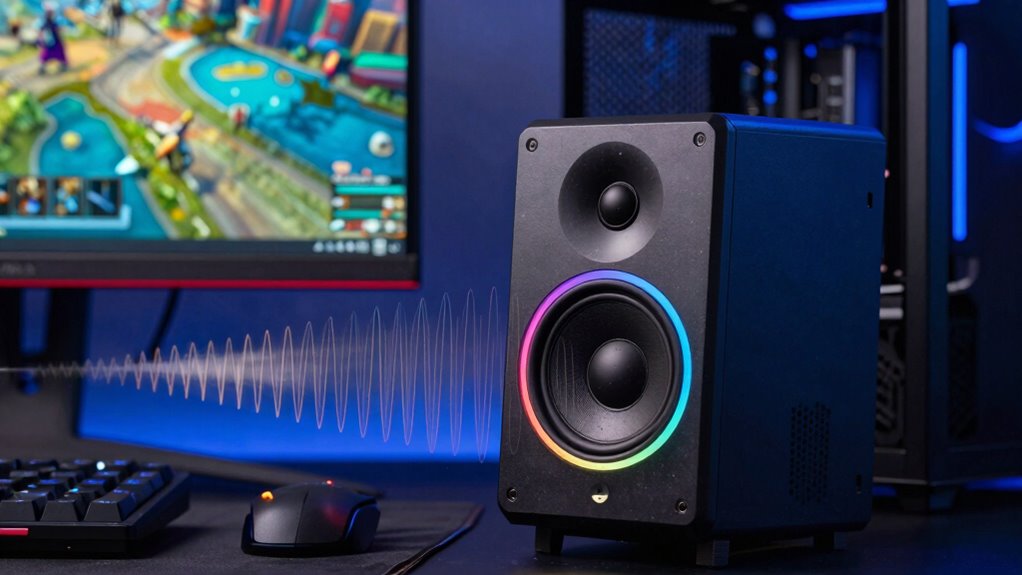

If game chat sounds thin through your speakers, start by checking your microphone and audio settings. Make sure your microphone is properly configured, and adjust gain and noise suppression features for clearer voice transmission. Use quality headphones or speakers with good sound construction and update your audio drivers regularly. Disable any unnecessary audio filters that may be muffling sound. For more tips on improving your voice chat quality, keep exploring solutions that can make your conversations fuller and clearer.
Key Takeaways
- Adjust your system’s sound settings to boost chat volume and balance game and voice audio levels.
- Enable or fine-tune audio enhancement features like equalizers and noise suppression for fuller voice output.
- Verify your microphone and speaker hardware are properly connected, functioning correctly, and updated with the latest drivers.
- Use dedicated gaming headsets or microphones with built-in audio enhancements for clearer voice chat.
- Test and calibrate your microphone and sound settings regularly to prevent thin or tinny voice sound issues.
If you’ve ever played a game and noticed that your chat through speakers sounds faint or tinny, you’re not alone. Many gamers experience this issue, and it can be frustrating when you’re trying to communicate clearly with teammates or enjoy immersive in-game conversations. The good news is, this problem often comes down to audio setup or microphone configurations that can be easily fixed with some adjustments. By focusing on audio enhancement and proper microphone setup, you can considerably improve the clarity and volume of your game chat.
First, consider your microphone setup. If your microphone isn’t configured correctly, it might not pick up your voice properly or transmit it with adequate volume. Check your device’s input settings in your operating system or gaming console. Make sure the correct microphone is selected as the default device. You also want to ensure that the microphone’s gain or sensitivity is appropriately set—not too low, which causes faint audio, or too high, which can introduce distortion. Many headsets or microphones have physical volume controls—use these to fine-tune your audio levels. Testing your microphone in a voice recording app can help you determine if it’s capturing your voice clearly and at the right volume. If you notice any issues, updating your microphone drivers or replacing faulty hardware might be necessary.
Check and calibrate your microphone settings for clearer in-game voice chat.
Next, look into your audio enhancement settings. Many gaming systems and PCs offer audio enhancement features that can boost voice clarity and overall sound quality. These features might include noise suppression, echo cancellation, or equalizer settings. Enabling or adjusting these can make your voice sound fuller and more natural through speakers. Also, make sure your in-game voice chat settings are optimized. Some games have their own audio controls—set the chat volume higher and disable any background noise filters that might be muffling your voice.
Another tip is to examine your speaker setup. Ensure your speakers are functioning correctly, connected securely, and set to appropriate volume levels. Sometimes, the issue isn’t your microphone but the speakers themselves. If your speakers are low quality or not positioned properly, even the best microphone setup can’t compensate for poor audio output. Adjust the speaker volume in your system settings and make sure the sound balance isn’t favoring game sounds over chat.
Finally, if you’re still facing issues, consider using a dedicated microphone or headset designed for gaming. These devices are built to enhance voice clarity and often come with software that allows for better audio enhancement. Additionally, exploring smart audio technology can help optimize your overall sound experience. Taking these steps will help you eliminate that thin or tinny chat sound, making your game conversations richer, clearer, and more enjoyable.

Golf Simulator Projector Cover - Floor Mounted Enclosure with Cooling Fan for Optimal Protection of Outdoor Golf Simulation Projectors - Compatible with Leading Golf Simulators and Projectors
✅【Economical Solution】The Golf Simulator Projector Cover offers a budget-friendly alternative to ceiling installations, allowing you to easily position...
As an affiliate, we earn on qualifying purchases.
Frequently Asked Questions
Can Adjusting My Audio Settings Improve Chat Clarity?
Yes, adjusting your audio settings can improve chat clarity. Focus on voice modulation to enhance how your voice sounds and guarantee it’s not too thin or muffled. Also, tweak your audio mixing to balance game sounds and chat audio, making voices clearer. Experiment with these settings to find the perfect balance, which will help you communicate better and enjoy a richer, more immersive gaming experience.
Does Using External Speakers Affect Chat Sound Quality?
Using external speakers can affect your chat sound quality if they’re not properly configured. To improve clarity, focus on sound balancing and voice modulation settings. Adjust your speaker volume and ensure your microphone levels are balanced for clear voice transmission. Investing in quality speakers with good sound reproduction can also make your chat sound richer and more natural. Properly tuning these settings helps avoid thin or muffled sound during game chats.
Are There Specific Hardware Issues Causing Thin Game Chat Sound?
Yes, hardware issues like hardware incompatibility or a microphone malfunction can cause thin game chat sound. If your microphone isn’t properly compatible with your console or PC, it might not transmit sound clearly, resulting in a thin or distorted audio experience through speakers. Check your connections, update your drivers, and test your microphone on other devices to identify and fix these hardware problems for better chat quality.
How Does Microphone Placement Impact Audio Clarity?
Your microphone placement directly impacts audio clarity by optimizing your microphone positioning and aligning it with your mouth. Keep the mic close but avoid blocking its pickup area, and aim for a consistent distance. Understanding your microphone’s pickup patterns helps too—cardioid patterns pick up more from the front, reducing background noise. Proper positioning guarantees your voice sounds clear and focused, improving overall game chat quality.
Can Software Updates Fix Game Chat Sound Problems?
Yes, software updates can fix game chat sound problems by improving voice modulation and reducing chat latency. Updates often include bug fixes and enhancements that optimize audio processing, making your voice clearer and more synchronized with in-game actions. Regularly check for updates and install them promptly. This guarantees your game chat sounds fuller, eliminates echo or delay issues, and enhances overall communication, giving you a better gaming experience.

Projector Dust Cover for Ceiling Video Projector at Home or Outdoor Installation, Waterproof Dustproof Protection Case, 14"x14"x 9"
Ultimate Protection: waterproof cover protects your video projector from dust, scratches, and water damage or other possible factors...
As an affiliate, we earn on qualifying purchases.
Conclusion
If your game chat sounds thin through speakers, it’s likely due to audio settings or hardware limitations. Try adjusting your in-game voice settings, make sure your speakers are properly connected, and check for any audio enhancements. Using a quality microphone or headset can also improve clarity. Don’t dismiss the theory that speaker quality impacts sound; upgrading your audio gear often makes a noticeable difference. With these tweaks, you’ll enjoy richer, fuller game chat without the thin sound.

Projector Dust Cover,Projector Cover Outdoor Case Protective,Dust-Proof,UV-Resistant,Moisture-Proof,Fit for Ceiling Video Mounted Equipment Enclosure Oxford,Cloth Drawstring(13.7" X 13.7" X 8.6")
【Projector Dust Cover Material and Design】: Mainly made of waterproof elastic Oxford cloth, with a sturdy and durable...
As an affiliate, we earn on qualifying purchases.

Projector Dust Cover,Fit for Ceiling Mounted Projector and Universa Projector Waterproof,Dust-Proof, UV-Resistant Cover Oxford Cloth,Dimensions13.7" x 13.7" X 8.6"
Projector dust cover: Protect the projector surface from damage. Keep the projector clean and prevent it from being...
As an affiliate, we earn on qualifying purchases.