When you increase sharpness, you enhance image details but risk creating halos—bright outlines around objects—that make images look unnatural. On 4K screens, these halos become more noticeable, reducing overall quality instead of improving it. Too much sharpness can distort the natural appearance and introduce artifacts that distract the eye. To get the best results, start with gentle settings and find a balance. Keep exploring to learn how to optimize your display for stunning clarity.
Key Takeaways
- Excessive sharpness creates halos, artificial outlines around objects, especially noticeable on 4K screens.
- Halos result from over-processing, making images look unnatural and diminishing overall quality.
- 4K displays reveal fine details and flaws, amplifying the visibility of sharpening artifacts.
- Gentle, natural sharpness adjustments prevent halo formation and preserve image realism.
- Balancing sharpness settings according to content type minimizes artifacts and enhances visual clarity.
Understanding sharpness settings is crucial for getting the best image quality from your display or camera. When you adjust sharpness, you’re fundamentally controlling how crisp and detailed the image appears. This setting plays an important role in image enhancement, which aims to improve visual clarity and make images look more defined. However, too much sharpness can backfire, creating unwanted artifacts like the infamous ‘halo’ effect, especially noticeable on high-resolution screens like 4K displays.
Adjusting sharpness enhances detail but beware of halos and artifacts, especially on 4K screens.
When you increase sharpness, you’re emphasizing edges and fine details, which can make images pop. But if you go overboard, this enhancement introduces artificial outlines around objects—these are the halos that can make your picture look unnatural. Instead of improving clarity, excessive sharpness can distort the image, causing it to seem overly processed or harsh. The halo effect is particularly problematic on 4K screens because they reveal every detail, including the flaws created by sharpness overshoot. This makes the artificial outlines more prominent and distracting, ultimately reducing the overall visual quality.
To avoid this, it’s best to adjust sharpness carefully. Start with a low or medium setting and evaluate how the image looks. The goal is to enhance details without introducing halos or noise. Remember, natural-looking images often benefit from subtler sharpness adjustments. When you find a balance, you preserve the image’s true character while improving clarity enough to see details clearly. This approach ensures you maximize the benefits of image enhancement without sacrificing realism.
It’s also worth noting that different content types might require different sharpness levels. For instance, photographs of landscapes or portraits often look best with more natural sharpness, whereas some video games or computer graphics might benefit from a slight boost. The key is to tailor the settings to your viewing preferences and the content you’re watching or capturing. Keep an eye on the edges and fine lines; if halos start to appear or the image feels unnaturally crisp, dial back the sharpness.
Understanding how sharpness affects visual clarity helps you make smarter adjustments. By avoiding excessive sharpening, you prevent the halo effect from degrading your image quality. Instead, you achieve a balanced, clear picture that accurately reflects the original scene. Ultimately, the right sharpness setting enhances your viewing experience, making images look sharp and detailed without the distracting artifacts that come from overdoing it. Additionally, knowing how display resolution impacts the visibility of artifacts can help you fine-tune your settings for optimal results.
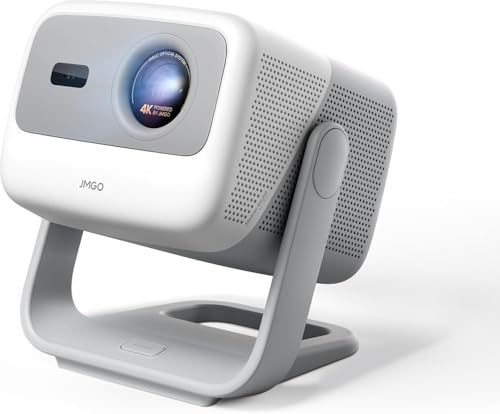
JMGO N1S 4K Triple Laser Projector, 1700 ISO Lumens, Google TV
- 4K UHD Cinematic Experience: Immersive 4K HDR visuals with 200-inch screen
- Powerful Audio System: 10W dual Dolby speakers with surround sound
- Blu-ray 3D Support: Lifelike 3D visuals with active glasses
As an affiliate, we earn on qualifying purchases.
As an affiliate, we earn on qualifying purchases.
Frequently Asked Questions
How Does Sharpness Setting Affect Color Accuracy?
When you adjust the sharpness setting, it can cause color distortion and edge enhancement issues. Increasing sharpness often overemphasizes edges, leading to unnatural colors and halos around objects. Conversely, lowering it may dull the image, reducing color vibrancy. Find a balance where edges look natural without introducing unwanted halos or color inaccuracies, ensuring your display maintains true-to-life color accuracy without sacrificing image clarity.
What Is the Best Sharpness Setting for Gaming?
For gaming, you should set sharpness to a low or medium level to enhance image enhancement without creating halos or artifacts. This setting improves visual clarity, making details more distinct without sacrificing image quality. Too high sharpness can introduce a halo effect, worsening the overall look. Adjust gradually, test different settings, and find the balance that delivers crisp visuals while maintaining natural, immersive graphics.
Can Adjusting Sharpness Improve Picture Quality on Older TVS?
A picture is worth a thousand words, so you should adjust sharpness to improve your older TV’s resolution enhancement and image clarity. While increasing sharpness can make details pop, overdoing it causes halos and noise. Experiment with subtle adjustments to find the sweet spot. Remember, a balanced setting enhances picture quality without introducing unwanted artifacts, helping your older TV look sharper and more vibrant.
Is There a Difference in Sharpness Impact Between LCD and OLED Screens?
Yes, there is a difference in sharpness impact between LCD and OLED screens. LCD displays rely on backlighting and pixel response times, so increasing sharpness can cause halos and artifacts, especially around high-contrast edges. OLED screens, with their self-emitting pixels and faster response times, handle sharpness adjustments better, preserving image quality. You’ll notice less haloing and clearer details on OLEDs when adjusting sharpness settings.
How Does Sharpness Interact With Other Picture Calibration Settings?
You’ll find that sharpness interacts with edge enhancement and noise reduction, often amplifying or diminishing their effects. Increasing sharpness can enhance edges but may create halos, while reducing noise helps smooth out grainy details. Adjust these settings carefully, as too much sharpness combined with aggressive edge enhancement can produce unnatural halos, and excessive noise reduction might blur details. Balance these controls to achieve a natural, crisp picture without unwanted artifacts.

KTC 24.5 Inch FHD 300Hz Fast IPS Gaming Monitor, FreeSync, H25Y7
- High-Resolution Display: 1920 x 1080 Full HD resolution
- Wide Viewing Angles: 178° horizontal and vertical angles
- Fast Refresh Rate: 300Hz for smooth gameplay
As an affiliate, we earn on qualifying purchases.
As an affiliate, we earn on qualifying purchases.
Conclusion
So, next time you tweak your sharpness, think of it like seasoning a dish. Too much, and it’s overpowering; too little, and it’s bland. I once set my TV’s sharpness too high, and every image looked like a comic book—bright outlines and unnatural halos. Finding that perfect balance is like seasoning just right—you get a clear, natural picture without the unwanted ‘halo’ effect. Adjust wisely, and enjoy your true 4K clarity.

Marseille mClassic OG – Restore Your TVs Game Mode Image Quality, Lag Free, on Nintendo Switch, Xbox, PlayStation, Gamecube, N64, Wii, SNES, and More – Supports 1440p/60hz
- Enhanced Image Quality: Upscales to 1440p/60Hz with anti-aliasing
- Widescreen Gaming Optimization: Sharper images on Nintendo Switch and more
- Retro Gaming Enhancement: Improves graphics on classic consoles up to 1440p
As an affiliate, we earn on qualifying purchases.
As an affiliate, we earn on qualifying purchases.

Photo Editor
- Color Adjustment: Exposure, brightness, contrast, saturation, hue
- Color Fine-Tuning: Curves and levels adjustments
- Photo Effects: Gamma, contrast, tone, vibrance, blur, sharpen, artistic filters
As an affiliate, we earn on qualifying purchases.
As an affiliate, we earn on qualifying purchases.