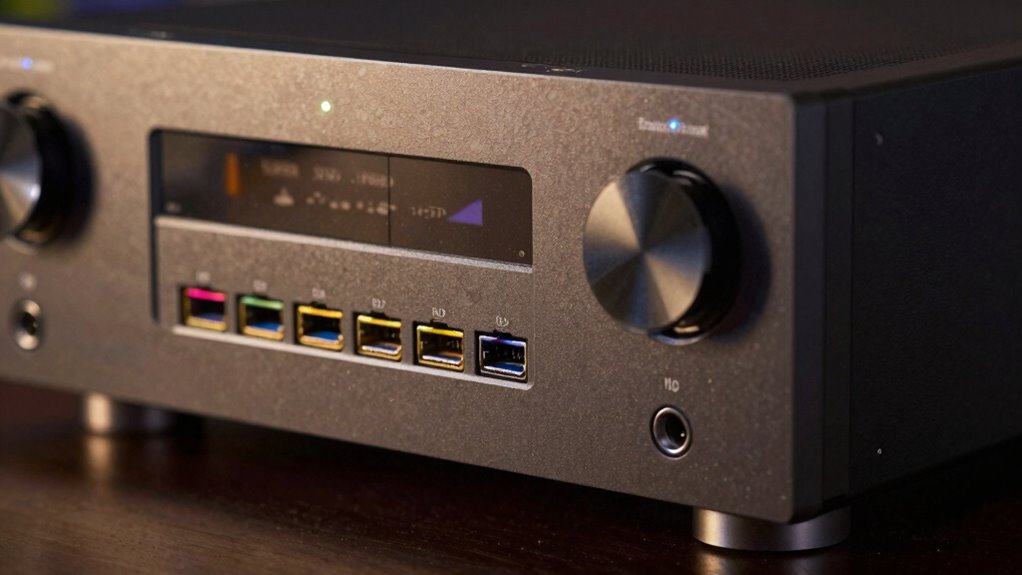

If your receiver isn’t passing HDR signals, the ‘Enhanced Format’ setting might be the cause. This setting controls high-bandwidth features like HDR, and if it’s disabled or misconfigured, HDR content can be obstructed or downgraded. Make sure it’s enabled on both your receiver and source device, and confirm your cables and firmware are up-to-date. For more solutions and troubleshooting tips, stay tuned as we explore how to resolve this issue effectively.
Key Takeaways
- Enabling ‘Enhanced Format’ can sometimes block HDR signals if the receiver or source doesn’t fully support it.
- Disabling ‘Enhanced Format’ temporarily may resolve pass-through issues caused by incompatibility.
- Firmware updates improve ‘Enhanced Format’ handling and overall HDR support, fixing handshake problems.
- Faulty or low-quality HDMI cables can interfere with signal handshake, affecting HDR pass-through.
- Incorrect HDMI port settings or incompatible content protection protocols like HDCP may prevent HDR from passing through.
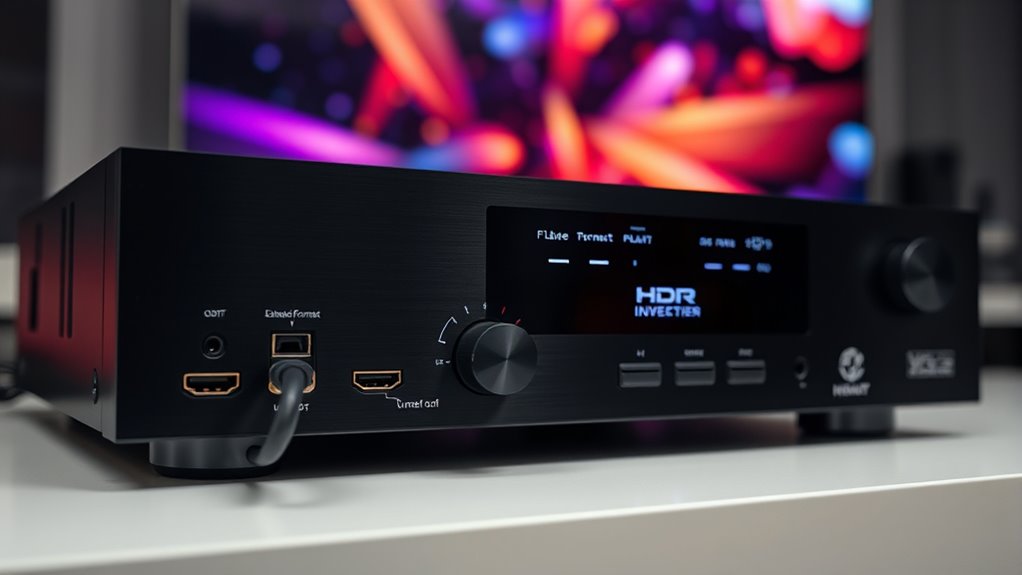
If your receiver isn’t passing HDR signals, it can be frustrating, especially when you’re trying to enjoy the latest high-definition content. One common reason for this issue is related to the ‘Enhanced Format’ setting on your receiver. This setting controls how your receiver handles high-bandwidth signals like HDR, and if it’s not configured correctly, HDR content might not pass through as intended. The first thing to check is whether the HDMI handshake process is functioning properly. The HDMI handshake is essential for establishing a secure and compatible connection between your source device, receiver, and display. If the handshake fails or is interrupted, your receiver may not recognize or pass through HDR signals correctly, resulting in a blank or non-HDR image.
Often, the ‘Enhanced Format’ setting is designed to enable higher bandwidth transmission necessary for HDR content, but it can sometimes cause compatibility issues between devices. If your receiver is set to this mode but your source device or display doesn’t fully support it, HDR signals may get blocked or downgraded. To fix this, you can disable the ‘Enhanced Format’ setting temporarily and see if HDR passes through normally. If it does, then the problem lies with device compatibility or handshake issues. Updating your firmware is another essential step. Manufacturers often release firmware updates to improve HDMI handshake stability and compatibility, especially for high-bandwidth formats like HDR. Checking for the latest firmware and installing updates can resolve known issues that prevent HDR signals from passing correctly. Additionally, some receivers require specific settings adjustments related to HDMI and video output configurations. Ensuring that your receiver’s HDMI ports are configured for the highest bandwidth, and that your source device is set to output HDR, can make a significant difference. Sometimes, firmware updates include improvements that better support the ‘Enhanced Format’ or fix handshake bugs, so keeping your device’s firmware current is essential. It’s also worth testing different HDMI cables, as low-quality or damaged cables can interfere with the handshake process and prevent HDR signals from passing properly. Using certified high-speed HDMI cables designed for 4K and HDR can improve the overall connection stability. Furthermore, understanding the importance of content protection protocols like HDCP is vital, as incompatibilities here can also hinder HDR pass-through.
Frequently Asked Questions
How Do I Enable HDR Pass-Through on My Receiver?
To enable HDR pass-through on your receiver, start by accessing its settings menu. Navigate to calibration settings and verify your display is set to handle HDR. Then, go to the audio configuration and enable pass-through or bitstream mode. Make sure your source device and HDMI cables support HDR. Once configured, your receiver will pass HDR signals correctly, providing ideal picture quality without needing additional adjustments.
What Is the Difference Between HDR and Enhanced Format?
Think of HDR as a vibrant, high-definition painting, while SDR is like a sketch with limited color. HDR offers richer colors and brighter highlights, whereas SDR is the standard picture quality. Enhanced format is like releasing HDR’s full potential, providing deeper contrast and more detailed images. The main difference lies in their ability to deliver superior visual experience—HDR versus SDR, and enhanced format enhances HDR’s capabilities even further.
Can Firmware Updates Fix HDR Pass-Through Issues?
Yes, firmware updates can fix HDR pass-through issues. Manufacturers often release updates to improve compatibility, fix bugs, and enhance features like HDR transmission. Make sure to install the latest firmware and perform audio calibration if needed, as these updates can resolve issues related to signal processing and guarantee smoother HDR pass-through. Regular updates help optimize your receiver’s performance and keep it compatible with new HDR standards.
Does HDMI Cable Quality Affect HDR Transmission?
Like a vintage radio, your HDMI cable’s quality still matters today. A poor-quality cable can cause HDR transmission issues, especially over longer cable lengths. To guarantee smooth HDR pass-through, use high-speed HDMI cables with proper shielding. Also, check your audio calibration settings, as mismatched audio and video can create compatibility problems. Upgrading your cable and optimizing calibration can considerably improve HDR performance, preventing the frustration of black screens or no HDR signals.
Is My Display Compatible With HDR and Enhanced Format?
Your display’s compatibility with HDR and enhanced format depends on its specifications. Check your display’s manual or settings menu to see if it supports HDR and the ‘Enhanced Format’ setting. Then, review your receiver settings to confirm HDR and enhanced format are enabled. If your display isn’t compatible, enabling these settings won’t help. Upgrading to a display that supports HDR and enhanced format will give you the best experience.
Conclusion
In the end, understanding the ‘Enhanced Format’ setting is like finding the key to a hidden door; once you open it, HDR content flows seamlessly. Don’t let technical settings be a maze; instead, see them as your map to a stunning visual journey. By adjusting this setting, you’re ensuring your receiver doesn’t just receive signals but welcomes the full brilliance of HDR, transforming your viewing experience from ordinary to extraordinary.