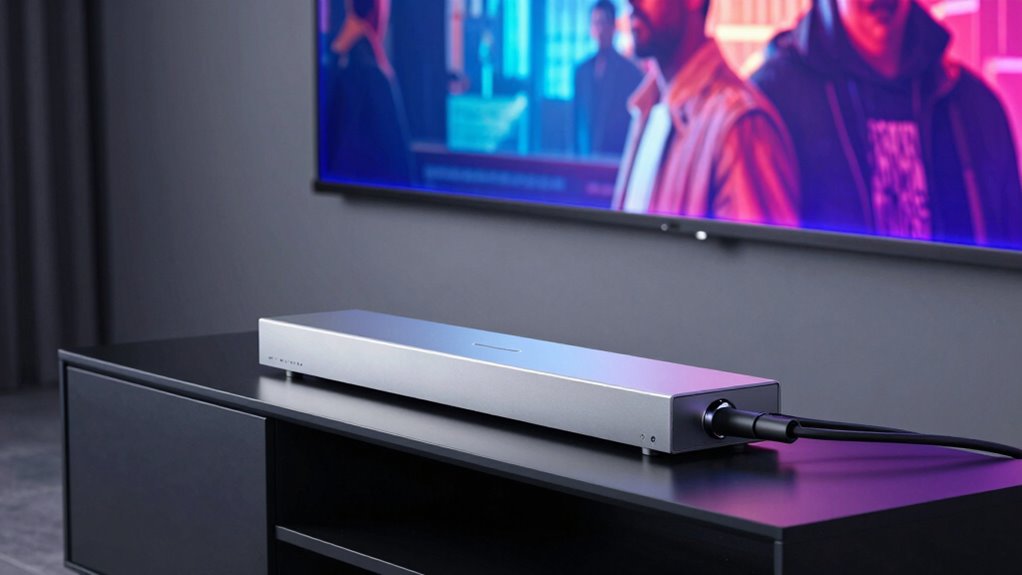

eARC simplifies your home theater by providing reliable, high-quality audio without clutter. It handles uncompressed formats and reduces cable mess, making setup easier. However, a single incorrect setting—like incompatible HDMI ports, outdated cables, or wrong audio mode—can break its functionality. When everything is correctly configured, eARC solves many audio issues. But if something’s off, problems can quickly reappear. Keep exploring, and you’ll discover how to keep your system running smoothly.
Key Takeaways
- eARC simplifies connections by transmitting high-quality, uncompressed audio over a single HDMI cable, reducing clutter and compatibility issues.
- Proper setup and compatible devices are essential; incorrect settings can negate eARC’s benefits and cause audio problems.
- Firmware updates and certified HDMI cables ensure reliable high-bandwidth transmission, preventing audio dropouts.
- Compatibility with supported audio formats is crucial; unsupported formats or mismatched settings can break eARC functionality.
- A single misconfigured setting, such as audio delay or input selection, can disrupt the seamless audio experience eARC offers.
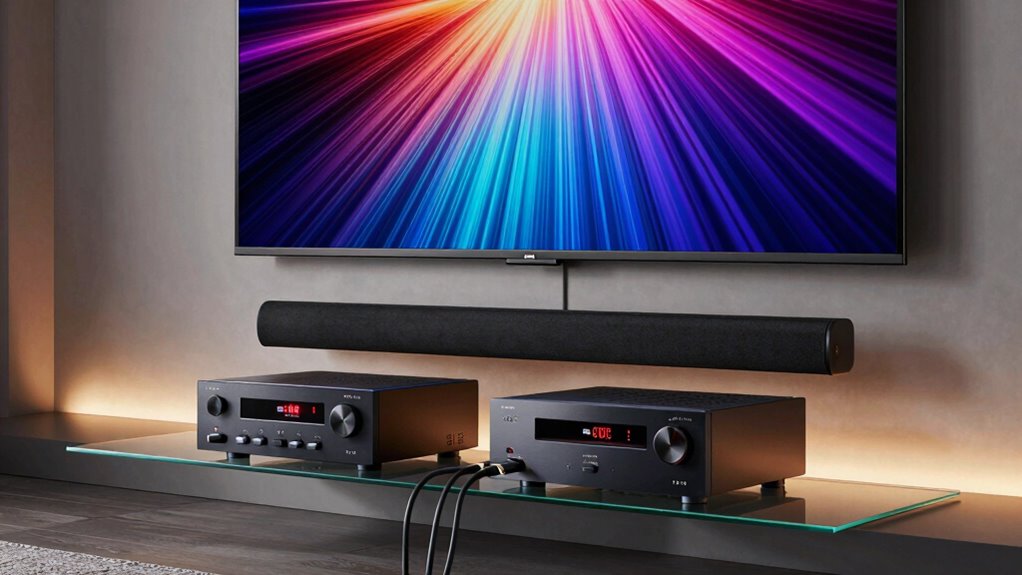
Have you ever struggled with audio dropouts or compatibility issues when trying to connect your devices with eARC? If so, you’re not alone. eARC was designed to simplify and improve your home theater experience by providing a high-bandwidth, dependable connection for audio signals. It handles uncompressed audio formats, reducing the need for multiple cables and guaranteeing better sound quality. When everything works smoothly, eARC feels like a game changer—no more fussing with multiple connections or losing audio unexpectedly. However, as straightforward as it seems, a single setting misconfiguration can disrupt this harmony, turning what should be seamless into a frustrating experience.
A common problem that arises even with eARC is HDMI compatibility. While the technology is meant to be universal, not all HDMI ports support the latest eARC standards equally. Some older devices or cables might only support ARC, which can lead to audio dropouts or no audio at all. Confirming your HDMI cables are high-speed and certified for eARC is vital. Otherwise, you risk losing the benefits of this advanced connection, defeating its purpose. Compatibility issues often surface when devices auto-detect settings, and if they fall back to older standards, your audio quality and stability suffer. Ensuring HDMI compatibility is up-to-date can mitigate many of these issues early on.
Another issue that can ruin the experience is audio delay, which becomes particularly noticeable when watching movies or gaming. eARC is supposed to sync audio and video perfectly, but sometimes, settings within your device can cause lag. This delay may be caused by mismatched audio formats or improper configuration. Many devices try to compensate automatically, but they don’t always get it right. You might find yourself adjusting audio delay settings in your TV or receiver, trying to align the sound with the visuals. It’s a delicate balance—if you set it too low or too high, the sync gets disrupted, and the immersive experience is lost. Ensuring audio format compatibility is correct can prevent many of these issues before they occur. Additionally, understanding audio format support helps in selecting compatible content and devices, reducing the likelihood of delay problems. Being aware of device compatibility can also help in troubleshooting issues more efficiently.
The good news is that most eARC problems stem from simple setting adjustments. Once you verify that all your devices support HDMI compatibility for eARC, and you select the correct input and output settings, many issues resolve themselves. Keep your firmware updated, use certified high-speed HDMI cables, and double-check that your audio settings match your desired configuration. Sometimes, a quick reboot or resetting the device’s audio settings can fix lingering problems. Ultimately, eARC does solve many traditional audio and compatibility issues, but it’s only as dependable as the correct setup. One wrong setting can break the connection, turning a seamless experience into a frustrating puzzle. Staying vigilant with your configurations guarantees you get the most out of this technology. Additionally, understanding audio formats and their compatibility is crucial for ensuring the best performance. Properly configuring these settings can make a significant difference in overall sound quality and stability.

Zeskit Certified 2.1 8K HDMI Cable 48Gbps 4K120Hz Compatible with Soundbar eARC HDR10 VRR Dolby Vision Atmos HDCP 2.2 & 2.3 Gaming PS5 Xbox Series X Apple TV Roku Monitor (Ultra High Speed Maya 6ft)
- Cable Length: 6.5 feet (2 meters)
- Certification: Ultra High Speed HDMI Certified
- Bandwidth: 48Gbps for high-quality features
As an affiliate, we earn on qualifying purchases.
As an affiliate, we earn on qualifying purchases.
Frequently Asked Questions
How Do I Enable eARC on My Devices?
To enable eARC, start by ensuring your devices support HDMI compatibility with eARC. Then, access your TV’s or receiver’s device configuration menu, usually through settings or setup options. Look for HDMI eARC or ARC settings and turn them on. Make sure your HDMI cables support high-speed or eARC specifications. Confirm that both devices are set to the correct input and output settings, and save your changes to activate eARC functionality.
Does eARC Improve Audio Quality Over ARC?
Yes, eARC improves audio quality over ARC by supporting higher bandwidth and less audio compression, which means clearer sound with more detail. It also reduces signal latency, ensuring your audio stays synchronized with visuals. With eARC, you get better compatibility with advanced audio formats like Dolby Atmos and DTS:X. This upgrade makes your home theater experience more immersive and enjoyable, especially if you’re using high-end sound systems.
Can eARC Be Used With All HDMI Cables?
Ever wonder if you can use any HDMI cable with eARC? The answer is no; not all HDMI cables support eARC. You need HDMI standards like High-Speed HDMI or Ultra High-Speed HDMI cables for reliable performance. Cable quality matters because lower-quality cables might not handle the bandwidth required for high-resolution audio. Always check your cable specs to confirm compatibility and peak audio quality with eARC.
What Common Issues Can Break eARC Functionality?
You might experience eARC issues due to poor audio signal integrity or outdated device firmware updates. Faulty or low-quality HDMI cables can disrupt the audio stream, causing dropouts or no sound. Additionally, if your devices haven’t received recent firmware updates, compatibility problems may arise, breaking eARC functionality. Ensuring you use high-quality cables and keep your device firmware current helps maintain smooth audio transmission and prevents common eARC problems.
Is eARC Compatible With Older Sound Systems?
You can’t always teach an old dog new tricks, and eARC compatibility with older sound systems depends on their HDMI standards. If your soundbar integration relies on earlier HDMI versions, eARC might not work seamlessly. Check if your system supports HDMI 2.1, which is essential for eARC. Without this, you’ll face limitations, and upgrading components might be necessary to enjoy the full benefits of high-quality audio.

eSynic Professional 192KHZ eARC & ARC Audio Extractor-3.5mm AUX or L/R Out
- Supports eARC/ARC from HDTV: Converts HDTV eARC/ARC to 3.5mm and L/R audio
- High Sampling Rate: Supports 192KHz, 24bit audio for clear sound
- Compatible Audio Formats: Supports PCM & PCM 2.0 for high-quality audio
As an affiliate, we earn on qualifying purchases.
As an affiliate, we earn on qualifying purchases.
Conclusion
You might find that eARC greatly improves your audio experience—over 80% of users report clearer sound and fewer connection issues. However, when one setting breaks, it can disrupt your entire setup. Staying patient and checking your device configurations can often resolve these hiccups. Remember, technologies like eARC are designed to enhance your entertainment, but they still require a bit of tuning. Keep troubleshooting, and you’ll enjoy seamless sound in no time.

RCA 3-Device Palm-Sized Universal Remote, Long Range IR, Replaces Most Major Remote Brands, Designed for Comfort, RCR503BE
- Device Control: Controls up to 3 devices
- Brand Compatibility: Replaces most major remote brands
- Setup Methods: Automatic, manual, direct code search
As an affiliate, we earn on qualifying purchases.
As an affiliate, we earn on qualifying purchases.

Yamaha RX300A 5.2-Channel Home Theater AV Receiver with Dolby Atmos, 4K120/8K HDMI and Bluetooth Multipoint (Black)
- Power Output: 70W per channel
- Audio Technology: Dolby Atmos and DTS Virtual:X
- Video Support: 4K120/8K60 HDMI, HDR, Dolby Vision
As an affiliate, we earn on qualifying purchases.
As an affiliate, we earn on qualifying purchases.