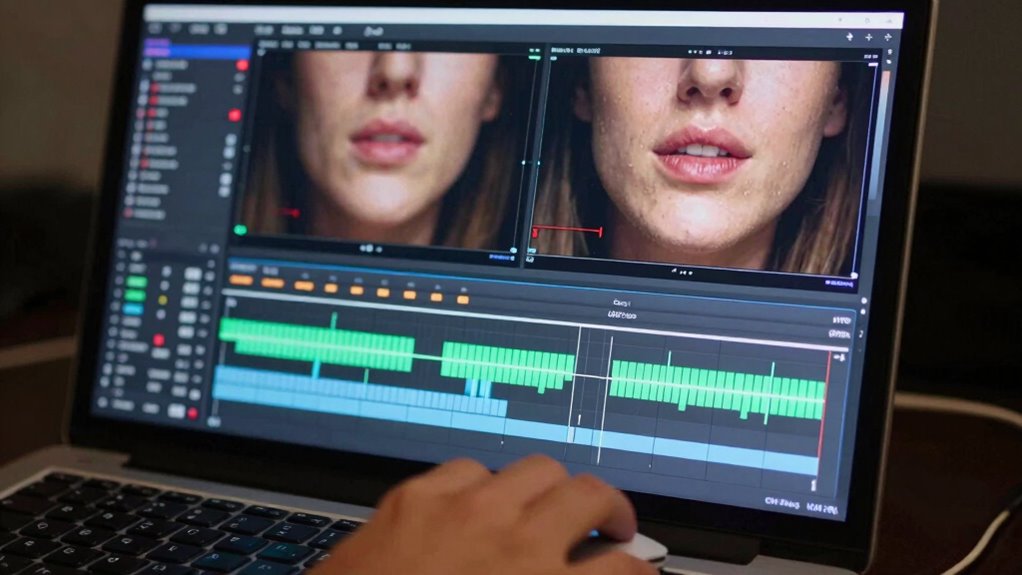

To diagnose lip sync problems without guessing, start by checking if the issue happens across all content or just specific apps or videos. Connect your device directly to your TV with a known working HDMI cable to rule out external hardware issues. Adjust audio delay settings on your device to see if it improves sync. Keep firmware and drivers updated, and systematically test each change to identify when the problem stops. If you’re unsure where to focus next, you’ll find helpful tips to pinpoint the cause.

Get audio and creator gear delivered free with Prime
- Fast, free delivery on millions of items
- Prime Video, Amazon Music and more included
- Member-only deals all year
Key Takeaways
- Identify if the lip sync issue occurs across all content or only specific videos/apps.
- Test by connecting your device directly to the display, bypassing external hardware.
- Use built-in audio delay or lip sync correction settings to adjust and observe improvements.
- Ensure firmware and driver updates are current to fix known sync issues.
- Systematically eliminate potential causes by testing hardware connections and software configurations.
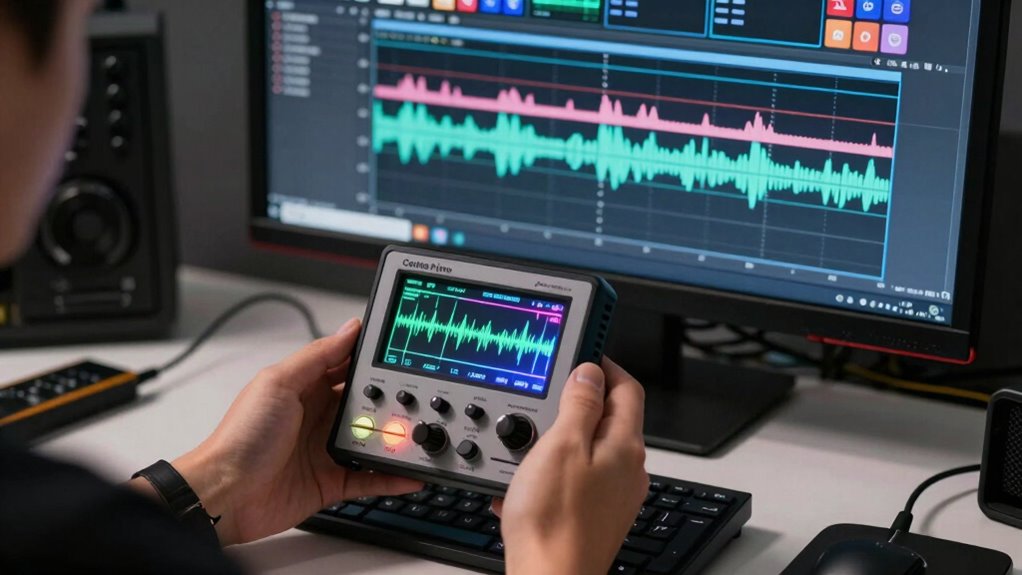
Have you noticed that the audio and video in your favorite shows or videos don’t quite match up? It’s a frustrating experience that can ruin your viewing pleasure. Before jumping to conclusions or trying random fixes, it’s smart to diagnose the problem properly. Often, audio delay is the culprit, but understanding whether it’s caused by hardware issues or something else will save you time and effort.
Start by observing when the lip sync problem occurs. Does it happen on all content, or only with specific videos or apps? If it’s consistent across various sources, the issue might be with your device’s hardware. For example, outdated or malfunctioning hardware components, like your graphics card or sound card, can introduce latency, causing audio delay. On the other hand, if the problem only appears during streaming or certain apps, it might stem from software or network issues rather than hardware.
Check if lip sync issues occur across all content or just specific apps to identify hardware or software causes.
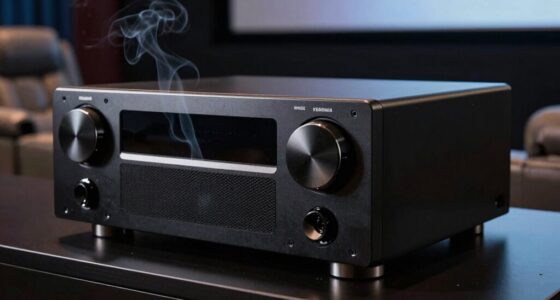
Next, test your equipment with different sources. Connect your device directly to your TV or monitor using an HDMI cable, bypassing any external devices like soundbars or AV receivers. If the lip sync issue persists, it could point toward hardware issues within your device itself. Conversely, if the problem disappears, it’s likely related to the external audio hardware or settings. This step helps narrow down whether the root cause is hardware or software. Additionally, understanding how hardware components influence audio sync can provide deeper insights into potential issues. It’s also helpful to consider how audio processing capabilities impact synchronization, as some devices may struggle with real-time audio adjustments.
Another step is to check your audio settings. Adjust the audio delay or lip sync correction features available on many modern TVs, soundbars, or AV receivers. If tweaking these settings improves the situation, it indicates that the problem is primarily related to the device’s audio processing or synchronization capabilities. Be cautious, though—if you find yourself constantly adjusting settings, it might be a sign that your hardware isn’t handling audio processing efficiently, hinting at underlying hardware issues. Recognizing audio processing limitations can help target the root cause more effectively. Additionally, keeping your device’s firmware and drivers updated can prevent many common issues related to audio sync. Finally, consider updating your device firmware or drivers. Manufacturers often release updates to fix bugs or improve compatibility, which can resolve audio delay problems. If updates don’t help and hardware issues seem apparent, you might need to replace or repair faulty components. Diagnosing lip sync problems isn’t a matter of guesswork—it’s about systematically ruling out potential causes, understanding your equipment, and making informed decisions. This way, you’ll avoid wasting time on unnecessary troubleshooting and get back to enjoying your content without distractions. Recognizing the hardware or software factors involved can greatly streamline the troubleshooting process.
Products Worth Considering

LG UltraGear 27-Inch QHD OLED Gaming Monitor, 240Hz, 0.03ms, G-SYNC Compatible, FreeSync Premium Pro, HDMI 2.1

Bose TV Speaker Compact Soundbar with Bluetooth and HDMI-ARC, Black
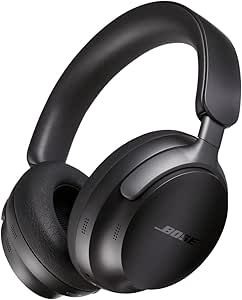
Bose QuietComfort Ultra Wireless Noise-Cancelling Headphones with Spatial Audio, Black
As an affiliate, we earn on qualifying purchases.
Frequently Asked Questions
Can Hardware Issues Cause Lip Sync Problems?
Yes, hardware issues can cause lip sync problems. Hardware interference from other electronic devices can disrupt your audio or video signals, leading to sync issues. Additionally, poor cable quality or damaged cables often result in signal delay or degradation, causing lip sync problems. To fix this, check for interference sources and replace low-quality or damaged cables with high-quality ones, ensuring a stable connection between your devices.
Do Different Video Formats Affect Lip Sync Accuracy?
Different video formats can dramatically impact lip sync accuracy, almost like trying to fit a square peg into a round hole. Video compression can cause delays, making audio and video fall out of sync, while frame rate mismatch creates a jittery, choppy effect that throws off lip movements. These format differences can amplify sync issues, so ensuring your video format aligns with your playback device helps keep audio and video perfectly in sync.
How Does Audio Delay Impact Lip Sync?
Audio delay greatly impacts lip sync because it causes a mismatch between audio and video. When audio processing introduces delays, your visuals and sound fall out of sync, making it noticeable. To fix this, you should adjust your device’s synchronization settings, which can compensate for the delay. Properly configuring these settings ensures audio and video stay aligned, providing a seamless viewing experience without guesswork.
Is Lip Sync Calibration Needed for Streaming Devices?
You bet, lip sync calibration is often needed for streaming devices. Think of it as fine-tuning your gear to get the best sound and picture. You should check your audio settings and verify device compatibility, especially if you’re experiencing delays. Proper calibration ensures everything works in harmony, preventing that frustrating disconnect between speech and lip movements. Taking a few moments to sync your devices can make streaming much more enjoyable and hassle-free.
Can Software Updates Fix Lip Sync Issues?
Yes, software updates can fix lip sync issues by improving voice synchronization and audio-visual alignment. When your device’s firmware is outdated, it may cause delays or mismatched audio and video. Updating the software guarantees you have the latest fixes and enhancements, which often resolve these problems. Regular updates help maintain proper synchronization, giving you a smoother viewing experience with accurate voice sync and seamless audio-visual alignment.
Conclusion
So, next time your TV’s lip movements resemble a poorly choreographed puppet show, remember, diagnosing lip sync issues isn’t about throwing darts in the dark. With a little patience and a keen eye, you can tame this digital diva. Think of yourself as a detective, not a gambler—no more guessing games with your remote. Master these tips, and enjoy perfectly synchronized audio and video, turning your living room into a Hollywood set rather than a slapstick comedy.