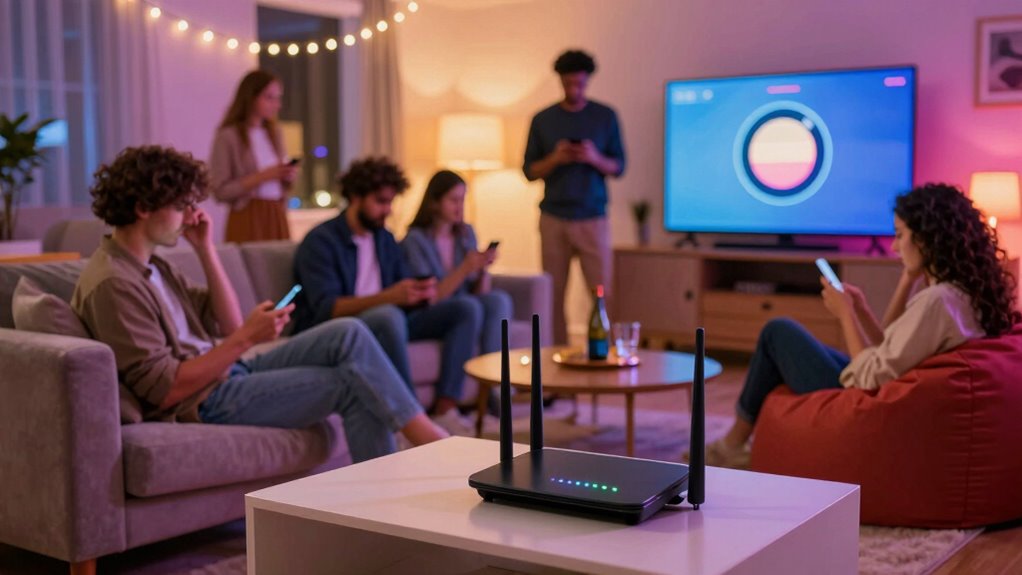

To fix streaming buffering during parties, you should prioritize your streaming devices on your router. Access your router’s settings and enable Quality of Service (QoS) features. Assign higher priority to your smart TVs or streaming boxes, and lower priority to other devices. This helps guarantee your streams get enough bandwidth even when many gadgets are in use. Keep exploring these options, and you’ll find simple ways to keep your entertainment smooth and uninterrupted.

Get audio and creator gear delivered free — and shop member deals
- Fast, free delivery on millions of items
- Access to Prime Big Deal Days deals on October 6–7
- Prime Video, Amazon Music and more included
Key Takeaways
- Enable Quality of Service (QoS) on your router to prioritize streaming devices and reduce buffering during parties.
- Assign high priority to devices used for streaming to ensure they receive sufficient bandwidth.
- Limit the number of active devices or disconnect unnecessary gadgets to prevent network overload.
- Schedule large downloads or updates outside peak party times to minimize bandwidth competition.
- Keep your router firmware updated to improve traffic management and overall streaming performance.

Are you tired of constant buffering ruining your streaming experience? When hosting a party or gathering, multiple devices connecting to your Wi-Fi can quickly lead to network congestion. As more guests tune in to their favorite shows or share videos, your internet bandwidth becomes strained. This overload causes buffering pauses, frustrating everyone involved. The good news is, you can combat this by adjusting your router settings to better manage how the network handles multiple connections.
One effective way to improve streaming performance during busy times is to enable device prioritization, also known as Quality of Service (QoS). This feature allows you to assign higher priority to specific devices or types of traffic—like your streaming device—ensuring it gets the bandwidth it needs, even when others are online. When you set device prioritization, your router recognizes which devices are streaming and automatically allocates more resources to them, reducing buffering and lag. This way, your guests can enjoy their content without interruption, and you can host confidently knowing your streaming won’t be compromised.
Enable device prioritization (QoS) to ensure smooth streaming during busy network times.
To activate device prioritization, access your router’s admin panel—usually through a web browser by entering its IP address. Once logged in, locate the QoS settings. Many modern routers have a straightforward interface that guides you through the process. Here, you can add devices by their MAC address or device name and assign priority levels—high, medium, or low. Be sure to set your own device, or the device you’re using for streaming, to high priority. This ensures your video or music streams aren’t affected by other devices, such as smartphones, gaming consoles, or smart home gadgets that might be consuming bandwidth elsewhere.
While prioritizing devices, it’s also wise to address network congestion—also known as traffic overload. During a party, multiple devices competing for bandwidth can cause congestion, leading to buffering even if priority is set. To reduce this, consider limiting the number of active devices, scheduling large downloads or updates outside peak streaming hours, or disconnecting unnecessary gadgets. You can also update your router’s firmware, which often includes improvements to traffic management and stability. Additionally, essential oils for congestion can be a helpful metaphor for understanding how managing traffic flow improves overall network health.
In essence, managing network congestion and utilizing device prioritization can notably improve your streaming experience during parties. By configuring your router settings to allocate bandwidth smartly, you ensure that your content streams smoothly, and your guests stay entertained without interruptions. Taking a few minutes to tweak these settings can make a substantial difference, transforming a buffering nightmare into a seamless, enjoyable gathering.
As an affiliate, we earn on qualifying purchases.
Frequently Asked Questions
Can Upgrading My Router Improve Streaming During Parties?
Upgrading your router can definitely improve streaming during parties. A newer router manages network congestion better, reducing buffering issues. Plus, it often comes with firmware updates that optimize performance and security. These updates fix bugs and enhance stability, ensuring smoother streaming for everyone. By upgrading, you get improved coverage and faster speeds, making sure your party guests enjoy uninterrupted entertainment without frustrating pauses or buffering delays.
How Do I Identify if My Router Is the Problem?
You can tell if your router’s the problem by checking its firmware and signal strength. If your firmware is outdated, it may cause buffering issues, so update it through your router’s settings. Also, test your signal strength near the router; weak signals lead to streaming problems. If these issues persist despite updates, consider upgrading your router for better performance during parties.
Are There Specific Router Models Better for Streaming?
You might worry that choosing a specific router model won’t make a difference, but upgrading to a router with advanced features like updated firmware and customizable QoS settings can considerably improve streaming. Look for models that prioritize high-speed connections, have robust firmware support, and allow you to allocate bandwidth effectively. These routers help prevent buffering during busy parties, ensuring smooth streaming and a better overall experience.
How Many Devices Can My Router Support Simultaneously?
Your router’s capacity depends on its specifications, but most modern routers support around 20-50 devices simultaneously. Network congestion can slow your connection if too many devices use bandwidth at once. To improve streaming during parties, enable device prioritization to give streaming devices higher priority. This helps manage the load and reduces buffering, ensuring smoother streaming even when multiple devices are connected.
Does Changing Wi-Fi Channels Reduce Buffering Issues?
Yes, changing Wi-Fi channels can reduce buffering issues. Wi-Fi interference from neighboring networks often causes slow speeds and buffering during parties. By optimizing your channel, you minimize interference and improve stability. Use a Wi-Fi analyzer to identify the least crowded channels, then switch your router to that one. This simple step can considerably enhance your streaming experience, especially during high-traffic times or crowded events.
router bandwidth prioritization device
As an affiliate, we earn on qualifying purchases.
As an affiliate, we earn on qualifying purchases.
Conclusion
By tweaking these router settings, you can turn your buffering nightmare into a seamless streaming experience. Don’t let constant interruptions ruin your parties—you’re the master of your network now! With these simple adjustments, you’ll be streaming like a pro and keeping everyone entertained without a hitch. Remember, your Wi-Fi can be as powerful as a supercomputer if you set it up right. So go ahead, conquer buffering once and for all—your friends will thank you!
best routers for streaming during parties
As an affiliate, we earn on qualifying purchases.
As an affiliate, we earn on qualifying purchases.
As an affiliate, we earn on qualifying purchases.
Fall Picks
fall essentials
As an affiliate, we earn on qualifying purchases.