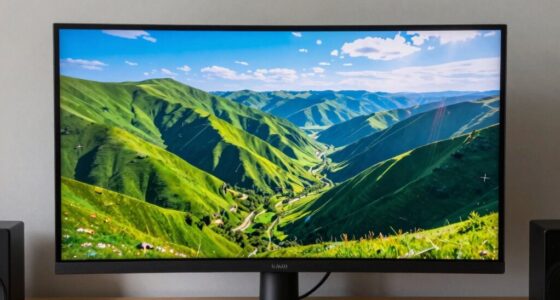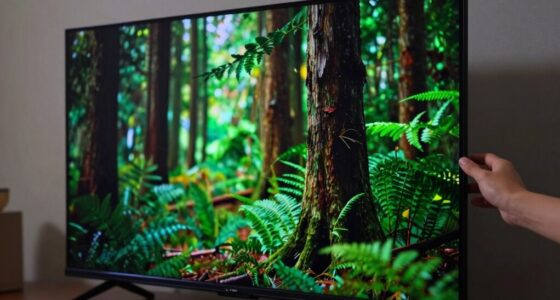
To spot a display mode mismatch before your movie is ruined, look for signs like black bars on the sides or top/bottom of the screen, which indicate aspect ratio issues. Watch for distorted images, such as stretching or squishing, and unnatural colors or dull hues that suggest calibration or resolution problems. Pay attention to blurry or overly sharp details. If you notice these cues, adjusting your device settings can prevent a poor viewing experience — keep going to learn more.
Play games included with Prime
Start a Prime free trial and play with Amazon Luna on your devices.
As an affiliate, we earn on qualifying purchases.
Key Takeaways
- Check for black bars on sides or top/bottom, indicating aspect ratio mismatch.
- Look for unnatural stretching or squishing of characters and scene framing.
- Verify colors appear natural; off hues suggest calibration issues.
- Ensure image sharpness and resolution are consistent with source material.
- Review display settings regularly to identify and correct potential mode mismatches early.
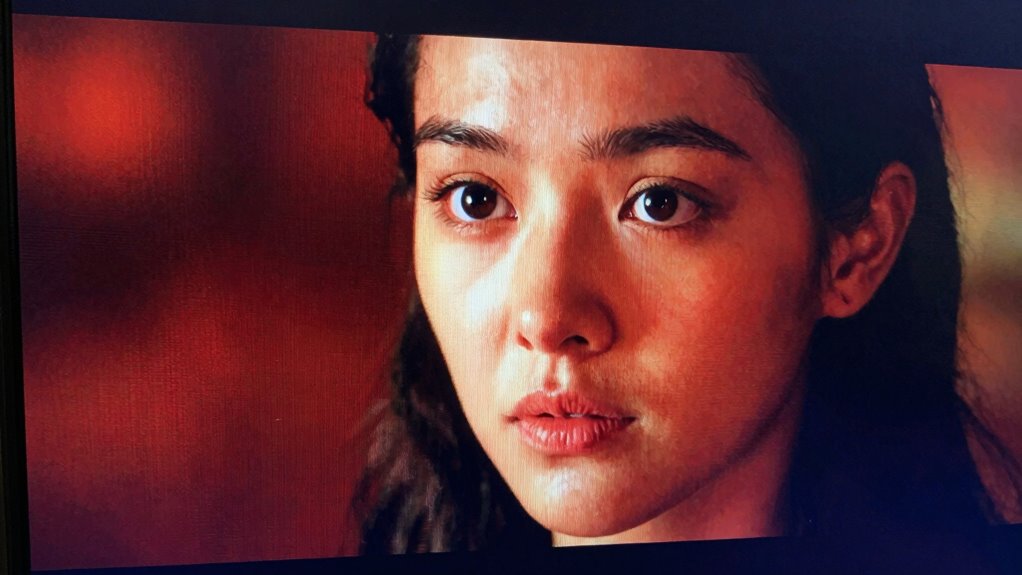
Watching a movie can quickly turn frustrating if your display mode isn’t set correctly, but spotting a mismatch early can save the experience. One of the first signs of a display mode issue is a distorted image, often caused by incorrect aspect ratio settings. When the aspect ratio isn’t matched to the content, you may notice black bars on the sides or top and bottom of the screen, stretching or squishing the picture unnaturally. Paying attention to these visual cues helps you identify if the display is in the wrong mode. For instance, a widescreen movie might appear cramped or stretched if the aspect ratio isn’t set properly, making characters look unnaturally tall or wide. Always check your display or device settings to verify the aspect ratio aligns with the film’s original format, typically 16:9 or 2.39:1 for cinematic content.
Watch for black bars or stretching to identify display mode issues and ensure the aspect ratio matches the content.
Color calibration is another key indicator of a display mode mismatch. When your screen’s color settings aren’t calibrated correctly, the movie’s hues may look off—colors might appear dull, overly saturated, or washed out. This can make skin tones look unnatural or cause certain scenes to seem unrealistic. If you notice that the colors don’t match what you expect based on previous viewing or the film’s tone, it’s worth adjusting your color calibration. Many devices allow you to access calibration tools or presets, which can help restore accurate colors. Proper calibration ensures that the shades and tones are true to the filmmaker’s intent, enriching the viewing experience and avoiding unnecessary distractions. Additionally, ensuring the resolution settings are correct can prevent blurry or pixelated images that detract from the visual quality.
It’s also helpful to familiarize yourself with common display standards to better understand what your device supports and how to optimize your setup.
You should also be mindful of resolution mismatches, which often relate to the display mode. If the image appears blurry, pixelated, or overly sharp in a way that doesn’t match the content’s quality, your display might be scaling incorrectly. Check that your device’s resolution settings match the source material or supported display resolution. When these settings are off, the picture can become distorted, and details may be lost or exaggerated. Combining this with aspect ratio and color calibration checks gives you a thorough approach to spotting display mode mismatches early.
In the end, staying attentive to these visual clues saves you from watching a movie marred by technical errors. Regularly reviewing your display settings—especially aspect ratio and calibration—helps you enjoy movies as they’re meant to be seen, free from distracting distortions or color inaccuracies. Recognizing these signs before the film starts to play ensures your viewing experience remains immersive and enjoyable.
TV aspect ratio calibration tool
As an affiliate, we earn on qualifying purchases.
As an affiliate, we earn on qualifying purchases.
Frequently Asked Questions
Can Display Mode Mismatches Cause Permanent Screen Damage?
Display mode mismatches typically don’t cause permanent screen damage, but they can lead to issues like screen burn-in or color distortion if left unresolved. When your device’s resolution or refresh rate isn’t aligned, static images may burn into the screen over time, and colors might appear distorted. To prevent this, adjust your display settings promptly and avoid leaving static images on for long periods.
Do All Streaming Platforms Automatically Adjust Display Modes?
Did you know that only 60% of streaming platforms automatically adjust display modes? They often do this to improve video calibration and color accuracy, but not all platforms handle it well. Some require you to manually change settings for ideal viewing. To avoid issues, check your device’s display settings and ensure your streaming apps are set to match your TV’s native resolution and color profile, guaranteeing the best picture quality.
How Often Should I Check My Display Settings for Mismatches?
You should check your display settings regularly, ideally once a month, to guarantee ideal viewing. Pay attention to color calibration and refresh rate, as mismatches can cause picture issues. If you notice colors look off or motion seems blurry, it’s time to revisit your settings. Frequent checks help you catch mismatches early, maintaining a consistent, high-quality experience and preventing playback problems before they spoil your movies.
What Is the Best Way to Reset Display Settings Quickly?
The best way to reset display settings quickly is to access your device’s display or graphics settings menu. Look for an option like “Reset to Default” or “Restore Defaults,” which resets color calibration and aspect ratio to factory settings. This method rapidly clears any mismatches, ensuring your display is correctly configured. After resetting, double-check color calibration and aspect ratio to avoid display mode mismatches that could spoil your movie experience.
Are Certain Devices More Prone to Display Mode Mismatches?
Yes, certain devices are more prone to display mode mismatches due to device compatibility issues and resolution scaling differences. Older TVs and projectors often struggle with newer resolution standards, making mismatches more common. Gaming consoles and computers may also encounter problems if their output settings don’t align with the display’s native resolution or supported modes. Ensuring compatibility and manually adjusting resolution scaling can help prevent these mismatches before they spoil your viewing experience.
color calibration device for monitors
As an affiliate, we earn on qualifying purchases.
As an affiliate, we earn on qualifying purchases.
Conclusion
Now that you know what to look for, you can catch display mode mismatches before they ruin your movie night. Imagine sitting comfortably in your dimly lit room, the screen glowing perfectly, colors vibrant and sharp. Without warning, a flicker or strange hue appears—like a shadow creeping in at the edge of your perfect scene. But with your new knowledge, you’ll spot these issues early, keeping your cinematic experience as smooth and immersive as a private theater.
As an affiliate, we earn on qualifying purchases.
As an affiliate, we earn on qualifying purchases.
Fall yard work Picks
leaf blowers
As an affiliate, we earn on qualifying purchases.