You might find some screen sizes tiring even when they look impressive because how you set them up and use them matters more than size. If your screen isn’t positioned correctly or if you don’t adjust brightness, contrast, and lighting properly, your eyes and neck will strain easily. Frequent focus shifts, glare, and improper angles make your visual system work harder, causing fatigue. Keep exploring to discover simple ways to improve your viewing comfort and reduce strain effectively.

Get audio and creator gear delivered free with Prime
- Fast, free delivery on millions of items
- Prime Video, Amazon Music and more included
- Member-only deals all year
Key Takeaways
- Large screens can cause fatigue if not properly positioned or ergonomically adjusted.
- Improper viewing angles and distance increase eye and neck strain.
- Excessive focus shifts across different parts of a large display lead to visual fatigue.
- Non-adjustable brightness, contrast, and glare worsen eye discomfort over time.
- Poor ergonomic setup and ambient lighting amplify discomfort despite impressive visuals.
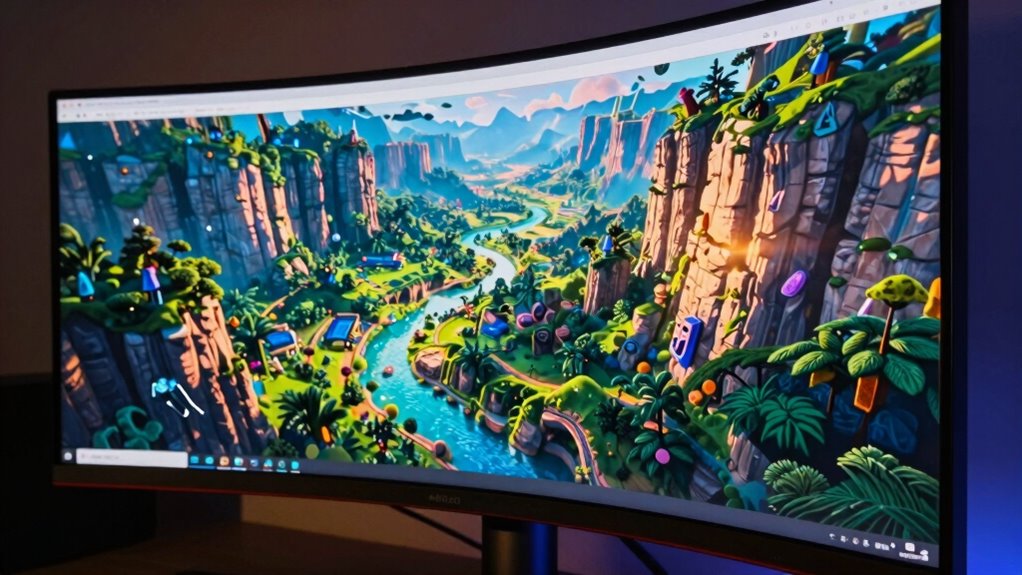
Even though large screens often impress with their vibrant visuals and expansive views, they can also leave you feeling tired and strained. The reason isn’t just about the size but about how you interact with the screen. An ergonomic design plays a vital role in reducing discomfort and preventing visual fatigue. When screens aren’t designed with ergonomics in mind, you might find yourself constantly adjusting your position or struggling to find a comfortable viewing angle. This can lead to neck and eye strain, making the experience tiresome despite the impressive display.
Large screens impress but can cause fatigue without ergonomic design and proper positioning.
Your eyes are naturally strained when they have to constantly adapt to large, high-resolution screens. When the screen is too big or positioned improperly, your eyes may need to constantly shift focus and accommodate, which leads to visual fatigue. This fatigue isn’t just about tired eyes; it can cause headaches, blurred vision, and even dizziness. The challenge is that larger screens often require you to look at different parts of the display, and if the setup doesn’t account for ergonomic principles, your eyes and neck bear the brunt of the discomfort. Additionally, ergonomic design features like proper positioning and adjustable components can significantly reduce this strain. Ensuring proper screen positioning can also help mitigate these issues.
Another key factor is the contrast and brightness levels of the screen. Even with a sizable, impressive display, if the brightness isn’t adjustable or if the contrast isn’t optimized for your environment, your eyes will strain more as they try to compensate. Too much glare or reflections can also contribute to visual fatigue, making it harder to focus comfortably. This is where an ergonomic design includes features like anti-glare coatings and adjustable brightness controls, helping you customize the viewing experience to reduce eye strain. Proper ambient lighting can also play a crucial role in minimizing glare and reflections. Adjusting these settings to match your environment can greatly improve comfort during prolonged use. Incorporating ergonomic features into your workspace setup, like adjustable monitor arms, can further enhance comfort by allowing you to fine-tune the position of your screen.
Positioning is just as important as the screen size itself. If the screen isn’t at eye level or if it’s placed too close or too far away, your neck and eyes have to work harder to maintain focus. This misalignment leads to discomfort and fatigue over time. An ergonomic setup considers the ideal viewing distance and height, supporting a natural posture that minimizes strain. Large screens, while visually impressive, demand attention to these ergonomic details to keep the experience comfortable. Incorporating adjustable stands and mounts can make a significant difference in achieving an optimal setup. Paying attention to these ergonomic best practices ensures that your workspace remains comfortable and reduces the risk of strain or injury.
Products Worth Considering

LG UltraGear 32GX850A-B 32-inch 4K UHD Glossy OLED Gaming Monitor

Logitech MX Master 4 Ergonomic Wireless Mouse with Haptic Feedback, Graphite

LG UltraGear 32GS60QC-B 32-inch Curved QHD Gaming Monitor (180Hz, 1ms, 1000R, AMD FreeSync, HDR10)
As an affiliate, we earn on qualifying purchases.
Frequently Asked Questions
How Does Eye Strain Relate to Large Screen Sizes?
Large screen sizes can cause eye strain because your eyes work harder to process the expansive display. Poor color contrast makes it harder to distinguish content, while inappropriate font size forces you to squint or strain to read. You might find yourself fatigued, especially during long use. To reduce strain, adjust font size for comfort and guarantee good color contrast, making it easier for your eyes to focus without tiring.
Can Screen Resolution Impact Fatigue Levels?
Yes, screen resolution can impact your fatigue levels. If your screen has high resolution but poor screen brightness or color calibration, it can cause eye strain and tiredness over time. When the brightness is too high or too low, or if the colors aren’t calibrated properly, your eyes work harder to focus, leading to fatigue. Adjusting these settings to comfortable levels helps reduce tiredness and makes viewing more pleasant.
Do Refresh Rates Affect Viewing Comfort?
Yes, refresh rates do affect your viewing comfort. Higher refresh rates reduce flickering, making visuals smoother and easier on your eyes, especially during prolonged use. However, screen glare and poor color calibration can still cause fatigue, even with high refresh rates. To improve comfort, adjust your screen settings to minimize glare, verify accurate color calibration, and opt for a refresh rate suitable for your activities, like gaming or extended work sessions.
How Does Ambient Lighting Influence Screen Fatigue?
You might find ambient lighting considerably impacts screen fatigue. A balanced ambient glow reduces glare and minimizes eye strain, making prolonged viewing more comfortable. Studies suggest that proper lighting prevents your eyes from constantly adjusting between bright screens and dark surroundings, easing visual effort. Ensuring good lighting balance around your screen helps your eyes relax, preventing tiredness, even during long sessions. Proper ambient lighting truly enhances your viewing comfort and reduces fatigue.
Are There Ergonomic Tips for Using Large Screens?
To avoid fatigue with large screens, maintain ergonomic posture by sitting straight and keeping your feet flat. Place your screen at eye level and at an arm’s length distance to reduce strain. Make sure proper screen placement so you’re not constantly turning your head or leaning forward. Taking regular breaks and adjusting your workspace can also help prevent discomfort, keeping your eyes and neck relaxed during extended use.
Conclusion
So, the next time your eyes scream for relief after gazing at a massive screen, remember—it’s not just your tired eyes, but your entire being protesting against the overwhelming spectacle. That impressive display might dazzle everyone else, but to you, it’s a relentless beast draining your energy. Don’t ignore the warning signs. Protect your mind and body—step back, rest, and let your eyes breathe. Because, honestly, no screen is worth sacrificing your well-being!