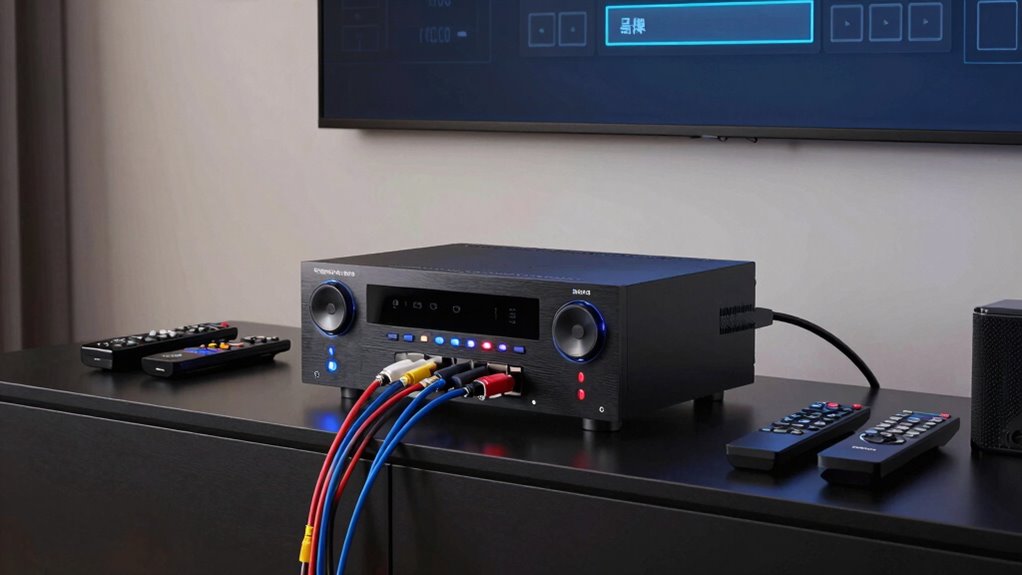
To fix a cluttered receiver setup without starting over, first access the receiver’s menu and look for options like “Reset Settings” or “Default Setup.” Choose the option that resets only your configuration rather than a full factory reset, which keeps your preferred channels intact. Make sure your remote is working properly and update firmware if needed. For detailed steps to streamline your setup, keep exploring how to fine-tune your receiver efficiently.
Key Takeaways
- Use the receiver’s menu options for partial resets to clear misconfigurations without erasing all settings.
- Perform a soft reset or restart to fix glitches while retaining network and personalized settings.
- Reconfigure only specific settings like channels or favorites, avoiding a full factory reset.
- Update firmware first to resolve issues without wiping your existing setup.
- Backup your current settings if possible before making targeted adjustments or resets.
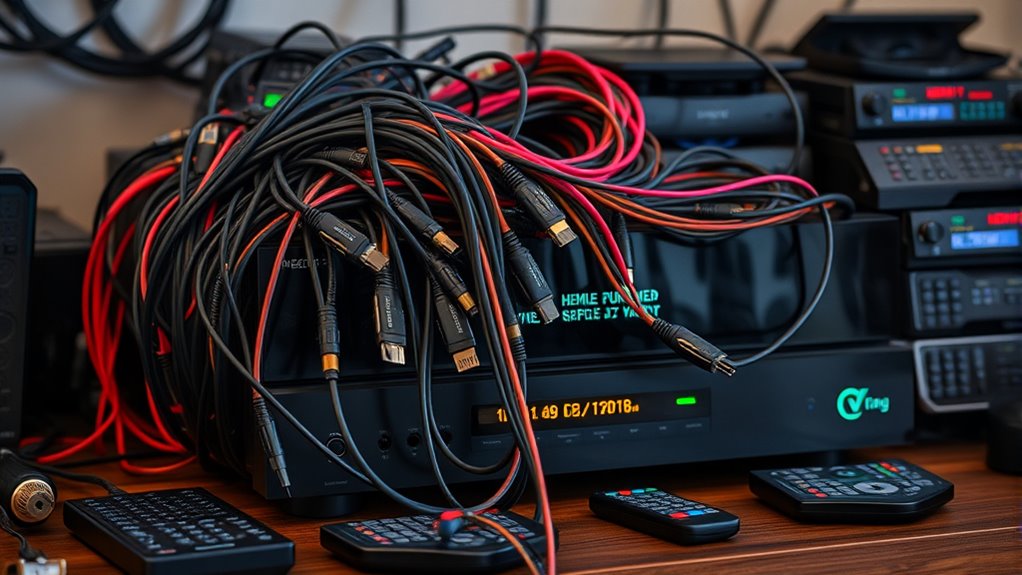
When your receiver setup becomes cluttered and confusing, it’s often easiest to start fresh by resetting it. A reset can clear out the clutter, eliminate misconfigurations, and give you a clean slate to work with. Before diving into a full reset, take a moment to perform remote troubleshooting. Sometimes, issues stem from simple glitches or outdated firmware, rather than an overly complicated setup. Make sure your remote is functioning properly, the batteries are fresh, and that you can access the receiver’s menu. If you’re still experiencing problems, check for firmware updates. Updating your receiver’s firmware can fix bugs, improve stability, and enhance compatibility, which might resolve your issues without needing a full reset.
Once you’re ready to reset, consult your receiver’s manual or on-screen menu. Many receivers have a dedicated reset option under system settings or advanced setup. Navigate to this menu, and select the reset or factory reset option. This process typically erases custom settings, channel configurations, and saved preferences, returning your receiver to its original state. Keep in mind that some receivers offer partial reset options—like resetting only network settings or picture settings—so choose the full reset if you want to start completely fresh. Remember to have your account information, Wi-Fi passwords, and channel subscriptions handy, as you’ll need to re-enter them afterward.
After the reset, your receiver will restart, and you’ll see the initial setup wizard or welcome screen. Use this as an opportunity to set up your preferences from scratch. Start by reconnecting to your Wi-Fi network, if applicable, and checking for firmware updates again. Updating firmware immediately after a reset ensures you’re running the latest version, which can prevent future issues. During setup, reconfigure your channels, favorites, and any custom settings you previously had. If you encounter issues during setup, don’t panic—try remote troubleshooting by resetting your remote, re-pairing it with your receiver, or replacing batteries. These small steps can often resolve remote control problems that seem to persist after a reset. Additionally, understanding your receiver’s network settings can help ensure your device communicates properly and avoids future connectivity problems.
Resetting your receiver doesn’t have to be intimidating. With a bit of preparation—checking for firmware updates and troubleshooting your remote—you can streamline the process. A clean reset clears the clutter, fixes underlying software issues, and provides a fresh start. Just remember, after the reset, to update firmware and reconfigure your settings carefully. This way, you’ll avoid the same messiness and enjoy a smoother, more reliable viewing experience.
Frequently Asked Questions
Can I Reset My Receiver Remotely?
Yes, you can perform a remote reset on your receiver. Many models offer factory reset options accessible through the device’s settings menu or via remote commands. Check your receiver’s user manual for specific instructions on remote reset procedures, which often involve steering to the settings and selecting the factory reset option. This method saves time and effort, especially if your receiver is unresponsive or you want to clear all personalized settings.
Will Resetting Delete My Recorded Channels?
Yes, resetting your receiver will delete your stored channels and recordings, as it clears the channel storage. However, if you perform a firmware update instead, your recordings usually stay intact. Before resetting, back up your important recordings if possible. Resetting helps fix issues but remember it erases your personalized settings, including saved channels, so consider whether a reset is necessary or if updating firmware might resolve your problems without data loss.
How Long Does the Reset Process Take?
Surprisingly, your reset won’t take forever—usually just 10 to 15 minutes. During this time, your receiver might perform a quick software update or firmware recovery, which keeps everything running smoothly. Ironically, the process is so quick, you might think it’s a typo. Just be patient, and you’ll have a fresh setup without losing your favorite channels, all while avoiding the headache of starting from scratch.
Do I Need Internet to Reset My Receiver?
No, you usually don’t need internet to reset your receiver. However, network connectivity can affect firmware updates and some reset features. If your receiver requires a firmware update after resetting, an internet connection becomes helpful to download and install it smoothly. Without internet, you might miss out on the latest updates, but the reset itself can often be completed offline. Just make certain your receiver is properly powered and follow the reset instructions.
Will Resetting Improve My Receiver’s Performance?
Think of your receiver as a garden; resetting clears out weeds and overgrowth. Yes, resetting can improve your receiver’s performance by restoring factory settings, fixing glitches, and allowing you to update receiver firmware. It also helps recalibrate signals, ensuring clearer reception. By doing this, you give your receiver a fresh start, boosting stability and picture quality. Just like tending a garden, a reset revitalizes your device for best operation.
Conclusion
Now, imagine your receiver setup as a cluttered closet. Resetting it clears out the chaos, leaving you with a fresh, organized space ready for your favorite channels. With a simple reset, you’ll see everything come into focus like sunlight streaming through an open window. No more tangled cords or lost preferences—just a clean slate. Take that first step now, and enjoy the clarity and peace of a perfectly arranged entertainment hub.