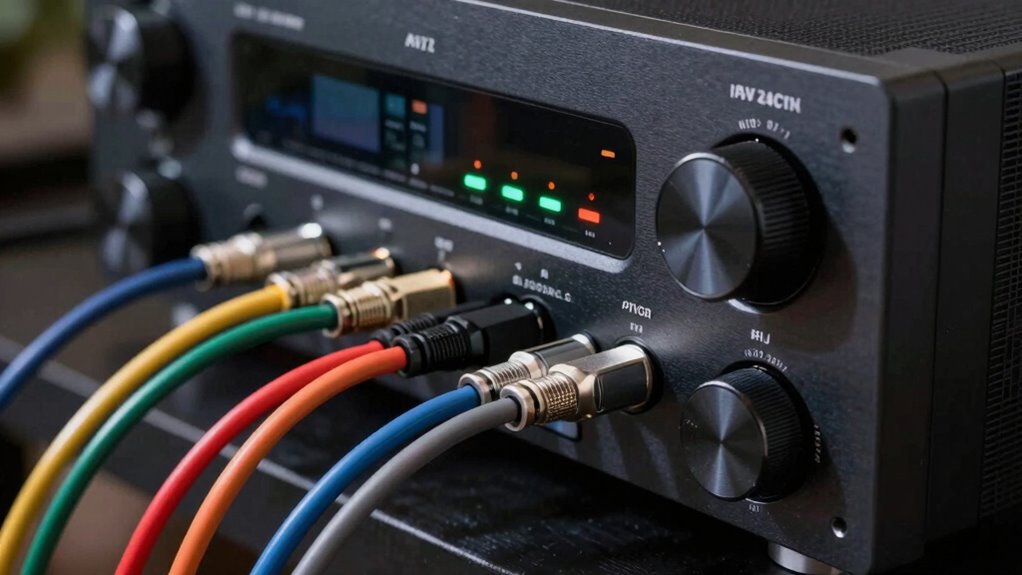
If your video quality is suffering, start by checking if your receiver supports HDMI 2.0 or higher for 4K and HDR. Use high-quality cables and make sure they’re in good condition, as poor cables can cause flickering or blackouts. Update your receiver’s firmware to fix compatibility issues and calibrate your system to optimize picture settings. If problems persist, your receiver might be limiting performance due to outdated hardware—more tips can help you identify and fix these issues.
Open a free Amazon Business account
Business pricing, bulk buying and tax-exempt orders.
As an affiliate, we earn on qualifying purchases.
Key Takeaways
- Check for video issues like flickering, lag, or resolution drops when connected through the receiver.
- Test the same source directly connected to the TV to compare video quality.
- Ensure the receiver supports HDMI 2.0 or higher for 4K HDR content.
- Update the receiver’s firmware to fix potential compatibility or performance issues.
- Use high-quality HDMI cables and verify proper calibration for optimal video output.
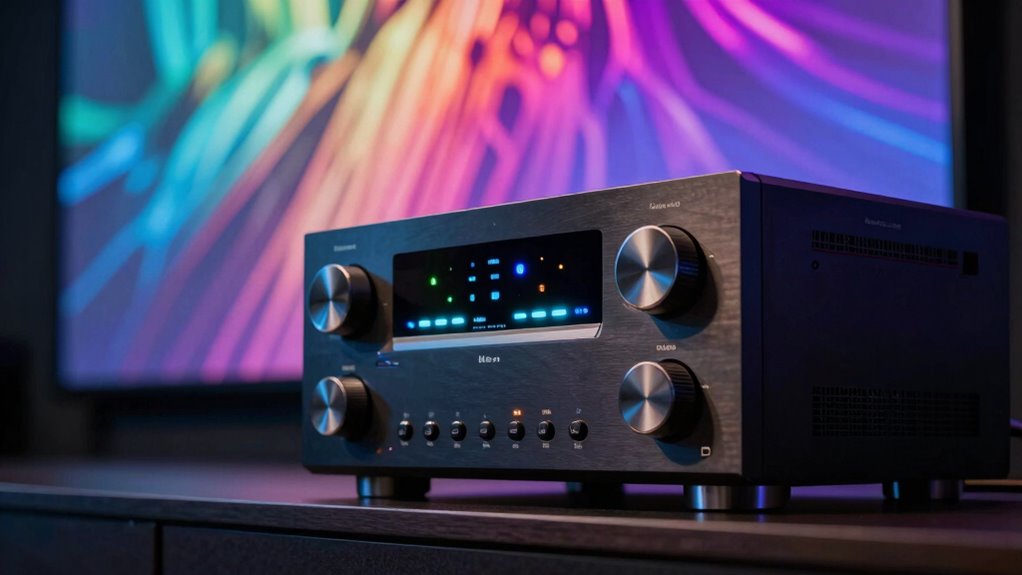
If your home theater setup isn’t delivering the smooth, high-quality video you expect, your receiver might be the culprit. Many users overlook the importance of proper audio calibration and HDMI compatibility, which can significantly impact video performance. First, check if your receiver is properly calibrated. Audio calibration isn’t just about sound; it also influences how your system handles video signals. Poor calibration can cause issues like flickering, lag, or inconsistent image quality. Use the automatic calibration tools included with your receiver, but don’t rely solely on them. Manually fine-tuning settings—such as color, contrast, and sharpness—can improve the overall picture. If your receiver has room correction features, ensure they are correctly set up and optimized for your viewing environment.
Another critical factor is HDMI compatibility. Your receiver acts as a hub for your video signals, so if it doesn’t support the latest HDMI standards, you’ll likely encounter issues. Check the specifications to confirm your receiver handles HDMI 2.0 or higher, as these support 4K resolution, HDR, and higher refresh rates, all essential for crisp, vibrant video. Outdated HDMI ports can cause buffering, blackouts, or reduced resolution, making your viewing experience less than ideal. If you notice your display isn’t reaching its full potential, try connecting your source directly to the TV to determine if the problem stems from the receiver or the source device itself. If the direct connection looks better, your receiver might be limiting video quality due to compatibility issues.
Additionally, make sure your HDMI cables are high quality and rated for the latest standards. Cheap or damaged cables can introduce signal degradation, resulting in poor image quality or intermittent issues. Always use certified cables designed for 4K HDR content. Also, verify your receiver’s firmware is up to date. Manufacturers often release updates that improve HDMI compatibility and performance and fix bugs affecting video performance. Staying informed about latest HDMI standards can help you troubleshoot and prevent future issues. Ensuring firmware updates are installed can sometimes resolve compatibility issues without replacing hardware. If problems persist, consider testing with different HDMI cables or even replacing your receiver if it’s significantly outdated. Properly managing these factors can help ensure your home theater delivers the best possible video experience.
As an affiliate, we earn on qualifying purchases.
Frequently Asked Questions
Can Updating My Receiver Improve Video Performance?
Updating your receiver can improve video performance, especially if it includes firmware updates that enhance compatibility and fix bugs. Proper receiver calibration guarantees peak signal processing, reducing issues like signal interference that can degrade video quality. Keep your receiver updated to benefit from these improvements, and regularly check calibration settings to ensure your setup delivers the best possible video performance. This proactive approach helps you enjoy clearer, smoother visuals.
Does Cable Quality Affect Receiver Video Output?
Yes, cable quality definitely affects your receiver’s video output. Durable cables with good shielding reduce signal interference, ensuring clearer, sharper images. Low-quality or damaged cables can cause flickering, color issues, or lag. Investing in high-quality, well-made cables minimizes these problems, so your receiver can deliver peak performance. Remember, the better the cable’s durability and shielding, the less likely you’ll experience interruptions or degraded video quality.
How Do I Check for Firmware Updates on My Receiver?
To check for firmware updates on your receiver, start by visiting the manufacturer’s website and locating your model. Many receivers have a built-in menu for firmware updates—navigate to settings or system updates to see if an update is available. Regular firmware updates are essential because they fix compatibility issues, improve performance, and add new features. Always make sure your device is connected to the internet before checking or downloading updates.
Are There Specific Settings to Optimize Video Quality?
Think of your receiver as a vintage radio tuned to perfection. To optimize video quality, start with settings adjustments like changing picture mode to ‘Cinema’ or ‘Vivid.’ Use picture calibration tools for sharpness, contrast, and color accuracy. Turn off any motion smoothing or enhancement features that may distort the image. Fine-tuning these settings guarantees you’re getting the best possible picture, much like a DJ perfecting each track for the perfect mix.
Can HDMI Ports Influence Video Performance?
Yes, HDMI ports can influence your video performance. Using the right HDMI port guarantees ideal bandwidth, which affects resolution and refresh rates. Additionally, proper audio calibration and power management settings on your receiver can improve overall video quality by reducing lag and ensuring consistent signal transmission. Always check that your receiver’s HDMI ports are connected to compatible devices and configured correctly, enhancing both audio and video output.
As an affiliate, we earn on qualifying purchases.
Conclusion
Sometimes, it’s easy to overlook the subtle signs your receiver might be limiting your video quality. You might find yourself marveling at how a recent upgrade suddenly feels underwhelming, or notice that your picture isn’t as sharp as it should be, just when you’re about to settle in for a movie night. Coincidences like these often point to hidden issues, reminding you that paying close attention can reveal more about your system’s true performance than you might expect.
As an affiliate, we earn on qualifying purchases.
As an affiliate, we earn on qualifying purchases.
NFL season / tailgating Picks
team gear
As an affiliate, we earn on qualifying purchases.




![2026 Emmy Awards Winners Revealed [Updating Live]](https://beamandbass.com/wp-content/uploads/2026/09/2026-emmy-awards-winners-revealed-updating-live-featured-260x140.jpg)