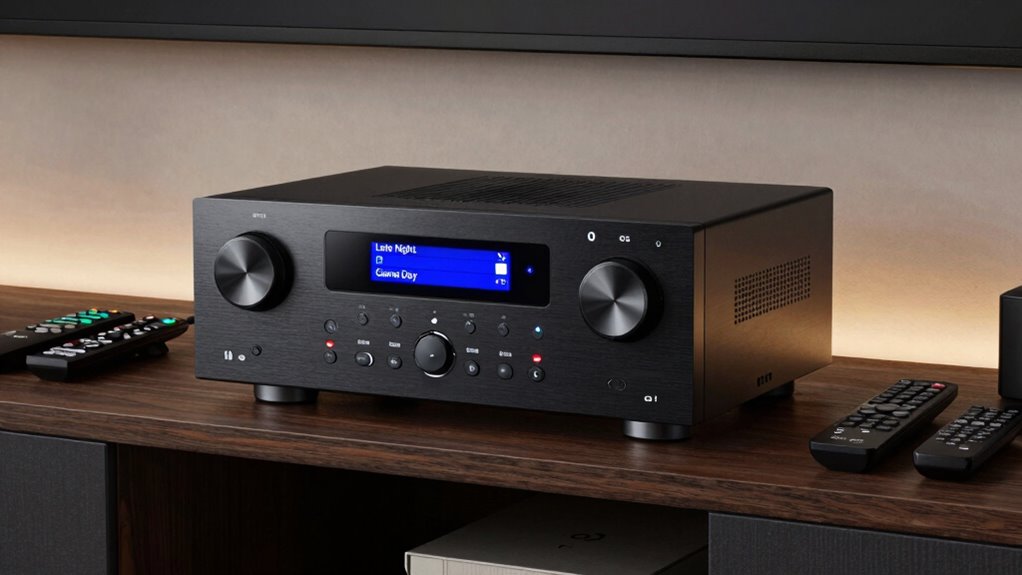

To set a ‘Late Night’ and ‘Game Day’ preset on your receiver, first tune to your preferred stations or sources for each event. Use your remote to access the preset or memory function, then save each station or source by holding the button until you hear a beep or see a confirmation message. You can assign specific preset numbers or buttons, making it quick to switch between your favorite events. Keep exploring, and you’ll learn how to customize your setup even more.

Get audio and creator gear delivered free — and shop member deals
- Fast, free delivery on millions of items
- Access to Prime Big Deal Days deals on October 6–7
- Prime Video, Amazon Music and more included
Key Takeaways
- Tune your receiver to the desired station or input for the ‘Late Night’ preset.
- Save the station by pressing and holding the designated preset or memory button until confirmation.
- Repeat the process for the ‘Game Day’ preset with your preferred station or source.
- Assign each preset to specific remote buttons if supported for quick access.
- Confirm that presets are saved correctly for easy switching between ‘Late Night’ and ‘Game Day’ setups.
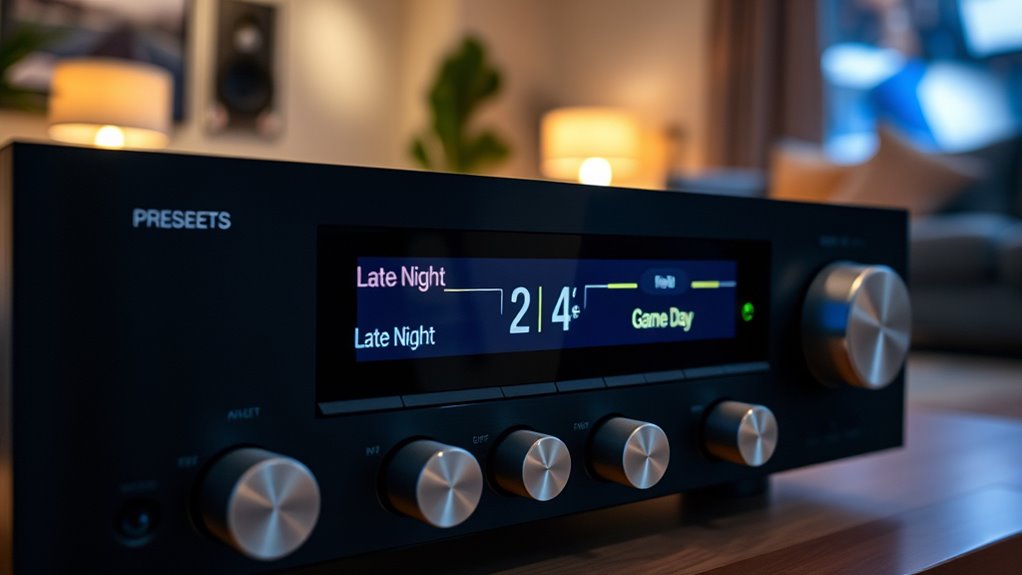
Setting presets on your receiver allows you to quickly access your favorite radio stations or audio sources with just the press of a button. It’s a simple way to streamline your listening experience and switch between different audio setups effortlessly. To do this, you’ll typically need to go through a few steps involving remote control setup and sometimes firmware updates, especially if your receiver supports advanced preset functions.
Save your favorite stations easily with preset buttons for quick, effortless listening.
First, power on your receiver and ensure it’s connected properly. Use the remote control to navigate to the tuner or source menu. Once there, tune in to the radio station or select the audio source you want to save as a preset. For example, if you want a “Late Night” preset, find your preferred late-night radio station, or if it’s a streaming service or input, select that instead. After tuning in or selecting the source, look for the preset or memory button on your remote. Press and hold this button until you see a confirmation on the display, such as a beep or a message indicating the preset has been saved. Some receivers allow you to assign specific preset numbers, so take note of which button corresponds to your desired station or source for quick access later.
If your receiver supports multiple presets or custom configurations, it might be worth checking for firmware updates. Firmware updates can improve remote control setup, add new features, or fix bugs that could interfere with preset saving. To do this, visit the manufacturer’s website, download the latest firmware, and follow the instructions for updating your device. Updating firmware ensures your receiver remains compatible with the latest remote control features and can handle advanced preset functions smoothly. Additionally, firmware updates are essential for maintaining security and ensuring optimal performance of your device.
Once your presets are saved, you can assign them to specific remote control buttons for quick access. For example, you could dedicate one button to the “Late Night” preset and another to “Game Day.” To do this, follow your receiver’s instructions for customizing remote controls or preset assignments. This way, with just a press of a button, you’ll switch from relaxing late-night tunes to your favorite game day broadcast without hassle.
AV receiver preset remote control
As an affiliate, we earn on qualifying purchases.
As an affiliate, we earn on qualifying purchases.
Frequently Asked Questions
How Many Presets Can My Receiver Store?
Your receiver typically stores between 3 to 10 presets, depending on its model and memory capacity. Check your user manual for specific preset organization details. If you want to customize your sound settings for different activities, knowing your receiver’s memory capacity helps. You can easily save and switch between presets, ensuring your preferred audio setup is always ready without hassle.
Can I Customize Presets for Different Input Sources?
Yes, you can customize presets for different input sources. This input source customization allows you to tailor sound settings for each device. When doing so, use clear preset naming conventions, like “Game Day” or “Late Night,” to easily identify them later. This way, switching between input sources becomes seamless, and your preferred sound profiles are always ready, enhancing your overall listening experience.
Do Presets Automatically Update With Software Upgrades?
No, presets don’t automatically update with software updates. When you install a software update, it might impact your preset customization options, sometimes resetting them or changing their settings. To keep your favorite presets, you should reconfigure them after each update. Regularly check for update notes, as manufacturers often include details about any changes to preset behavior or customization features, ensuring your settings stay as you like.
How Do I Delete a Preset on My Receiver?
Imagine your receiver as a cluttered closet; preset deletion clears out unused settings. To manage presets, navigate to the preset management menu, then select the preset you want to delete. Confirm your choice, and it’s gone, freeing up space and simplifying your setup. Regular preset management keeps your receiver organized, making it easier to find and activate your favorite sound settings without unnecessary clutter or confusion.
Can Presets Be Shared Between Different Receivers?
No, presets generally can’t be shared directly between different receivers. However, you can transfer settings like remote control setup and speaker configuration if your receiver supports a backup or export feature. To do this, save your preset configurations to a USB drive or network, then import them into the other receiver. Just verify that both receivers are compatible with this process to successfully replicate your desired settings.
As an affiliate, we earn on qualifying purchases.
Conclusion
By setting personalized presets like ‘late night’ and ‘game day,’ you make your receiver more convenient and tailored to your habits. Did you know that users who customize their settings report a 30% increase in overall satisfaction with their home entertainment systems? Taking just a few minutes to set up these presets guarantees you enjoy your favorite content effortlessly, making every viewing experience more enjoyable and stress-free.
As an affiliate, we earn on qualifying purchases.
As an affiliate, we earn on qualifying purchases.
Fall Picks
fall essentials
As an affiliate, we earn on qualifying purchases.