
If dialogue sounds too quiet, start by adjusting your TV or sound system settings. Increase the volume slightly and switch to a sound mode like “Standard” or “Movie” that emphasizes speech. Use the equalizer to boost midrange frequencies, especially around 500Hz–2kHz. Turn on speech enhancement features or dialogue modes if available. Connecting an external soundbar or speakers can also help. Subtitles can boost understanding and make speech clearer. Keep exploring these options for better clarity—more tips await if you want to improve your audio even further.
Key Takeaways
- Enable dialogue enhancement or speech mode in your TV or sound system settings to prioritize voice frequencies.
- Adjust the equalizer by boosting midrange or vocal frequencies (500Hz–2kHz) for clearer dialogue.
- Use audio processing features like “Dialogue Mode” or “Speech Enhancement” to isolate speech from background noise.
- Connect external speakers or soundbars that support surround sound formats for better vocal clarity.
- Add subtitles with clear fonts and proper synchronization to improve understanding when audio is quiet.

Amazon Fire TV Soundbar Plus (newest model) with built-in subwoofer, 3.1 channel, Dolby Atmos, clear dialogue
Fire TV Soundbar Plus – Elevate your audio with an all-in-one 3.1 soundbar that’s easy to set up….
As an affiliate, we earn on qualifying purchases.
As an affiliate, we earn on qualifying purchases.
Adjusting Your TV or Sound System Settings

Sometimes, the simplest fix for a quiet TV is adjusting its audio settings. First, check your TV’s volume level and make sure it’s set high enough. Many TVs have different sound modes—try switching to “Standard” or “Movie” mode, which often boost dialogue clarity. If your TV has an audio output menu, explore options like Digital Audio Output or Sound Settings to guarantee they’re configured correctly. Some models let you tweak bass, treble, or balance, so experiment to find a clearer sound. Also, verify that any external sound systems, like soundbars or home theater setups, are properly connected and powered on. Adjusting these settings can make a noticeable difference without needing extra equipment or complex adjustments. Additionally, understanding the Role of Contrast Ratio in your projector or TV can help optimize overall picture quality, indirectly enhancing your viewing experience. Properly configuring your audio settings is essential for achieving clear dialogue, especially when watching movies with subtle sounds. To further improve clarity, consider exploring smart home audio integration, which can enhance sound customization and control through connected devices. Being aware of sound system safety tips can also prevent damage to your equipment while adjusting settings.

MZEIBO Sound Bar,50W TV Speaker with ARC/Optical/AUX/Bluetooth 5.3, Clear Dialogue & Deep Bass, Home Theater Audio System
Powerful 50W Audio – Delivers clear highs, rich mids, and deep bass for an immersive home theater experience,…
As an affiliate, we earn on qualifying purchases.
As an affiliate, we earn on qualifying purchases.
Using Audio Equalizer to Enhance Dialogue Frequencies
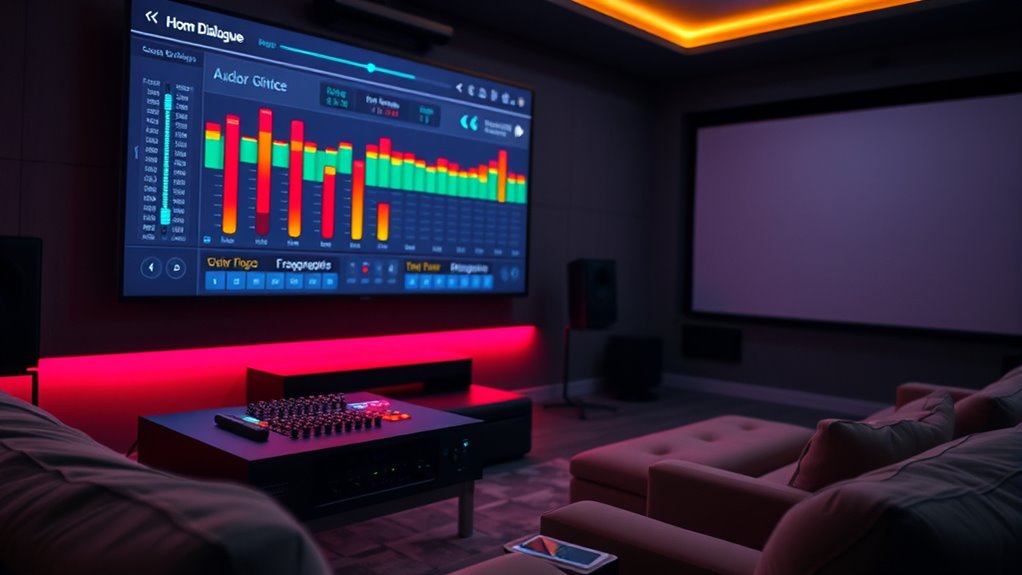
Once you’ve adjusted your TV or sound system settings, you can further improve dialogue clarity by using your audio equalizer. Start by locating the equalizer controls, often labeled as bass, midrange, and treble. Focus on boosting the midrange frequencies, typically between 500Hz and 2kHz, where most dialogue resides. Be careful not to overdo it, as excessive boosting can make the sound unnatural or introduce distortion. Instead, make small adjustments and test by listening to a scene with clear dialogue. If your equalizer has preset modes, try selecting one designed for speech or vocals. This targeted approach helps bring dialogue forward, making it easier to understand without increasing overall volume or affecting other audio elements. Additionally, understanding the audio frequency range can help you make more precise adjustments for clearer dialogue. Knowing the frequency spectrum enables you to fine-tune your settings effectively, especially for voice clarity. Exploring the equalizer controls further can help you customize your sound experience even more precisely. By familiarizing yourself with the sound profile, you can optimize your settings for different types of content and listening environments.

Nobsound 9-Band Stereo EQ Preamp: HiFi Equalizer Audio Processor with Tone Controls | 111dB SNR | 0.001% THD | 2 RCA in/Out | for Home Stereo Audiophiles (EQ9)
9-Band EQ: Tune nine bands from 20Hz to 16kHz within ±6dB to shape bass, mids, and treble precisely…
As an affiliate, we earn on qualifying purchases.
As an affiliate, we earn on qualifying purchases.
Activating or Customizing the Speech or Dialogue Mode
To improve dialogue clarity, activating or customizing the speech or dialogue mode on your audio system can be highly effective. Many modern TVs and soundbars include a dedicated setting designed to enhance speech sounds, making dialogue stand out more clearly. To enable it, look for options labeled “Dialogue Mode,” “Speech Enhancement,” or similar in your audio settings menu. Once activated, this mode adjusts audio processing to prioritize voice frequencies, reducing background noise and musical elements. Some systems allow you to customize the level of enhancement, giving you control over how prominent dialogue sounds. Experiment with these settings until the speech becomes clearer without distorting other audio elements. Additionally, audio processing technology in smart audio systems can optimize sound placement for better clarity. Understanding how audio equalization works can also help you fine-tune your sound settings for clearer dialogue. Adjusting these sound settings can make a significant difference in hearing dialogue more clearly. Utilizing sound calibration tools can further help tailor the audio output to your specific listening environment, enhancing overall clarity. This simple adjustment can markedly improve your listening experience without needing to alter overall volume levels.
![[Upgraded] Computer Speakers for Desktop PC, USB Plug-n-Play, External Speakers for Laptop, Mini PC Sound Bar with Stereo Loud Sound, Enhanced Bass, Compatible with Windows, macOS, ChromeOS, Linux](https://m.media-amazon.com/images/I/416h3bKRiuL._SL500_.jpg)
[Upgraded] Computer Speakers for Desktop PC, USB Plug-n-Play, External Speakers for Laptop, Mini PC Sound Bar with Stereo Loud Sound, Enhanced Bass, Compatible with Windows, macOS, ChromeOS, Linux
💻Compatible with Windows PCs — The Upgraded USB Computer Speaker works great with various brands of Windows (7/8/10/11)…
As an affiliate, we earn on qualifying purchases.
As an affiliate, we earn on qualifying purchases.
Utilizing Built-in Accessibility Features for Clarity
Many audio systems and TVs come equipped with built-in accessibility features designed to enhance speech clarity. These features often include options like dialogue enhancement, which isolates speech from background noise, making conversations easier to understand. You can usually find these settings in your device’s audio or accessibility menu. Activating dialogue enhancement boosts the volume of spoken words without increasing overall sound levels, helping you catch every line clearly. Some devices also offer customizable audio profiles or presets tailored for dialogue clarity. By exploring these built-in options, you can considerably improve your listening experience without external equipment. Adjusting these features is quick and simple, providing an effective solution for clearer dialogue during movies and shows. Additionally, understanding how sound quality affects speech intelligibility can help you better optimize your device settings for the clearest audio experience.
Connecting External Speakers or Soundbars for Better Sound

To improve your sound, you need to choose compatible external speakers or soundbars that work with your device. Once you’ve selected the right equipment, setting up the connections correctly is vital for peak performance. Ensuring proper connection setup makes a noticeable difference in how clearly you hear dialogue. Additionally, simple organizing strategies can help keep your setup area tidy, making it easier to manage cables and connections. Properly connection setup is essential for avoiding sound issues and maintaining optimal audio quality. Taking the time to understand your device’s audio settings can also significantly enhance your listening experience. Being familiar with audio configuration options allows you to customize sound output for the best clarity. Paying attention to cable management can prevent signal interference and improve overall sound quality.
Choosing Compatible Devices
Choosing compatible external speakers or soundbars guarantees you get the best audio experience without hassle. First, check your device’s output options, such as HDMI ARC, optical, or Bluetooth, and verify your speakers support these connections. Compatibility also involves matching audio formats; for example, if your TV has Dolby Atmos, consider a soundbar that supports it for immersive sound. Pay attention to power and size—larger speakers can produce richer sound, but need space. If your TV has limited ports, opt for wireless options like Bluetooth or Wi-Fi-enabled speakers. Reading reviews helps confirm compatibility and performance. Ensuring your setup aligns with electrical safety principles and your device’s output options ensures seamless integration and high-quality sound. Additionally, consulting manufacturer guidelines can help prevent potential damage and ensure optimal operation.
Proper Connection Setup
Connecting your external speakers or soundbar correctly is essential for superior audio performance. Proper setup ensures clear dialogue and balanced sound. To achieve this:
- Choose the right port—optical, HDMI ARC, or auxiliary—based on your device’s compatibility.
- Connect the cable securely, ensuring no loose connections that could cause audio issues.
- Set your TV’s audio output to the external device in the menu settings.
- Adjust the sound settings on your TV and external device for ideal clarity.
- Use a quality audio interface to reduce latency and improve sound synchronization. Additionally, checking for firmware updates can enhance compatibility and performance.
- Properly configuring your audio connections helps prevent common issues like audio lag or no sound at all.
Double-check connections before powering everything on. Proper setup minimizes audio lag, distortion, and quiet dialogue. By following these steps, you’ll enhance your viewing experience without the need for excessive volume or complicated adjustments. Clear, balanced sound is just a connection away.
Implementing Subtitles to Follow Along
Adding subtitles to your videos can substantially improve viewers’ understanding, especially when the audio is too quiet. Subtitles help you follow the dialogue without straining to hear every word, making your viewing experience more enjoyable. To implement them effectively, choose a clear, easy-to-read font and position it at the bottom of the screen. Use accurate transcription to reflect every spoken word and relevant sound cues. Many video editing tools and platforms offer automatic subtitle generation, but you should review and edit these for accuracy. Keep the timing synchronized with the audio, ensuring subtitles appear and disappear smoothly. Implementing subtitles not only benefits viewers with hearing difficulties but also enhances comprehension for those watching in noisy environments or when listening isn’t possible. Detecting passive voice can also help improve the clarity and directness of your captions.
Choosing the Right Audio Format for Optimal Clarity
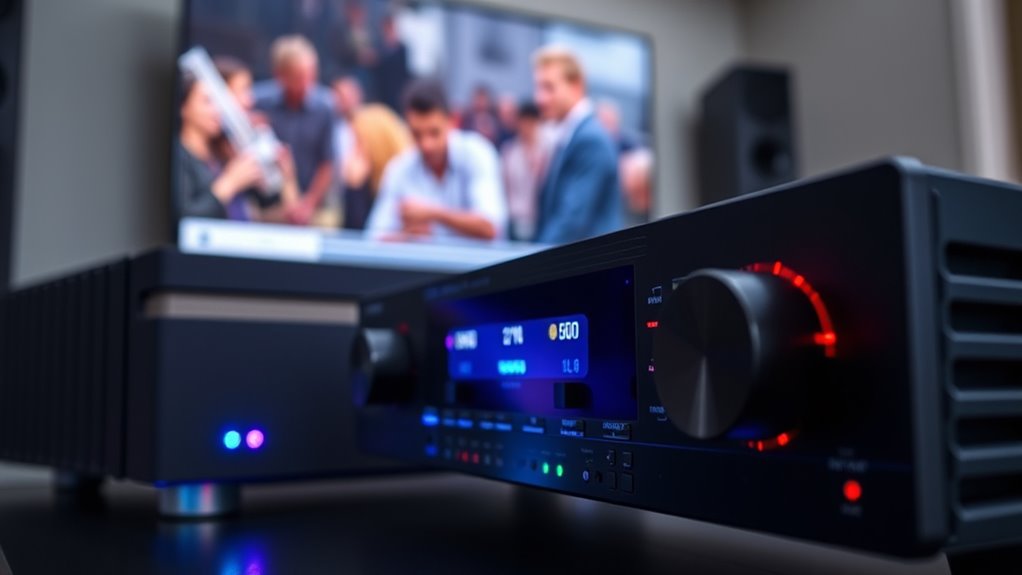
Choosing the right audio format can make a big difference in how clear dialogue sounds. You should pick clear audio formats that preserve detail and match your device for the best experience. Considering surround sound options can also enhance clarity, especially in complex scenes.
Select Clear Audio Formats
Have you ever struggled to understand audio because the format wasn’t clear enough? Choosing the correct audio format can dramatically improve clarity. First, opt for formats like Dolby Digital or DTS, which preserve detailed sound quality. Second, select uncompressed or lossless formats such as FLAC or WAV when possible; they retain original audio fidelity. Third, check your device’s compatibility—some formats work better on certain hardware. Fourth, consider the source; streaming platforms often offer multiple format options, so pick the highest quality available. By prioritizing formats that maximize clarity and compatibility, you guarantee dialogue is crisp and easy to understand, reducing the need for loud volume boosts or post-editing. Selecting the right format is a simple but effective step toward better audio clarity.
Match Format to Device
Matching the audio format to your device guarantees you get the best possible sound quality without compatibility issues. Check your device’s specifications to see which formats it supports, such as Dolby Digital, DTS, or PCM. If your device only handles standard stereo, using high-bitrate or advanced surround sound formats won’t improve clarity and might cause playback problems. Conversely, if your device supports advanced formats, selecting a compatible one ensures you maximize sound detail. For example, playing a Dolby Atmos file on a compatible system delivers richer, more immersive audio. Always match the format to your device’s capabilities to optimize clarity and prevent issues like distortion or audio dropouts. Properly matching formats ensures your dialogue remains clear without sacrificing overall sound quality.
Consider Surround Sound Options
Are you aware of how different surround sound options can dramatically enhance your listening experience? Choosing the right audio format can make dialogue clearer and more immersive. First, consider Dolby Atmos, which adds height channels for a three-dimensional soundscape. Second, DTS:X offers a flexible, object-based approach that adapts to your setup. Third, Dolby Digital Plus provides high-quality audio with minimal compression, ideal for streaming. Fourth, PCM (Pulse Code Modulation) delivers uncompressed sound, ensuring maximum clarity if your system supports it. Evaluating your hardware and room acoustics will help determine which format fits best. Upgrading or configuring your audio system with the appropriate surround sound technology can make a significant difference in how clearly you hear dialogue, without needing to blast the entire movie volume.
Frequently Asked Questions
Can I Fix Dialogue Volume Issues on Streaming Platforms?
Yes, you can fix dialogue volume issues on streaming platforms. First, check your device’s audio settings and adjust the volume or enable night mode or dialogue enhancement features if available. You can also try subtitles for clearer understanding. If specific app settings exist, explore them for sound balancing options. Keeping your app and device software updated ensures peak audio performance, making dialogue clearer without blasting your entire movie.
Do All TVS Support Advanced Audio Equalizer Settings?
Your TV’s support for advanced audio equalizer settings is like a toolbox—some models come equipped, while others don’t. Many modern smart TVs do include customizable sound settings, letting you tweak bass, treble, and balance. However, older or basic models might lack these features. Check your TV’s user manual or settings menu to see if advanced audio options are available, and consider an external sound system if you need more control.
How Do I Test if My External Speakers Improve Dialogue Clarity?
To test if your external speakers improve dialogue clarity, play a scene with clear speech, such as a conversation or monologue. Listen carefully to the dialogue, then switch to your external speakers. Notice if the speech sounds sharper and more distinct. You can also use a voice clarity test audio, available online, to compare how well each setup reproduces speech. Adjust the speaker placement if needed for ideal clarity.
Are There Apps That Automatically Enhance Dialogue Audio?
Yes, several apps can automatically enhance dialogue audio for you. Apps like Dolby Access, VLC Media Player with audio filters, and specific sound equalizer apps can analyze and boost dialogue frequencies. You simply load your media, enable the dialogue enhancement feature, and let the app do the work. These tools are easy to use and can markedly improve clarity without needing to manually adjust settings or blast your entire sound system.
Can I Adjust Dialogue Volume Without Affecting Other Sounds?
Yes, you can adjust dialogue volume without affecting other sounds. Think of your audio as a symphony—balance is key. Use your media player’s audio settings or an equalizer to boost dialogue frequencies specifically. Many apps and devices let you isolate vocals or create custom audio profiles. This way, you amplify the dialogue’s voice, making it clearer, without drowning out background music or sound effects.
Conclusion
Think of your TV’s sound as a delicate garden—you need to tend to its layers to see the flowers bloom clearly. By adjusting settings, activating dialogue modes, or adding subtitles, you’re nurturing clarity amidst the noise. Sometimes, the solution is simple, like a gentle breeze guiding your experience. With a little tuning, you’ll find your perfect harmony, turning a quiet scene into a mesmerizing story you can truly hear and enjoy.