To label your HDMI inputs so you never guess again, start by planning which device connects to each port. Use labels, masking tape, or a label maker to mark each HDMI port or cable clearly with device names like “Gaming Console” or “Streaming Box.” Keep labels visible and durable, updating them whenever you add new devices. Proper labeling streamlines your setup, saves time, and makes switching inputs effortless—continue to explore simple tips to perfect your cable management.
Key Takeaways
- Use clear, permanent labels like masking tape or a label maker to mark each HDMI port with device names.
- Plan device connections beforehand to ensure accurate labeling of each HDMI input.
- Attach labels directly next to HDMI ports or on the cables for quick identification.
- Keep labels visible and durable, updating them when adding new devices for clarity.
- Match each label to its device to prevent confusion and streamline input switching.
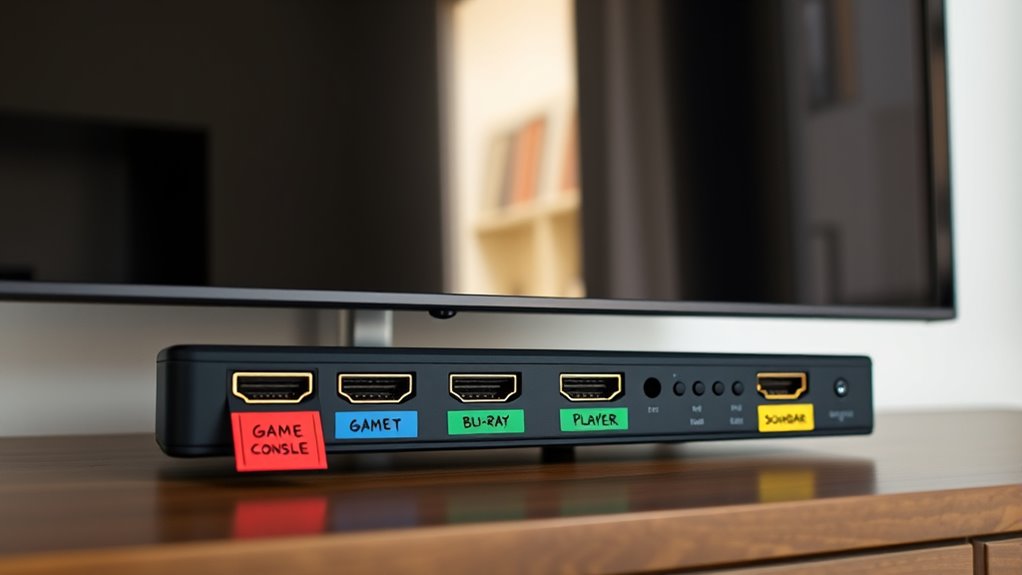
Labeling HDMI inputs might seem like a small task, but it can save you time and frustration when switching between devices. When you have multiple gadgets connected to your TV or monitor, trying to remember which HDMI port corresponds to your gaming console, Blu-ray player, or streaming device can become a hassle. Proper labeling streamlines cable management by keeping everything organized, reducing clutter, and making it easier to identify each connection at a glance. Plus, it saves you from fumbling around with the remote control, guessing which input to select every time you want to switch devices.
To get started, gather some simple tools like masking tape, labels, or a label maker. You’ll want something that sticks well but can also be removed cleanly later if needed. Before you label, take a moment to plan out where each device will go and which HDMI port it’s connected to. This planning makes labeling more accurate and helps you avoid confusion down the line. As you connect each device, attach a label directly next to its HDMI port or on the cable itself, clearly indicating what it is — for example, “Gaming Console,” “Streaming Box,” or “DVD Player.” This way, when you’re using the remote control to switch inputs, you won’t need to guess or remember which device is which.
Plan device placement and label each HDMI port for easy, accurate identification.
Additionally, understanding cable management principles can help you keep your setup neat and accessible. Once everything is labeled, you’ll notice how much easier it becomes to navigate your entertainment setup. No more fumbling with cables or trying to recall which port belongs to your sound system or media player. When you want to switch devices, simply select the labeled input on your TV, and you’re good to go. This simple step also improves cable management because your setup looks cleaner and more organized, with clear labels guiding your choices. If you add new devices later, just update the labels to keep things straightforward.
Labeling HDMI inputs isn’t just about convenience — it’s about creating a smarter, more efficient entertainment space. It minimizes the chances of selecting the wrong input and having to troubleshoot or disconnect multiple cables. Over time, you’ll appreciate how this small upgrade enhances your overall experience, making daily device switching effortless. Keep your labels visible and durable, and you’ll maintain a tidy, well-organized setup that saves you time and stress every time you turn on your TV.

RUUPRRN 6-in-1 USB C Hub, Type C to Dual HDMI Adapter 4K@60Hz
- Multifunctional 6-in-1 USB C Hub: Dual HDMI, USB-A, 100W PD port
- Dual 4K@60Hz HDMI Output: Supports dual 4K@30Hz or single 4K@60Hz
- High-Speed USB-A Ports: 3 USB 2.0 ports for data transfer
As an affiliate, we earn on qualifying purchases.
As an affiliate, we earn on qualifying purchases.
Frequently Asked Questions
Can I Customize Labels on All Types of HDMI Switches?
Yes, you can customize labels on most HDMI switches. You’ll want to use suitable custom label materials like adhesive labels or dry-erase stickers. Additionally, explore labeling software options that allow you to create clear, professional labels easily. This way, you can personalize each HDMI input, making it simple to identify your devices at a glance, and avoid confusion during setup or use.
Do Labeling Methods Vary Between Different TV Brands?
Imagine you own a Sony TV, and you want brand-specific labels to match your device setup. Labeling methods do vary between TV brands; some offer built-in customization, while others require external solutions. With Sony, you can often access label customization in the settings menu, making it easier to identify HDMI inputs. For other brands like Samsung or LG, you might need third-party tools or external labels, so check your TV’s options.
Are There Durable Labeling Options for Long-Term Use?
Yes, there are durable labeling options for long-term use. Look for labels made from durable materials like laminated vinyl or plastic, which resist wear and tear. Guarantee they have strong adhesive strength so they stay put over time, even with heat or humidity. These labels are perfect for maintaining clear, long-lasting HDMI input labels, making it easy to identify your devices without worry about peeling or fading.
Can I Change HDMI Labels Without Unplugging Devices?
You can absolutely change HDMI labels without unplugging devices—it’s like performing digital magic! Use digital labeling systems that let you update labels via a remote control or a connected app. This way, you don’t have to disconnect anything; you simply select the HDMI input and edit the label instantly. It’s a game-changer, saving time and hassle, especially when managing multiple devices.
How Do I Troubleshoot HDMI Input Mislabeling Issues?
To troubleshoot HDMI input mislabeling issues, start by checking HDMI port numbering and ensuring your device recognizes each port correctly. Sometimes, mislabeling occurs due to device compatibility issues or outdated firmware. You can test each HDMI input with different devices to identify inconsistencies. Reset your device’s settings if needed, and update firmware to resolve compatibility problems. This proactive approach helps you accurately identify and label each HDMI input.

Wrap-It Storage – Cable Labels, Medium, Multi-Color (30-Pack) Write On Cord Tags for Wire Management and Identification
- Prevents Unplugging Errors: Avoid unplugging the wrong cord
- Versatile Cable Identification: Identify cords, wires, and cables easily
- Writable Surface: Easy to write on with a pen
As an affiliate, we earn on qualifying purchases.
As an affiliate, we earn on qualifying purchases.
Conclusion
By labeling your HDMI inputs, you’re planting flags on a cluttered map, turning chaos into clarity. Think of each label as a guiding lighthouse, shining through the fog of tangled cords and guesswork. Now, your entertainment setup becomes a well-lit trail, guiding you effortlessly to the right device every time. With simple labels, you transform confusion into confidence—creating a seamless connection that’s as smooth as a clear, steady beam of light cutting through the night.

35 Pcs Multicolored Color-Coded Nylon Cable & Cord Labels (7 Colors, 5 Each) – Reusable Hook & Loop Wire Tags, Residue-Free Ink-Proof Water-Resistant Identification Labels for Home Office Data Centers
- Color-Coded Cable Labels: 7 colors, 5 labels each
- Reusable Hook & Loop Design: Secure adhesion, residue-free removal
- Water-Resistant & Ink-Proof: Writes clearly with various pens
As an affiliate, we earn on qualifying purchases.
As an affiliate, we earn on qualifying purchases.
TV Planner Stickers, 120 Clear Television Shows Programme Cinema Movie Planner Labels Scrapbooking Crafting Stickers
- Number of stickers: 120 removable stickers
- Sticker type: Clear waterproof planner stickers
- Usage: For planners, scrapbooks, crafts, journals
As an affiliate, we earn on qualifying purchases.
As an affiliate, we earn on qualifying purchases.