
To stop auto-updates during movie night, go to your device settings and look for options like “System,” “Software Update,” or “About.” You can usually disable automatic updates or set a specific schedule, such as late at night, when you don’t plan to watch. Many devices let you control update times, helping you avoid interruptions. Keep exploring your device’s manual or support pages for more detailed instructions to guarantee a smooth movie experience.

Get audio and creator gear delivered free with Prime
- Fast, free delivery on millions of items
- Prime Video, Amazon Music and more included
- Member-only deals all year
Key Takeaways
- Access update settings in your device’s menu under “System,” “Software Update,” or “About” to disable auto-updates.
- Schedule firmware or software updates during off-peak hours, such as late at night or early morning.
- Turn off automatic updates on streaming devices like Roku, Fire TV, or Apple TV through their settings menus.
- For home theater receivers, disable automatic firmware checks via the device’s app or manual update options.
- Consult device-specific manuals or support resources for detailed instructions on managing update schedules.
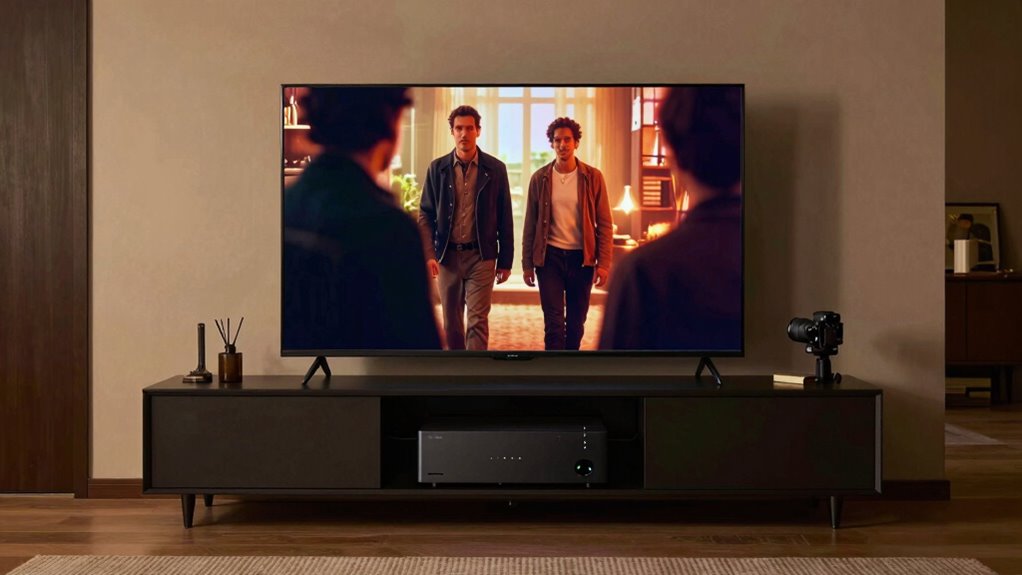
There’s nothing worse than having your movie night interrupted by unexpected software updates. Just when you’re settling into your favorite film, your TV or streaming device suddenly restarts or displays a progress bar. These software interruptions can ruin the mood and throw off your entire evening. To prevent this, you need to take control of your devices’ update scheduling. Most modern TVs, streamers, and AV receivers offer options to delay or disable automatic updates, giving you peace of mind during your movie marathons.
Start by exploring the settings menu on your device. For many smart TVs, you’ll find options under “System,” “Software Update,” or “About.” Look for an option labeled “Automatic Updates” or “Update Schedule” and disable it. By doing this, you ensure the device won’t initiate an update without your knowledge, especially during those prime movie hours. For streaming devices like Roku, Fire TV, or Apple TV, the process is similar. Usually, you can select “Settings,” then “System” or “Device,” and find the update options. Turning off auto-updates or setting a manual update schedule allows you to choose a time when you’re not watching anything.
Many devices also include an option to schedule updates during off-peak hours. If you prefer not to completely disable updates, this is a good alternative. For example, some smart TVs let you set a specific time window for updates, like late at night or early morning, when they won’t interfere with your viewing. This way, your device still stays current without risking an interruption during your movie night. Check your device’s user manual or online support pages for specific instructions, as the process varies between brands and models.
If you’re using a home theater receiver or sound system, the process might involve updating firmware through an app or via a USB drive. Some receivers automatically check for updates and install them, so you’ll need to disable this feature or set it to manual. Regularly checking for updates manually ensures your system stays secure and up to date without unexpected pop-ups during your entertainment time. Additionally, understanding the importance of projector technology can help you select the right equipment that supports scheduled updates and reduces interruptions.
smart TV firmware update blocker
As an affiliate, we earn on qualifying purchases.
As an affiliate, we earn on qualifying purchases.
Frequently Asked Questions
Can I Schedule Auto-Updates for Specific Times?
Yes, you can schedule auto-updates for specific times to avoid interruptions during movie nights. Check your device’s settings for scheduled maintenance options or update notifications, which often allow you to set preferred update times. This way, updates happen when you’re not watching, ensuring your devices stay current without disrupting your viewing experience. Adjusting these settings helps you control when updates occur, keeping your entertainment seamless.
Do Auto-Updates Impact Streaming Quality?
Auto-updates generally don’t impact streaming quality if your device has good firmware stability and timely security patches. In fact, regular updates help fix bugs and improve performance, ensuring smoother streams. However, during automatic updates, some devices might temporarily slow down or buffer. To avoid interruptions, schedule updates during off-peak hours, so your streaming experience remains seamless without sacrificing firmware stability or security.
Are There Risks to Disabling Auto-Updates?
Disabling auto-updates can pose risks, but you can manage them with manual updates and update notifications. If you turn auto-updates off, you might miss critical security patches or bug fixes, which could expose your device to vulnerabilities. To stay protected, regularly check for manual updates and enable notifications so you’re informed when new updates are available. This way, you control updates without risking security or functionality.
How Do Updates Improve Device Performance?
Updates improve your device’s performance by enhancing firmware stability and fixing security patches. When you install updates, you guarantee your TV, streamer, or receiver runs smoothly, reducing crashes or glitches. Security patches protect you from vulnerabilities, keeping your device safe from threats. Regular updates also optimize features and fix bugs, so your device operates efficiently. Staying current with updates helps you enjoy a reliable, secure, and high-performing entertainment experience.
Will Disabling Auto-Updates Void Warranties?
Disabling auto-updates generally won’t void your warranty if you do it responsibly, but it might impact firmware security and update frequency. Manufacturers often specify that keeping software current is necessary for warranty coverage, so you should check your device’s terms. While it’s not an automatic warranty void, failing to update could leave your device vulnerable to security issues and reduce the benefits of improved performance and features.
streaming device auto update disable
As an affiliate, we earn on qualifying purchases.
As an affiliate, we earn on qualifying purchases.
Conclusion
To keep your movie night smooth, it’s best to disable auto-updates on your TVs, streamers, and receivers beforehand. Think of auto-updates as a sneaky guest who arrives uninvited, disrupting your viewing. By turning them off, you control when your devices get updates—preferably during the day. This simple step guarantees your movie night stays uninterrupted, letting you relax and enjoy the story without unexpected pauses or distractions.
home theater receiver firmware control
As an affiliate, we earn on qualifying purchases.
As an affiliate, we earn on qualifying purchases.
As an affiliate, we earn on qualifying purchases.
Fall Picks
fall essentials
As an affiliate, we earn on qualifying purchases.