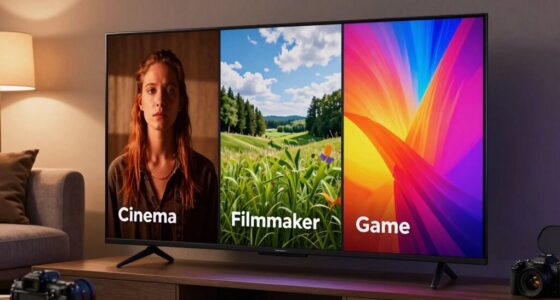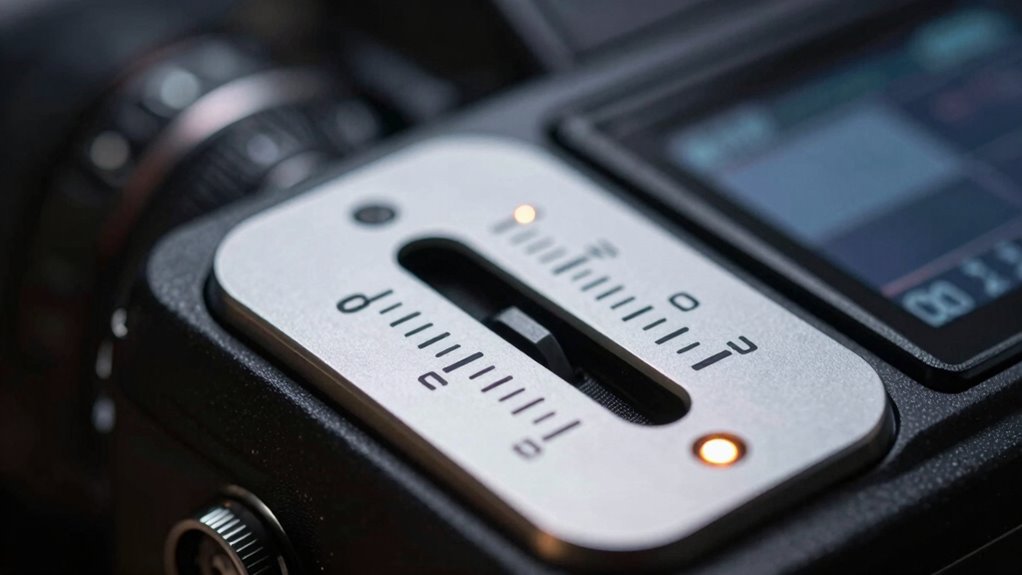

Gamma settings control how your monitor displays brightness and contrast, markedly impacting the cinematic look of movies. Adjusting the slider alters the relationship between input signals and screen output, making shadows deeper and highlights more vibrant. Proper gamma calibration enhances color accuracy, giving films a richer, more immersive appearance. If you want your viewing experience to feel more natural and film-like, understanding how to tweak this setting is key—exploring further reveals even more ways to perfect your display.
Key Takeaways
- Gamma adjusts monitor brightness and contrast, influencing how midtones, shadows, and highlights appear in movies.
- Proper gamma settings create a cinematic look by balancing contrast and preventing images from being washed out or too dark.
- The gamma slider controls the relationship between input signals and displayed output, shaping the overall visual tone.
- Correct calibration ensures movies look natural and immersive, preserving details in both dark and bright scenes.
- Adjusting gamma helps achieve consistent, film-like image quality tailored to your viewing environment.
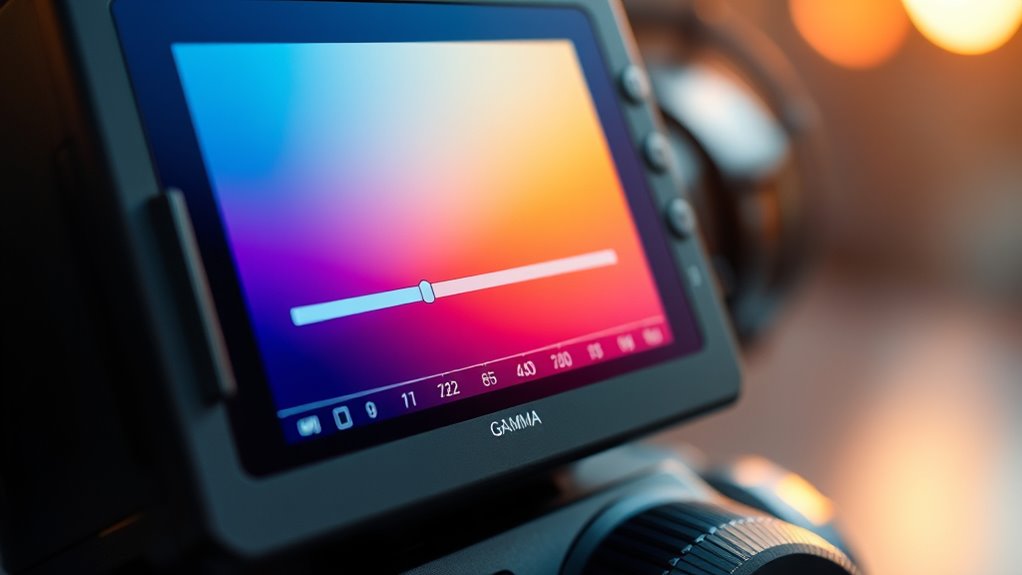
Gamma settings determine how your monitor displays the brightness and contrast of images, affecting how you perceive colors and details. When you adjust the gamma, you’re fundamentally changing the relationship between the input signal and what your screen shows, which directly impacts color accuracy and overall image quality. Proper gamma settings are essential for display calibration because they ensure that the colors and tones you see are true to the original content, whether you’re editing photos, watching movies, or gaming. If the gamma is set too high or too low, images can look washed out, overly dark, or overly bright, distorting the intended visual experience.
Getting your gamma right isn’t just about aesthetics; it’s about precision. When your monitor’s gamma aligns with standard display calibration settings, you get a consistent and reliable visual output. This consistency is especially important in professional tasks like photo editing, where even slight deviations in color accuracy can lead to misjudgments about the visual content. Adjusting the gamma slider influences how midtones are rendered, which are fundamentally important for perceiving details in shadows and highlights. A well-calibrated gamma ensures that these details are neither lost nor exaggerated, preserving the natural look of images and videos.
Understanding how gamma impacts your display can help you make better choices when customizing your monitor. If you want your movies to look “cinematic,” for example, you’ll want a gamma setting that enhances contrast without crushing blacks or washing out whites. This creates that rich, immersive look that makes cinematic content pop. Conversely, for tasks requiring precise color work, you might prefer a gamma setting that emphasizes fidelity over dramatic contrast. Many professional calibration tools and software provide guidance on the ideal gamma settings, making it easier for you to fine-tune your display for the best possible color accuracy.
Being aware of standardized display calibration practices ensures your screen’s gamma setting supports accurate and consistent viewing, which is essential for both entertainment and professional work.
Frequently Asked Questions
How Does Gamma Affect Color Accuracy in Different Lighting Conditions?
Gamma influences color accuracy by affecting luminance balancing and how shades appear in various lighting conditions. When you adjust gamma, you optimize color calibration, ensuring that dark and bright areas display correctly across different environments. Higher gamma settings brighten shadows, making colors more vibrant, while lower settings deepen blacks. Proper gamma adjustment helps you maintain consistent color accuracy, regardless of lighting, so your visuals stay true and immersive.
Can Adjusting Gamma Improve Visibility in Dark Scenes?
Adjusting gamma can definitely improve visibility in dark scenes. By tweaking the gamma setting, you enhance brightness calibration, making details more visible without washing out highlights. This also aids contrast enhancement, giving depth and clarity to shadowy areas. You’ll find it easier to see subtle textures and movements, especially in low-light environments. Just be cautious not to overdo it, as too high gamma can cause loss of detail in bright spots.
What Is the Ideal Gamma Setting for Gaming Versus Movies?
For gaming, set your gamma around 2.2 to optimize brightness and color calibration, ensuring sharp visuals and accurate colors during fast-paced action. For movies, a slightly lower gamma, around 2.4, enhances cinematic depth and detail in dark scenes. Adjust the gamma slider to match your viewing environment and personal preference, balancing brightness and contrast for the best experience in both gaming and movie watching.
How Do Different Display Types React to Gamma Adjustments?
Did you know that different display types react uniquely to gamma adjustments? For instance, OLED screens handle gamma changes smoothly, enhancing contrast and color calibration, while LCDs may show banding or loss of detail. When calibrating your display, understanding these reactions helps you fine-tune gamma settings for peak picture quality. Adjusting gamma on each display type ensures you get accurate colors and a viewing experience tailored to your preferences.
Is There a Universal Gamma Setting for All Devices?
There isn’t a universal gamma setting for all devices because calibration techniques vary, affecting how each displays images. Your best approach is to calibrate your device using proper tools and techniques, especially if you’re into color grading. Adjust the gamma to match industry standards for your specific device, ensuring consistent, cinematic visuals across screens. This personalized calibration helps achieve maximum picture quality tailored to your viewing environment.
Conclusion
Think of gamma settings like the brightness knob on a camera—adjusting it transforms your viewing experience from dull to dramatic. When you tweak this slider, you’re fundamentally painting your movie with the right shades of light and dark, revealing details you never knew were there. Mastering gamma is like tuning a musical instrument; once you find the perfect balance, everything sounds and looks just right, making your movies truly feel cinematic.