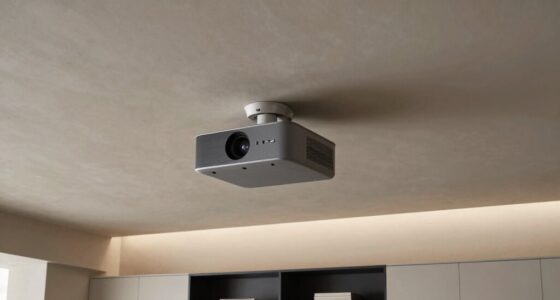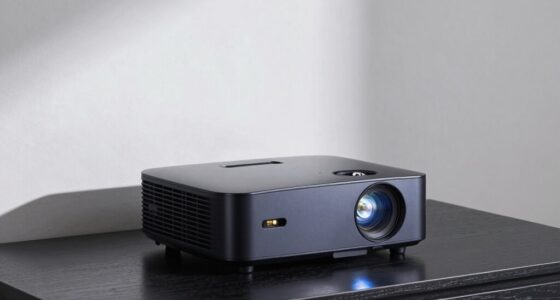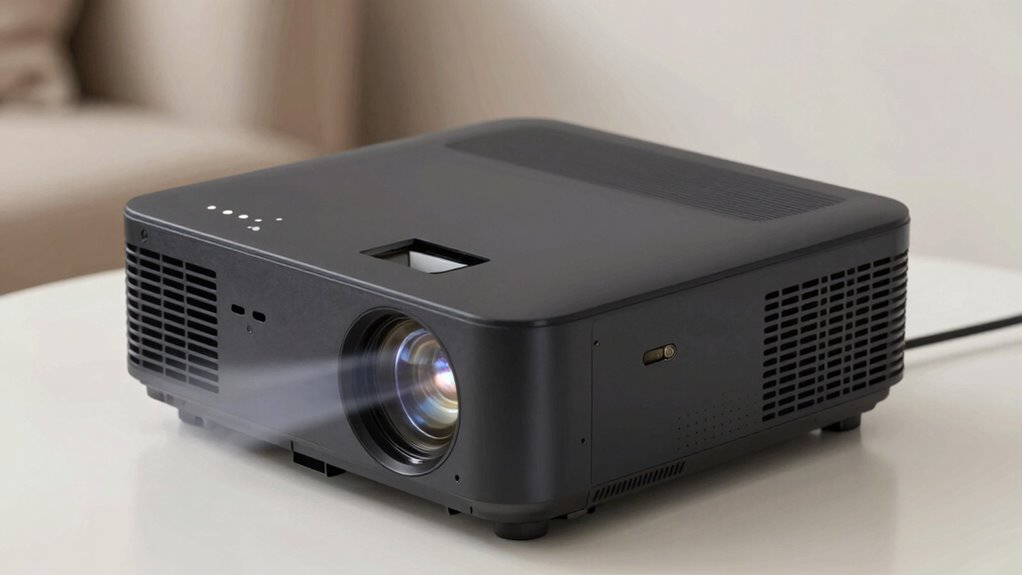

To minimize fan noise and improve placement without a box, position your projector in a well-ventilated, open space away from walls or clutter. Elevate it on a sturdy surface to boost airflow, and keep vents dust-free. Use external soundproofing materials like mats or foam around the unit, and set it to eco or quiet mode. Adjusting settings and maintaining the projector regularly helps keep noise low, so explore more tips to achieve a quieter setup.
Key Takeaways
- Place the projector in a well-ventilated, open area away from walls and obstructions to enhance airflow and reduce fan noise.
- Elevate the projector on a stable stand or shelf to improve air circulation and minimize vibrations.
- Use external soundproofing materials like acoustic foam or rubber mats around the projector to absorb fan noise without enclosing it.
- Adjust projector settings to eco or quiet mode, lowering fan speed and noise output during operation.
- Regularly clean vents and filters to prevent dust buildup, ensuring efficient cooling and quieter fan performance.

VOISEN Sound Deading Material for Cars,157 mil 36 sqft Sound Deadening Mat
[4mm High Quality Closed Cell Foam,36Sqft Coverage Area] Our sound deadening mat is composed of three layers of…
As an affiliate, we earn on qualifying purchases.
As an affiliate, we earn on qualifying purchases.
Assessing Your Projector’s Noise Levels and Placement Options
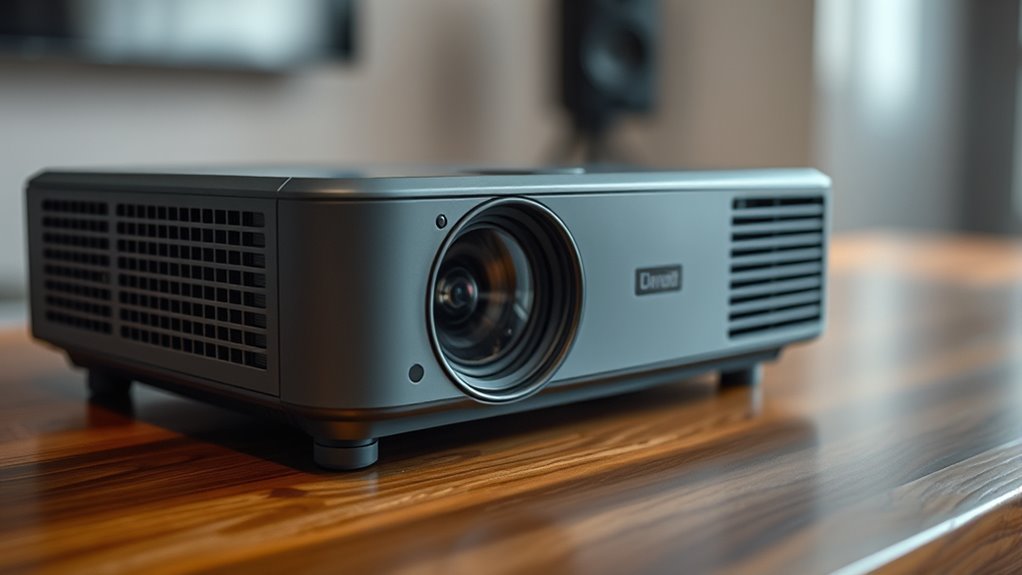
Before settling on a projector’s ideal placement, it’s essential to evaluate its noise levels and how placement affects sound. Turn on your projector and listen carefully. Notice if it produces loud fan noise or if the sound is steady and unobtrusive. Check where the noise seems to originate—near the vents or internal components. Consider the projector’s design; some models run quieter than others. Think about how placement might amplify or muffle the noise. For example, placing it on a soft surface or farther from your seating area can reduce perceived noise. Take note of any overheating issues or vibrations, as these can indicate poor airflow or unstable placement. Assessing these factors helps you choose a spot that minimizes noise without compromising performance. Understanding crucial components and their impact can further aid in optimizing your projector’s setup and ensuring a quiet operation. Additionally, considering fan noise reduction techniques such as soundproofing or strategic positioning can further enhance your viewing experience. Proper airflow management can help prevent overheating and reduce noise levels, making your setup even quieter. Being aware of internal airflow and its role in cooling can guide you in selecting the best location for your projector.

Projector Fan for OPTOMA Projector, Replacement for ACER Laser Machine LU-200X NEC NP-CR3400HL Projector Fan, MF75251VX-1Q010-S99 7D901G001 DC12V 3.26W PWM 7525 Cooling Fan
Model: MF75251VX-1Q010-S99
As an affiliate, we earn on qualifying purchases.
As an affiliate, we earn on qualifying purchases.
Choosing the Optimal Location for Reduced Fan Noise
To minimize fan noise, you need to take into account ventilation and airflow, making sure your projector isn’t placed in a tight or poorly ventilated spot. Pay attention to ambient noise levels around your setup, as quieter environments help reduce perceived noise. Strategically positioning your projector, away from walls and in open areas, can considerably improve noise reduction without sacrificing performance. Additionally, proper ventilation design can enhance airflow and further decrease fan noise. Incorporating European cloud innovation principles in your setup, such as utilizing energy-efficient components, can also contribute to quieter operation through improved thermal management. Ensuring your setup follows proper thermal management techniques will help maintain optimal temperatures and reduce the fan’s workload, leading to less noise. For optimal results, selecting components with noise reduction features can make a significant difference in overall quietness.
Ventilation and Airflow
Have you ever noticed how the placement of your computer or gaming setup can substantially impact fan noise? Proper ventilation ensures airflow moves smoothly, preventing fans from working harder. Position your projector where air can circulate freely, avoiding cramped corners or enclosed spaces. Choose a spot with natural airflow, like near vents or windows, to help dissipate heat effectively. Keep obstacles away from air intakes and exhausts to maintain consistent airflow. Using proper ventilation techniques can further enhance airflow efficiency, reducing the workload on your fans. Additionally, understanding the importance of airflow management can help you make informed decisions about your setup placement. Proper airflow management also plays a role in mitigating fan noise issues, enhancing your overall experience.
Ambient Noise Levels
Choosing the right location for your setup can considerably reduce fan noise by minimizing ambient sounds that interfere with quiet operation. You want to position your projector in a space with lower background noise levels, such as a room away from busy streets or household appliances. Avoid placing it near loud electronics, fans, or vents that produce constant noise. Soft furnishings like carpets, curtains, and furniture help absorb sound, further lowering ambient noise. Also, consider the room’s size and acoustics; larger, enclosed spaces tend to amplify sounds less than smaller, echo-prone areas. Additionally, understanding the horsepower of electric dirt bikes can help you appreciate the importance of powerful cooling systems in high-performance projectors. By selecting a quieter environment, your projector’s fan noise becomes less noticeable, making your viewing experience more immersive and enjoyable. Furthermore, optimizing room acoustics by controlling reflective surfaces can help dampen residual sounds, enhancing overall quietness. Proper soundproofing techniques can also contribute significantly to reducing noise levels, especially in shared living spaces. Incorporating sound-absorbing materials designed for acoustic treatment can further improve the quietness of your setup area.
Projector Placement Strategies
Selecting the right spot for your projector is essential for minimizing fan noise and enhancing your viewing experience. Place it in a well-ventilated area away from walls or furniture that could block airflow, as restricted airflow makes the fan work harder and noisier. Keep the projector on a stable, elevated surface to prevent vibrations that can increase noise levels. Position it at a distance from your seating area to reduce the impact of fan sounds. Avoid enclosed spaces like cabinets or tight corners, which trap heat and cause the fan to run continuously at higher speeds. Instead, choose an open, airy spot that allows heat to dissipate efficiently, helping the fan operate more quietly while maintaining optimal performance. Proper ventilation is crucial for reducing heat buildup and keeping noise levels down. Additionally, ensuring adequate airflow around the projector helps maintain a cooler environment, further reducing fan noise and prolonging the device’s lifespan. Incorporating soundproofing techniques around the placement area can also help minimize the transmission of fan noise into your viewing space. Being aware of the leakage of sound from other electronic devices can also help you select an ideal location for your projector. Furthermore, understanding the importance of heat dissipation can guide you in choosing the best placement to keep your projector running smoothly and quietly.
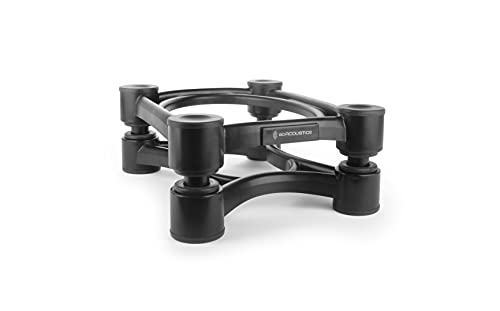
IsoAcoustics Iso-200Sub Subwoofer Isolation Stand (Single) (New Model)
7.8” (200mm) Wide x 10” (254mm) Depth 3.5” (90mm) Height. 75lbs weight capacity. Package includes 1 Stand.
As an affiliate, we earn on qualifying purchases.
As an affiliate, we earn on qualifying purchases.
Improving Airflow to Keep Your Projector Cool and Quiet
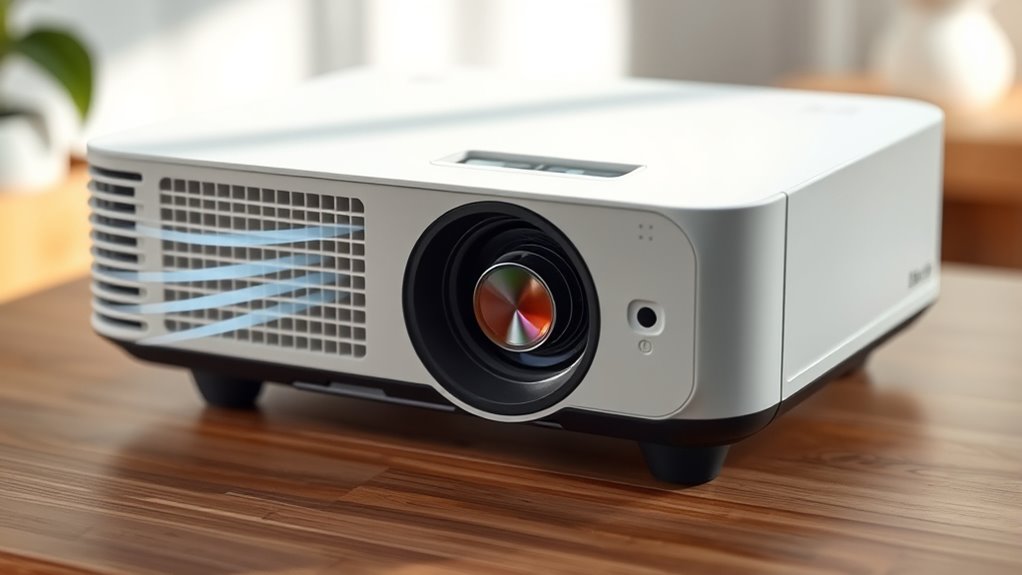
Ensuring proper airflow is essential for keeping your projector cool and quiet during operation. When airflow is optimized, fans don’t have to work as hard, reducing noise and preventing overheating. To improve airflow, start by keeping vents clear of dust and obstructions. Elevate your projector off surfaces that block air intake or exhaust, allowing air to circulate freely. Additionally, consider using a small fan or cooling pad designed for electronics to boost airflow without adding noise. Proper placement and maintenance are key to maintaining an efficient cooling system. Regularly cleaning vents and ensuring unobstructed airflow pathways help your projector run smoothly and quietly, extending its lifespan and enhancing your viewing experience. Maintaining effective airflow is crucial for prolonging your projector’s performance and ensuring a comfortable, quiet operation. To further enhance cooling efficiency, thermal management techniques can be employed to optimize heat dissipation. Implementing proper ventilation strategies can significantly reduce fan noise, making your projector operation much more pleasant.

Smart Projector with WiFi and Bluetooth, Proyector-4K Support Official Licensed Apps, 2000 ANSI/AI Auto Focus/50W Dolby/HDR10+/Quiet, Kogata Portable Indoor/Outdoor Movie Projector Ceiling
【Classic Upgrade Built to Last】 Triple Cooling System + Ultra-Quiet Projector Building on the reliability of traditional projectors,…
As an affiliate, we earn on qualifying purchases.
As an affiliate, we earn on qualifying purchases.
Using External Soundproofing Materials and Techniques
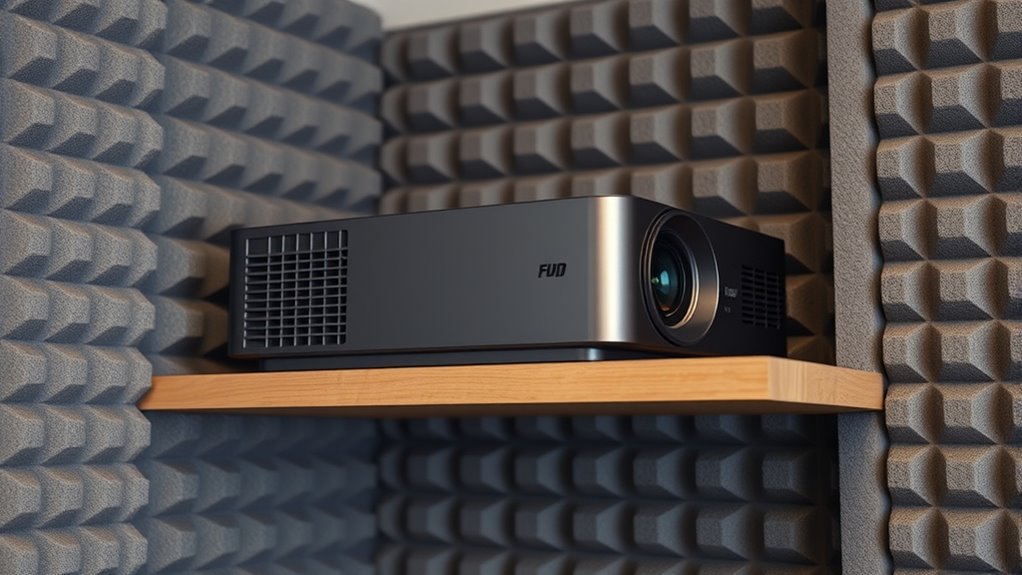
External soundproofing materials can considerably reduce fan noise if used correctly. You should consider installing soundproof barriers or damping materials around your projector to absorb vibrations and block sound. These techniques are effective and customizable, helping you create a quieter environment.
Soundproofing Barriers Effectiveness
Soundproofing barriers can substantially reduce fan noise when properly installed, but their effectiveness depends on the materials used and how well they are implemented. High-density materials like mass-loaded vinyl or dense foam can block sound waves more effectively. Proper placement is essential—placing barriers close to the noise source maximizes impact. Sealing gaps and overlaps prevent sound leaks, boosting performance. Remember, no barrier completely eliminates noise, but it can significantly lower perceived volume. For best results, combine barriers with other soundproofing techniques. Focus on creating a solid, continuous barrier to minimize sound transmission. The right combination of materials and careful installation ensures you get the most out of your soundproofing efforts. Properly implemented barriers can make a noticeable difference in quietening your projector environment.
Damping Material Applications
Applying damping materials externally can substantially boost your efforts to reduce fan noise. You can attach mass-loaded vinyl, acoustic foam, or rubber mats directly to the projector’s surface or nearby walls. These materials absorb and dampen sound vibrations, preventing them from traveling through the air or structural components. Ensure the damping layer covers as much surface area as possible for maximum effectiveness. Use adhesive or mechanical fasteners to secure the materials firmly in place. Combining damping with other soundproofing techniques, like sealing gaps or adding barriers, amplifies noise reduction. Remember, external damping doesn’t eliminate all noise but considerably diminishes fan vibrations and airborne sound, making your projector much quieter during operation. Proper application is key to achieving noticeable results.
Adjusting Settings to Minimize Fan Activity
To reduce fan noise, start by adjusting your device’s settings to lower its workload. This can help the fan run less frequently and at lower speeds. Begin by reducing the brightness or resolution if possible, as higher settings demand more processing power. Next, enable power-saving modes or eco settings, which optimize performance and decrease fan activity. You can also adjust the device’s performance profile to a quieter mode, limiting intensive tasks that cause heat buildup.
- Lower display brightness and resolution
- Enable power-saving or eco modes
- Switch to a quieter performance profile
These adjustments minimize the workload, often resulting in less fan noise and a quieter experience overall.
Implementing Quiet Fan Modes or Upgrading Fans
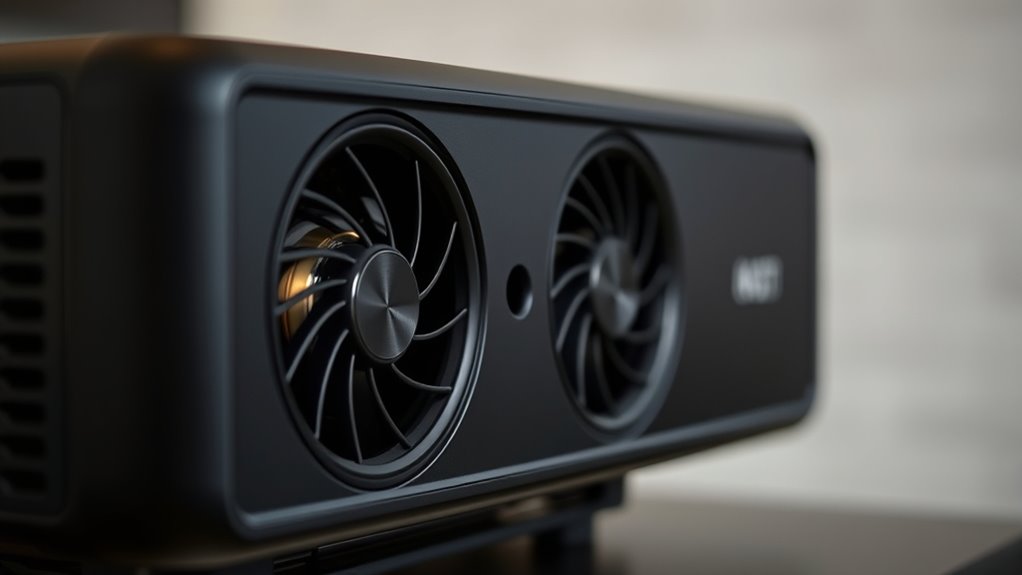
Ever considered switching your device’s fan to a quieter mode or upgrading its fans? Many projectors and electronics offer built-in fan speed controls or quiet modes accessible through settings or manufacturer software. Enabling these modes reduces fan speed, lowering noise without sacrificing cooling efficiency. If your device lacks such options, upgrading to high-quality, quieter fans can make a significant difference. Look for fans labeled as low-noise or silent models, which often feature optimized blade designs and ball bearings for quieter operation. When replacing fans, ensure compatibility with your device’s specifications. Installing quieter fans or enabling quiet modes can help you create a more pleasant viewing environment, especially in quiet spaces or during presentations where noise distracts from your content.
Regular Maintenance for Sustained Quiet Operation

Regular maintenance is essential to keep your device operating quietly over time. Dust buildup and debris can cause fans to work harder, increasing noise levels. To prevent this, regularly check and clean your projector’s vents and fans. Use compressed air or a soft brush to remove dust without damaging components. Also, inspect filters if your device has them, replacing or cleaning as needed. Keep firmware updated to guarantee peak performance and efficiency.
Regularly clean vents, fans, and filters to maintain quiet operation and optimal performance.
- Clear dust from vents and fans weekly
- Replace or clean filters regularly
- Update firmware for improved operation
Frequently Asked Questions
Can Adjusting Projector Brightness Reduce Fan Noise?
Yes, adjusting your projector’s brightness can reduce fan noise. When you lower the brightness, the projector’s internal components generate less heat, which means the fan doesn’t have to work as hard to cool it. This results in quieter operation. Just be sure not to dim it too much, or your image quality might suffer. Finding the right balance helps keep noise down while maintaining a clear picture.
Are There Specific Projector Models Known for Quieter Fans?
Are there specific projector models known for quieter fans? Yes, some brands like Sony, Epson, and BenQ prioritize quieter operation, especially their premium models. You should look for projectors labeled as “quiet” or “low noise,” typically with fan noise around 20-25 dB. Consider models with efficient cooling systems and good ventilation. Research reviews and specifications to find one that suits your quiet environment needs without sacrificing image quality.
How Does Ambient Temperature Affect Fan Noise Levels?
Higher ambient temperatures cause your projector’s fan to work harder and spin faster, increasing noise levels. Conversely, cooler environments help keep the fan RPM lower, resulting in quieter operation. To minimize noise, try to place your projector in a well-ventilated, cool area. Avoid hot, enclosed spaces, and consider using a fan or air conditioning to maintain a steady, lower temperature around your device.
Can External Enclosures Significantly Dampen Projector Sound?
A quiet environment is like a calm pond—still and peaceful. External enclosures can markedly dampen projector sound if you choose the right materials, such as soundproof foam or dense enclosures. They absorb and block noise, reducing vibrations and airflow sounds. Just remember, the enclosure should allow proper airflow to prevent overheating. With the right setup, you’ll enjoy clear visuals without the distracting hum of the fan.
Is It Safe to Modify the Internal Fan for Quieter Operation?
Modifying your projector’s internal fan can be risky and isn’t usually recommended. If you’re determined, make certain you understand the device’s cooling needs to prevent overheating. You might try replacing it with a quieter, compatible fan or adjusting fan speed settings if available. Always disconnect power first, and consider consulting a professional to avoid damaging your projector or voiding its warranty. Safety should always come first.
Conclusion
By carefully placing your projector and fine-tuning its settings, you can enjoy movies without the roar of a jet engine. Think of it as taming a wild stallion—gentle yet powerful—so your viewing experience remains immersive and peaceful. With patience and a few simple tweaks, you’ll create a quiet oasis of entertainment. Remember, like a serene lake reflecting the sky, a quiet projector brings clarity and calm to your home theater.