
To set up guest mode so friends don’t mess with your inputs, go to your device’s Settings and find the “Users” or “Accounts” section. Tap “Add guest” or “Guest mode,” which creates a temporary profile that isolates your apps and data. You can customize privacy settings to restrict access to sensitive information and disable in-app purchases. Once set, switch to the guest profile for sharing, then switch back when done—more tips can help you optimize this setup.
Key Takeaways
- Enable Guest Mode through your device’s Settings > Users or Accounts section.
- Before activating, customize privacy settings to restrict access to sensitive apps and data.
- Use restrictions or app pinning features to limit what guests can interact with during their session.
- Switch to Guest Mode for temporary use, ensuring it resets after the session ends to protect inputs.
- Regularly review and update guest access permissions to prevent unauthorized changes or mess-ups.
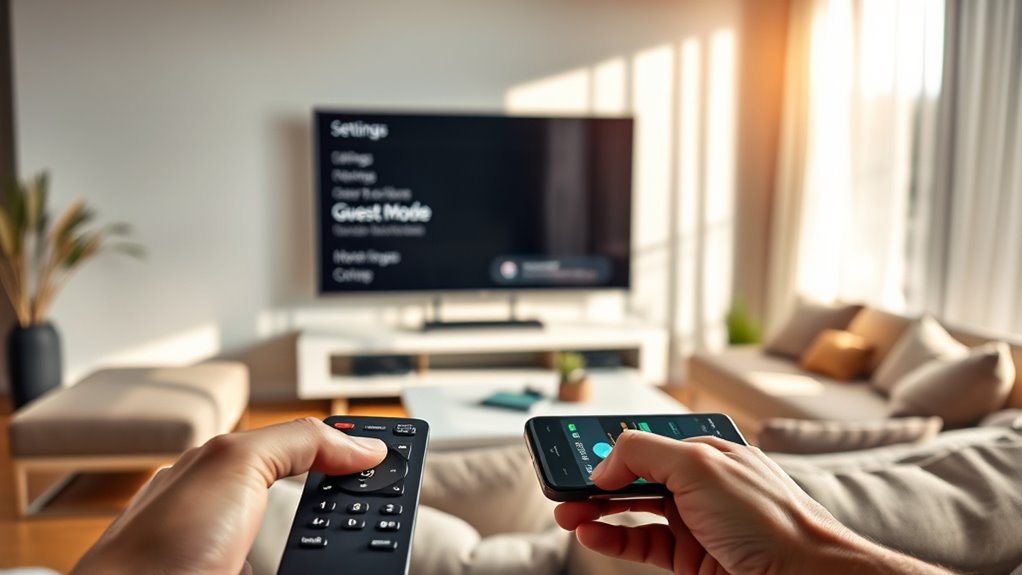
Setting up Guest Mode on your device is a straightforward way to share your phone or tablet without compromising your privacy. When friends or family want to use your device temporarily, you don’t have to worry about them accessing your personal messages, photos, or apps. Instead, you can enable a separate user profile or guest account that isolates their activity from your main data. This feature is available on many Android devices and some tablets, offering a quick, secure way to protect your privacy while still being helpful.
Guest Mode allows safe sharing of your device without exposing private data or apps.
Before activating Guest Mode, it’s a good idea to review your privacy settings. Most devices allow you to customize what a guest can see or do, such as restricting access to certain apps, disabling in-app purchases, or preventing access to sensitive information like emails or banking apps. Adjust these settings beforehand to make certain your guest profile provides only the necessary access without exposing anything you want to keep private. Once you’re comfortable with those restrictions, you can proceed with setting up the guest profile.
To set up Guest Mode, start by opening your device’s settings menu. Find the section labeled “Users” or “Accounts,” depending on your device. Tap on it, and you’ll see options to add or switch between user profiles. Select “Add guest” or “Guest mode,” which creates a temporary account that resets when the session ends. Some devices also let you create multiple user profiles, so you can customize each with different privacy settings tailored to various needs. Once activated, your device switches to a clean, simplified interface that looks separate from your main profile, ensuring your personal data stays hidden.
While using Guest Mode, you’ll notice that your device’s apps and settings are temporarily reset or limited, preventing the guest from making changes to your core data or installing new apps. When they’re done, you can simply switch back to your main user profile; the device restores your usual environment, with all your apps, settings, and data intact. This seamless transition makes sharing quick and safe, giving you control over what’s accessible in each profile. Additionally, understanding the contrast ratio and display settings can help you optimize your device for better visibility and user experience during such shared sessions.
Frequently Asked Questions
Can I Customize Permissions for Specific Apps in Guest Mode?
No, in guest mode, you can’t customize permissions for specific apps directly. However, you can use app restriction settings to limit access to certain apps altogether, preventing guests from opening or modifying them. If you want more control, consider setting up separate user profiles or using third-party app permission control tools, which allow you to fine-tune permissions for individual apps, ensuring your favorite apps stay private and secure.
Will Guest Mode Affect My Personal Data and Settings?
Guest mode keeps your personal data and settings private, so it won’t affect your privacy concerns. When you activate it, your data stays separated from your guest’s session, ensuring no accidental changes or access. You can confidently let friends use your device without worrying about compromising your info. Just remember, it’s designed to isolate your data, so your privacy remains intact while they enjoy limited access.
How Do I Switch Back From Guest Mode to My Account?
Switching back from guest mode to your account is a breeze—it’s like flipping a magical switch! Just tap your profile picture or the account icon, then select your main account from the menu. Keep in mind, guest mode has limitations, so double-check your account recovery options in case you need help later. Once you switch, your personal data stays safe, and you regain full control—easy and fast!
Is Guest Mode Available on All Device Types and Operating Systems?
Guest mode availability varies by device and operating system. You’ll find privacy settings and user restrictions tailored for each platform, like Android, iOS, or smart TVs. Check your device’s settings to see if guest or restricted profiles are supported. This feature helps you control what guests can access, ensuring your privacy stays intact while they use your device. Not all devices offer guest mode, so verify compatibility beforehand.
Can Multiple Guests Use Guest Mode Simultaneously?
You can’t have multiple guests using guest mode simultaneously, and the limitations are pretty clear—only one user at a time can access it. Picture a tiny, single-seat roller coaster—no matter how many friends want to ride, only one can be in guest mode at once. This is due to guest mode’s design for individual privacy and security, making multiple users compatibility impossible for now.
Conclusion
Setting up guest mode is a simple way to keep your device secure and your data private. Just as you wouldn’t want a surprise guest messing up your favorite playlist, this feature guarantees friends can enjoy your device without causing chaos. It’s funny how a little setup can save you from unexpected surprises, isn’t it? Now, whenever friends visit, you can relax knowing your space is protected—kind of like having a digital doorman, ready to keep things in order.