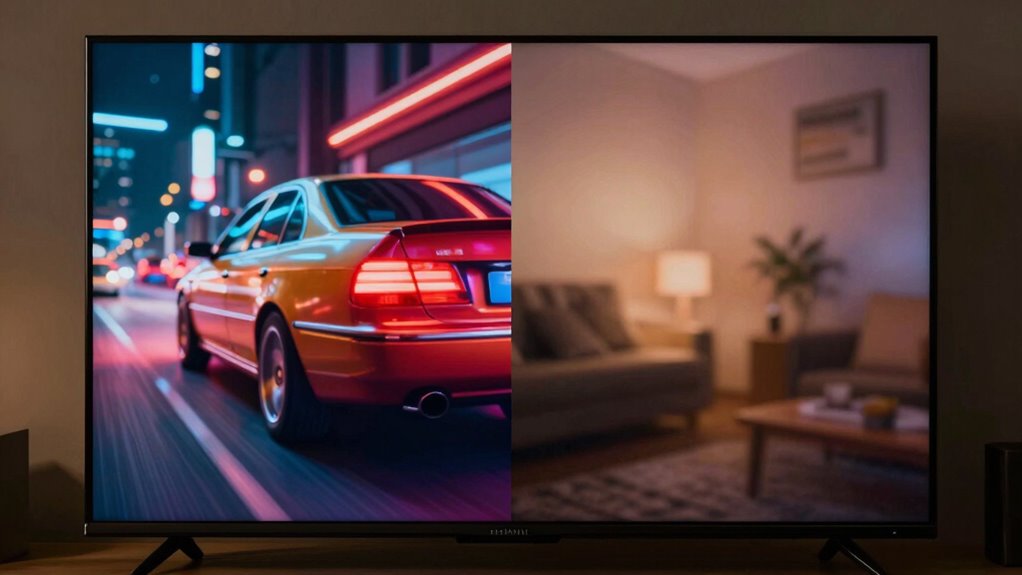

Stop letting your TV decide automatically between Game Mode and Movie Mode, as it can limit your control over picture quality and response time. Game Mode reduces input lag for faster reactions but sacrifices color vibrancy, while Movie Mode improves visual quality but may introduce more delay. Switching modes yourself guarantees ideal performance based on your activity. Keep going to discover more ways to customize your viewing experience for the best results.
Key Takeaways
- Manually select modes to ensure optimal performance for gaming or viewing rather than relying on automatic switching.
- Game Mode minimizes input lag, ideal for fast-paced gaming, while Movie Mode enhances picture quality for cinematic experiences.
- Automatic mode switching often prioritizes content detection over user preference, which may lead to suboptimal performance.
- Switching modes manually allows better control over response time and picture quality based on activity needs.
- Understanding the trade-offs helps optimize your TV settings, avoiding unnecessary compromises caused by automatic mode changes.
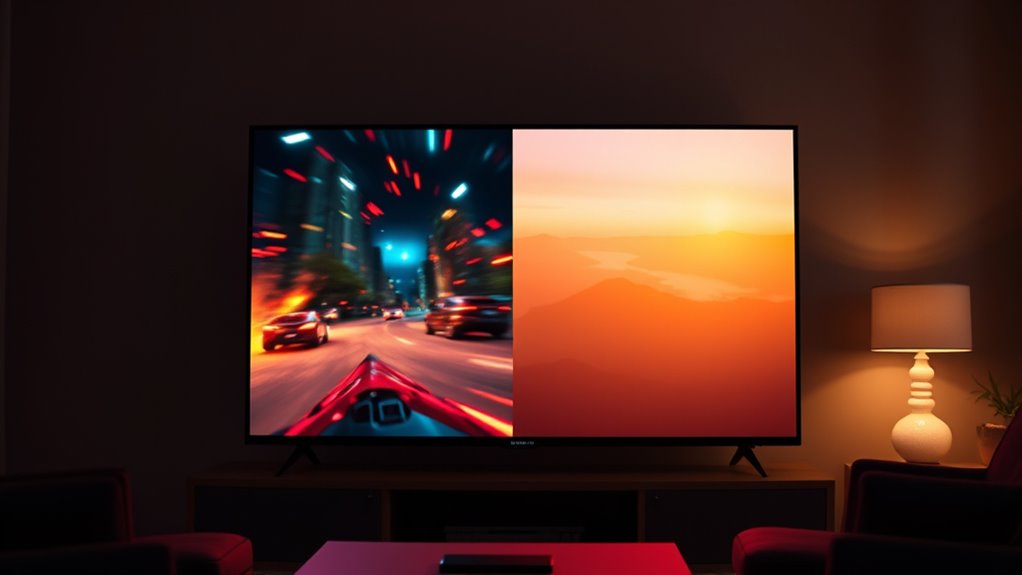
Are you unsure whether to switch your TV to Game Mode or Movie Mode? Many viewers face this dilemma because modern TVs often automatically adjust settings based on the content they detect, but this automatic switching isn’t always ideal. When you’re gaming, you want a setup that minimizes input lag so your reactions feel instant and precise. Conversely, when watching movies, you might prioritize color accuracy and picture quality over raw speed. Understanding how these modes work can help you make a better choice and get the most out of your viewing experience.
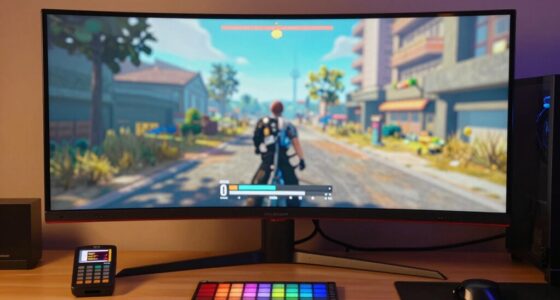
Game Mode is designed specifically for gamers who need the lowest possible input lag. Input lag is the delay between pressing a button on your controller and seeing the action on the screen. When it’s too high, your gameplay feels sluggish, and you risk missing critical timing windows. By activating Game Mode, your TV reduces processing features that introduce delay, ensuring your commands are reflected immediately. However, this speed often comes at the expense of color accuracy. Colors may appear less vibrant or slightly washed out because the TV sacrifices some picture processing to achieve faster response times. If you’re playing fast-paced, reaction-based games, this trade-off is usually worth it.
Game Mode reduces input lag but may sacrifice color vibrancy.
On the other hand, Movie Mode favors picture quality over response speed. When you switch to Movie Mode, your TV enhances color accuracy, contrast, and detail, creating a more cinematic experience. It applies advanced processing to deliver richer, more natural colors and deeper blacks, making scenes look more true to life. The downside is that Movie Mode can introduce higher input lag, making quick reflexes more difficult during gaming. If you try to game while in Movie Mode, you might notice a delay between your input and the on-screen action, which can be frustrating or even detrimental to your gameplay.
The key is recognizing that automatic settings often don’t consider your specific needs. Your TV might switch to a mode that emphasizes picture quality for movies but isn’t suitable for gaming, or vice versa. It’s best to manually select the mode based on what you’re doing to avoid compromises. If you’re serious about gaming, set your TV to Game Mode before you start. If you’re settling in for a movie or TV show, switch to Movie Mode to enjoy better color accuracy and picture clarity. Customizing your settings ensures you’re not letting your TV decide automatically, which can lead to subpar performance in either scenario. Additionally, understanding content-specific adjustments can further optimize your viewing experience.
In the end, understanding the trade-offs between input lag and color accuracy helps you optimize your viewing experience. By manually choosing the right mode, you control how your TV performs, ensuring you get the clarity or speed you need, whenever you want it.

WEN Quiet and Lightweight 3600-Watt Dual Fuel RV-Ready Portable Inverter Generator with Fuel Shut Off and CO Watchdog (DF360iX)
Dual-fuel design runs on both gasoline (3600 surge watts, 2900 rated watts) and propane (3500 surge watts, 2600...
As an affiliate, we earn on qualifying purchases.
Frequently Asked Questions
Can I Customize Both Modes for Different Game or Movie Genres?
Yes, you can customize both modes for different game or movie genres. Many TVs offer customization options that let you tweak settings like contrast, brightness, and color based on genre-specific settings. This way, you can optimize your viewing experience by adjusting modes for action games, sports, or cinematic movies. Take advantage of these settings to tailor your TV’s performance, ensuring the best picture quality for each genre.
Do Game and Movie Modes Affect TV Energy Consumption?
Think of your TV as a busy bee, buzzing with energy. Using game or movie mode can influence energy consumption—game mode often uses more power to enhance picture quality for fast-paced scenes, while movie mode might conserve energy with softer settings. If you want better picture quality without draining energy, customize the modes instead of letting your TV decide automatically. This way, you get ideal visuals and save power.
How Do These Modes Impact TV Screen Burn-In Risks?
Using game or movie mode can influence screen burn-in risks and display longevity. Game mode often brightens static images, increasing the chance of screen burn-in if you’re playing long sessions with fixed HUDs or icons. Movie mode generally dims static elements, helping preserve your display’s longevity. To protect your TV, switch modes based on content and avoid leaving static images on the screen for extended periods.
Are There Any Long-Term Effects on TV Hardware From Using These Modes?
Think of your TV’s hardware as a garden that needs tending. Using game or movie mode long-term can cause uneven hardware wear, impacting display longevity. These modes often push the display harder, risking faster degradation over time. While occasional use doesn’t harm, consistently running these modes may accelerate hardware wear, reducing your TV’s lifespan. To keep your TV healthy, switch modes based on content and give it regular breaks.
Can I Switch Between Modes Automatically During Viewing?
Yes, you can set your TV to switch modes automatically during viewing. Many modern TVs offer automatic switching based on content type or input signals, allowing you to enjoy mode customization without manual adjustments. This feature enhances your viewing experience by optimizing picture and sound settings for gaming or movies seamlessly. Just guarantee your TV’s settings support automatic switching, and customize the modes to suit your preferences for different content.
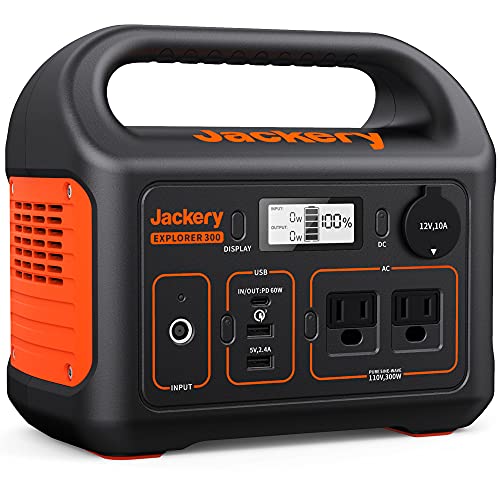
Jackery Portable Power Station Explorer 300, 293Wh Backup Lithium Battery, Solar Generator for Outdoors Camping Travel Hunting Blackout (Solar Panel Optional)
SPEED UP YOUR RECHARGEABILITY: It takes only 2 hours to recharge 80% battery of the power station through...
As an affiliate, we earn on qualifying purchases.
Conclusion
Now that you know the difference between Game Mode and Movie Mode, don’t let your TV make the choice for you. Take control and switch modes to match your activity—your eyes and nerves will thank you. Imagine a world where your TV doesn’t decide your viewing experience, but you do; it’s like wielding the power of a cinematic king or gaming champion. So, stop letting your TV decide—take charge and elevate your entertainment to legendary status!

AMERISUN 2500-Watt Gas Powered Portable Inverter Generator for Home Use - Ultral Light for RV and Camping, CO Sensor, Outdoor and Home Backup, Long Run Time
[POWERFUL & RELIABLE]: Generate up to 2500 peak watts and 1900 running watts, providing enough power to keep...
As an affiliate, we earn on qualifying purchases.

Pulsar PGD40ISCO Ultra Light Quiet 4000W Portable Gas Inverter Generator, white
Provides 4,000 peak watts and 3,200 rated watts of power
As an affiliate, we earn on qualifying purchases.