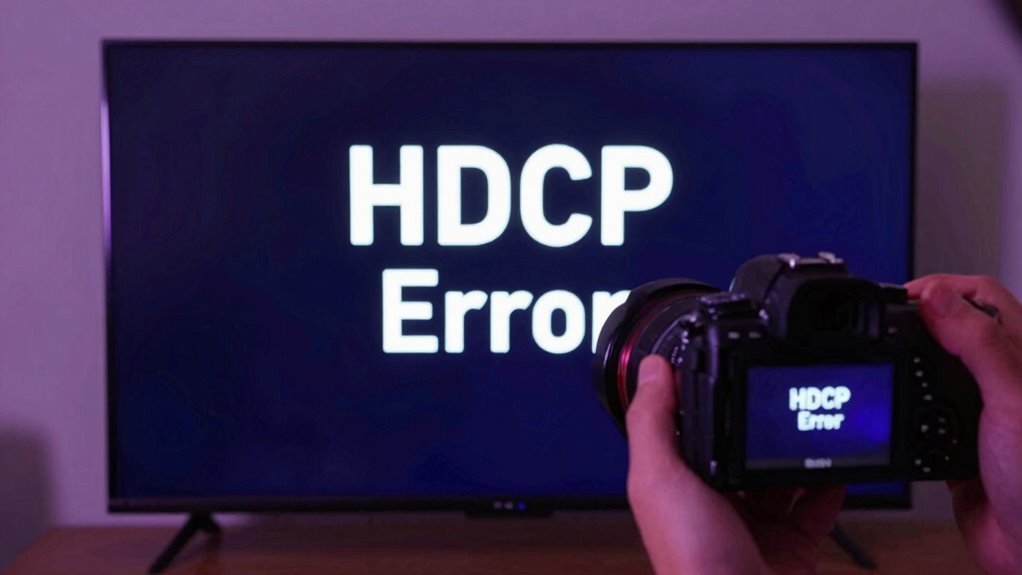
HDCP errors happen when your devices can’t complete the security handshake needed to display protected digital content. This usually occurs due to outdated firmware, faulty HDMI cables, or hardware incompatibilities. When the handshake fails, a copy protection message blocks the signal, preventing you from viewing the content. To fix this, you might need to update your devices, replace cables, or simplify your setup. Keep exploring to learn more about how to resolve these issues effectively.
Key Takeaways
- HDCP errors occur when devices fail to authenticate during the handshake, blocking protected content from displaying.
- Common causes include outdated firmware, faulty HDMI cables, incompatible hardware, or signal degradation.
- The HDCP handshake involves exchanging encryption keys to verify device authenticity and rights protection.
- Troubleshooting includes updating firmware, replacing cables, simplifying connections, and restarting devices.
- These protections prevent unauthorized copying but can cause legitimate viewing issues if handshake failures happen.

The HDCP handshake is essential because it ensures that digital rights are enforced. Content providers put strict restrictions in place to prevent piracy and illegal copying, and HDCP is their method of safeguarding their work. When your devices communicate, they exchange keys and authentication data during this handshake. If the devices can’t verify each other’s credentials—perhaps because of outdated firmware, a faulty cable, or incompatible hardware—the handshake breaks down, and the protected content is blocked from displaying. This prevents unauthorized recording or redistribution of premium content, such as streaming movies, live sports, or high-definition broadcasts. Understanding HDCP protocols can help you better troubleshoot these issues and ensure compatibility. Several factors can disrupt this process. Sometimes, simply plugging in a new HDMI cable or switching devices can cause an HDCP handshake failure. Incompatibility is another common issue; not all devices support the latest HDCP versions, which can lead to failures if older equipment is involved. Firmware mismatches or outdated drivers can also interfere with the handshake process, causing errors even if your hardware is otherwise compatible. Additionally, using cheap or damaged cables can lead to signal degradation, complicating the handshake and resulting in errors. To resolve HDCP errors, start by checking all your connections. Make sure your HDMI cables are high-quality and in good condition. Updating your device firmware and drivers can also help promote compatibility with the latest HDCP standards. If you’re connecting multiple devices, try simplifying the setup—connect directly from source to display without intermediate splitters or adapters, as these can sometimes cause issues. Restarting your devices can reset the handshake process, and in some cases, power cycling your equipment helps establish a fresh connection. Understanding that HDCP is fundamentally about protecting digital rights helps clarify why these errors happen. Content creators and rights holders use HDCP to prevent piracy, meaning that sometimes the technology may interfere with legitimate viewing. While frustrating, these protections serve an essential purpose in the digital ecosystem, ensuring creators are compensated for their work. By maintaining compatible hardware, updating software, and using quality cables, you can minimize HDCP errors and enjoy your high-definition content without interruption.
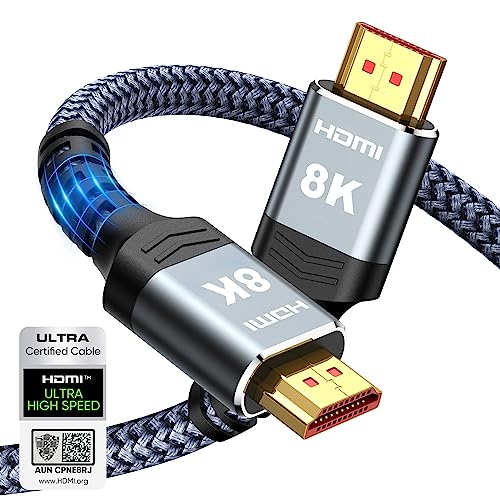
Highwings 8K 10K 4K HDMI Cable 48Gbps 6.6FT/2M, Certified Ultra High Speed HDMI Cable Braided Cord-4K@120Hz 8K@60Hz, DTS:X, HDCP 2.2 & 2.3, HDR 10 Compatible with Roku TV/PS5/HDTV/Blu-ray
Top Technology—-8K@60HZ: This 8K Ultra High Speed HDMI Cable uses the most cutting-edge technology, is compatible with 8K@60HZ…
As an affiliate, we earn on qualifying purchases.
As an affiliate, we earn on qualifying purchases.
Frequently Asked Questions
Can HDCP Errors Affect Streaming Services Differently?
Yes, HDCP errors can affect streaming services differently because they’re tied to digital rights and content security. When an HDCP error occurs, your device may block access to protected content, causing interruptions. Some services might be more sensitive to these errors, leading to frequent disruptions. Ensuring your devices are compliant with HDCP standards helps maintain smooth streaming and protects content security, reducing the chances of errors affecting your viewing experience.
How Do I Prevent HDCP Errors From Recurring?
Think of HDCP errors like a stubborn gate that keeps shutting. To prevent them, you should regularly check for firmware updates for your devices, ensuring they’re compatible with HDCP standards. Avoid HDCP bypass methods, as they can cause more issues. Keep your cables secure and replace damaged ones. These simple steps help your signal flow smoothly, preventing recurring HDCP errors and keeping your entertainment seamless.
Are HDCP Issues Common With All HDMI Cables?
HDCP issues aren’t common with all HDMI cables, but they can happen if your cable lacks proper HDCP compatibility or doesn’t meet the latest HDMI standards. To avoid problems, make sure your cables support HDMI 2.0 or higher and are certified for HDCP. Using high-quality, certified HDMI cables helps maintain proper HDCP handshake and reduces the chances of encountering HDCP errors during your viewing experience.
Is There a Way to Disable HDCP Temporarily?
Think of HDCP like a secret handshake blocking your access; you can sometimes use an HDCP bypass or HDMI workaround to temporarily disable it. While there’s no universal toggle, certain devices or firmware tweaks might let you bypass HDCP, but be cautious—these methods can risk compatibility or violate copyright protections. Always check your device’s settings or seek specialized tools for a controlled HDCP bypass.
What Are the Long-Term Solutions for Persistent HDCP Errors?
To fix persistent HDCP errors, focus on HDCP troubleshooting by ensuring all your devices are HDMI compliant and updated. Check cables for damage, replace any non-compliant cables, and update firmware on your source devices and displays. Sometimes, simply disconnecting and reconnecting HDMI cables helps. If problems persist, consider using a certified HDMI splitter or switch that supports HDCP, and always verify your devices’ compatibility to prevent future errors.

HBAVLINK HDMI Splitter 1 in 2 Out 60Hz – HDCP Bypass 2.3, HDR, Dolby/DTS 5.1/7.1 – Compatible with Firestick 4k Max, PS3/PS5 & Elgato HD60s/x/Pro, Apple TV 4K, Retrotink, Roku Stick, NOT for Phone
HDMI Splitter 1 in 2 out – This 4K HDMI splitter mirrors one video source to two screens…
As an affiliate, we earn on qualifying purchases.
As an affiliate, we earn on qualifying purchases.
Conclusion
Understanding HDCP errors is like untangling a stubborn knot—you just need to know where to pull. By checking your cables, devices, and settings, you can often clear the blockage and enjoy your content without interruptions. Remember, these errors are just a protective shield, not a permanent barrier. With a little patience and troubleshooting, you’ll have your signal flowing smoothly again, like a river finally finding its way after a rocky stretch.

Switch 2 Dock HDMI2.1 Upgraded V22 for Nintendo Switch 2 Compatible with the Latest firmware V22+/Plug&Play/Usbc to HDMI Adapter 4k120Hz for Laptop/MacBook(No Manual Updates Required for NS2
Switch 2 dock upgraded V22 for Nintendo Switch 2 Docking Station featuring an HDMI 2.1/4k120Hz port and compatible…
As an affiliate, we earn on qualifying purchases.
As an affiliate, we earn on qualifying purchases.
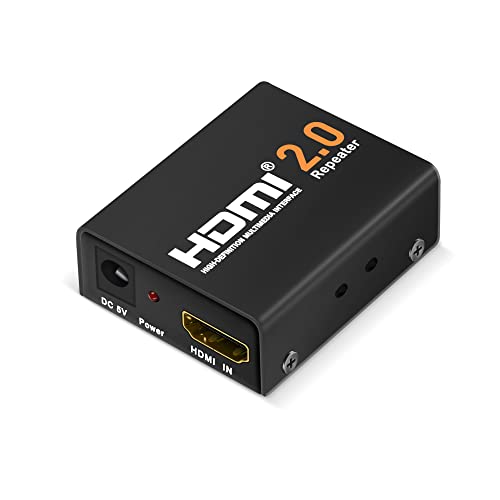
Flashmen HDMI Booster 2.0, 4K2K 1080P 3D HDMI Amplifier Repeater, Signal Amplifier Booster, 18Gbps Bandwidth, HDCP 2.2, Up to 60m/200ft Transmission Distance
The latest HDMI 2.0 version HDMI booster, backward compatible with HDMI 1.x version. Work with all HDMI equipped…
As an affiliate, we earn on qualifying purchases.
As an affiliate, we earn on qualifying purchases.