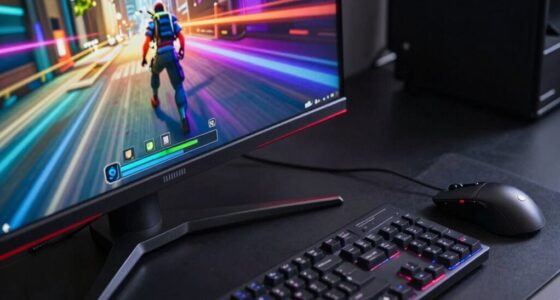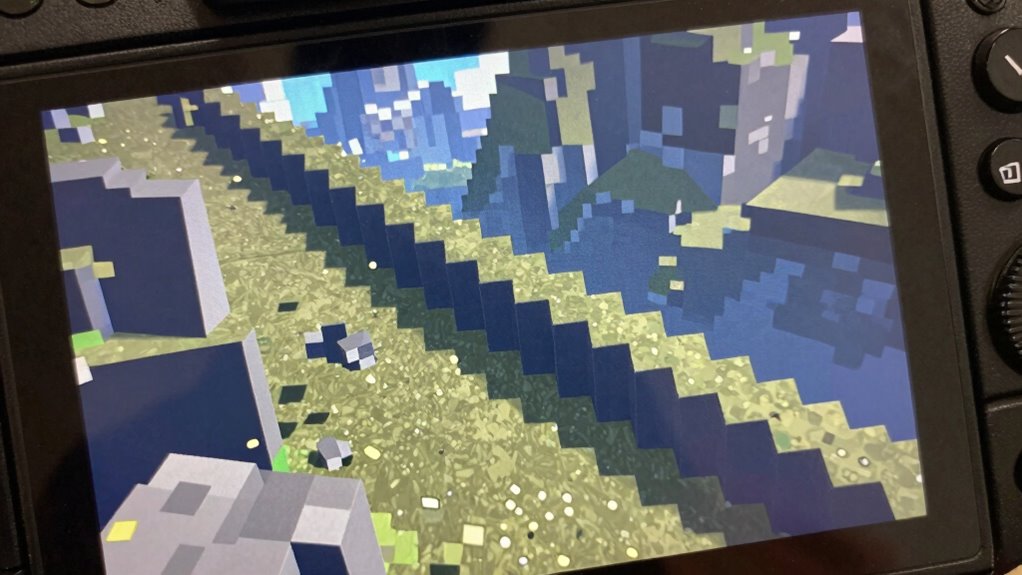

In 4K, some games look jaggier because of insufficient anti-aliasing and texture filtering. Higher resolution reveals more detail, but if anti-aliasing isn’t active or effective, edges appear rough and jagged. Also, outdated filtering makes textures look blurry or blocky. Adjusting anti-aliasing settings and enabling better texture filtering like anisotropic filtering can smooth out edges and improve clarity. Keep exploring to discover how tweaking your settings can transform your gaming visuals.
Key Takeaways
- Higher resolution reveals more detail, but without proper texture filtering, textures can appear blurry or pixelated.
- Insufficient or outdated anti-aliasing settings can cause jagged edges to become more noticeable in 4K.
- Many games are optimized for lower resolutions and may not automatically upscale anti-aliasing or texture filtering for 4K.
- Adjusting in-game settings for anti-aliasing and texture filtering can significantly reduce jaggies and improve clarity.
- Updating graphics drivers or hardware can enable better filtering and anti-aliasing techniques for sharper, smoother visuals.
When you upgrade to a 4K display, you might notice some games appear more jagged or less smooth than expected. At first glance, this can seem counterintuitive—after all, higher resolution should mean sharper images. However, the way games render edges and textures plays a substantial role in this visual discrepancy. One key factor is texture filtering, which determines how textures are sampled and displayed at different angles and distances. If a game uses minimal or outdated texture filtering methods, textures may look blurry or blocky, especially on high-resolution screens. Conversely, proper texture filtering techniques, like anisotropic filtering, improve clarity and reduce pixelation, making textures look more natural and less jagged. Additionally, understanding how innovative European cloud servers support high-performance gaming can help optimize graphics settings and improve streaming quality for smoother visuals. Another critical element is anti-aliasing, which is designed to smooth out jagged edges—commonly called “jaggies”—on diagonal lines and curves. You might find that some games don’t automatically apply effective anti-aliasing in 4K, or the settings are set too low, leading to visibly rough edges. In these cases, enabling or increasing anti-aliasing techniques can markedly enhance image smoothness. Techniques such as MSAA, TXAA, or SMAA can dramatically reduce jaggedness on edges, creating a more seamless visual experience. Keep in mind that some older or less optimized games may not support advanced anti-aliasing methods well, so you may need to tweak settings or use custom configurations. It’s also worth noting that not all games scale equally well to 4K. Some titles may appear sharper but exhibit more jagged edges because their textures and edge smoothing algorithms weren’t designed with such high resolutions in mind. Developers sometimes optimize for lower resolutions, leaving higher resolutions with less effective anti-aliasing or filtering. If you’re experiencing jagged edges, it’s often a matter of adjusting in-game graphics settings—raising anti-aliasing levels, enabling anisotropic filtering, or even using third-party tools or shaders if supported. Ultimately, understanding how texture filtering and anti-aliasing work helps you make better adjustments to improve your visuals. Don’t just rely on the default settings; experiment with different options to find a balance between image quality and performance. Upgrading your hardware or updating your graphics drivers can also reveal better filtering and anti-aliasing capabilities. With a little tweaking, you can turn those jagged edges into smooth, crisp visuals that truly showcase the beauty of your 4K display.

Marseille Inc. mCable Gaming Edition 6-Foot Smart HDMI, Anti-aliasing, Upscale Native Rendering Resolution Up to Super HD @ 120 FPS
The most realistic gaming experience with enhanced image details, depth and color from cable's built-in computer inside its…
As an affiliate, we earn on qualifying purchases.
As an affiliate, we earn on qualifying purchases.
Frequently Asked Questions
How Does Anti-Aliasing Affect Jagged Edges in 4K Games?
Anti-aliasing helps reduce jagged edges in 4K games by smoothing out aliasing artifacts and improving edge clarity. When you enable it, you’ll notice less stair-stepping along diagonal lines and curves, making visuals look more natural. Different AA methods, like MSAA or FXAA, target these artifacts effectively. So, turning on or adjusting anti-aliasing can substantially enhance your gaming experience by creating cleaner, more polished graphics.
Can Updating Graphics Drivers Improve 4K Image Quality?
Updating your graphics drivers can improve 4K image quality by optimizing performance and fixing bugs. However, for a significant boost, consider graphics card upgrades, which enhance rendering capabilities at higher display resolutions. Keep your drivers current to guarantee compatibility with the latest games and features, but remember that hardware upgrades often deliver more noticeable improvements in image clarity and jagged edge reduction at 4K resolution.
What Impact Does In-Game Sharpening Have on Jaggedness?
In-game sharpening can reduce jaggedness, making edges appear smoother, but it might also introduce compression artifacts that degrade overall image quality. It enhances texture filtering, which improves the clarity of detailed surfaces. However, over-sharpening can cause unnatural edges and increase artifacts, so you should adjust this setting carefully to balance sharpness without sacrificing visual fidelity. Proper tuning helps achieve a cleaner, more realistic 4K image.
Are There Specific Settings to Reduce Jagged Edges in 4K?
Think of your game as a painting; to reduce jagged edges, you need the right tools. Set resolution scaling to 100% for full detail, and enable anisotropic texture filtering to smooth surfaces. Also, turn on high-quality anti-aliasing options like MSAA or TXAA. These settings act as your brushes, blending harsh lines into a seamless masterpiece, making your 4K visuals appear crisper and more refined.
Does Monitor Calibration Influence Perceived Image Sharpness?
Yes, monitor calibration greatly influences how sharp and accurate images appear. When you calibrate your display correctly, it enhances color accuracy and guarantees ideal sharpness, making details pop without unnecessary noise or blur. Proper calibration adjusts brightness, contrast, and gamma settings, which directly impact perceived sharpness. By fine-tuning your monitor, you’ll enjoy a clearer, more vibrant image, making gaming and viewing experiences much more immersive and true to life.
![WavePad Audio Editing Software - Professional Audio and Music Editor for Anyone [Download]](https://m.media-amazon.com/images/I/B1fcLEGCs6S._SL500_.png)
WavePad Audio Editing Software – Professional Audio and Music Editor for Anyone [Download]
Full-featured professional audio and music editor that lets you record and edit music, voice and other audio recordings
As an affiliate, we earn on qualifying purchases.
As an affiliate, we earn on qualifying purchases.
Conclusion
Just like a painter stepping back to see their work, understanding sharpness and anti-aliasing helps you refine your game visuals. When you tweak these settings, you’re clearing away the fog that makes edges appear jagged—much like sharpening a photograph. So, don’t be afraid to experiment. With a little patience, you’ll transform your game from a rough sketch into a smooth masterpiece, revealing details as crisp as a sunrise over a calm lake.

ASUS Dual NVIDIA GeForce RTX 3050 6GB OC Edition Gaming Graphics Card – PCIe 4.0, 6GB GDDR6 Memory, HDMI 2.1, DisplayPort 1.4a, 2-Slot Design, Axial-tech Fan Design, 0dB Technology, Steel Bracket
NVIDIA Ampere Streaming Multiprocessors: The all-new Ampere SM brings 2X the FP32 throughput and improved power efficiency.
As an affiliate, we earn on qualifying purchases.
As an affiliate, we earn on qualifying purchases.

GPU Pro 360 Guide to Image Space
As an affiliate, we earn on qualifying purchases.
As an affiliate, we earn on qualifying purchases.