
To reduce app-to-app volume chaos, start by synchronizing your sources using delay settings in your streaming software or hardware mixer. Route all audio through a mixer or virtual cable for independent control, then set individual app volumes to a baseline before fine-tuning. Use monitors to listen critically and adjust levels in real time, preventing overlaps and echoes. Regularly test your setup beforehand to catch issues early; if you’d like to improve your sound system further, keep exploring.
Key Takeaways
- Use audio delay settings to synchronize multiple app sources and prevent timing discrepancies.
- Route all audio through a dedicated mixer or virtual cable for independent level control.
- Adjust individual app volumes to a baseline before fine-tuning the overall mix.
- Conduct pre-stream testing to identify and fix sound inconsistencies and delays.
- Apply compression and EQ to balance audio levels and reduce background noise.
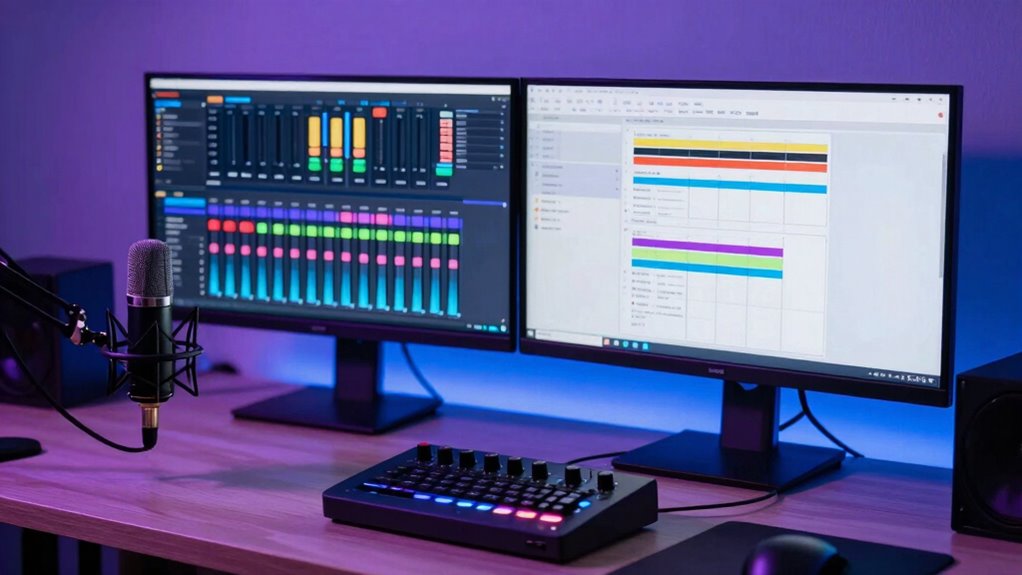
When streaming, the chaos caused by varying app-to-app volume levels can disrupt your viewing experience and frustrate your audience. You might notice some apps blasting audio while others are barely audible, making it difficult to deliver a smooth, professional broadcast. To fix this, you need to focus on proper sound synchronization and effective audio mixing techniques. These tools help you balance audio levels across multiple sources, ensuring your viewers enjoy a consistent sound experience.
First, understanding sound synchronization is essential. When multiple apps or sources run simultaneously, their audio streams often fall out of sync, creating jarring discrepancies in volume and timing. To address this, you should use audio delay settings available in most streaming software or hardware mixers. Syncing audio properly prevents echoes or overlapping sounds that can be distracting. Additionally, many digital audio workstations or mixing consoles allow you to fine-tune the delay for each source, so you can align all audio streams seamlessly. Recognizing the importance of sound synchronization can significantly improve your streaming quality.
Use audio delay settings to sync multiple sources and prevent distracting echoes or overlaps.
Next, mastering audio mixing techniques is vital. You want to control each app’s volume level individually and then blend them together into a cohesive soundscape. Start by setting each application’s volume to a comfortable baseline, then adjust them incrementally while listening critically. Use compressors and limiters to prevent sudden loud sounds from overpowering quieter ones. This ensures that your audio remains balanced throughout your stream. Applying equalization (EQ) can also help cut unwanted frequencies, clarifying speech and reducing background noise, which enhances overall sound clarity. Paying attention to audio levels ensures a more professional output.
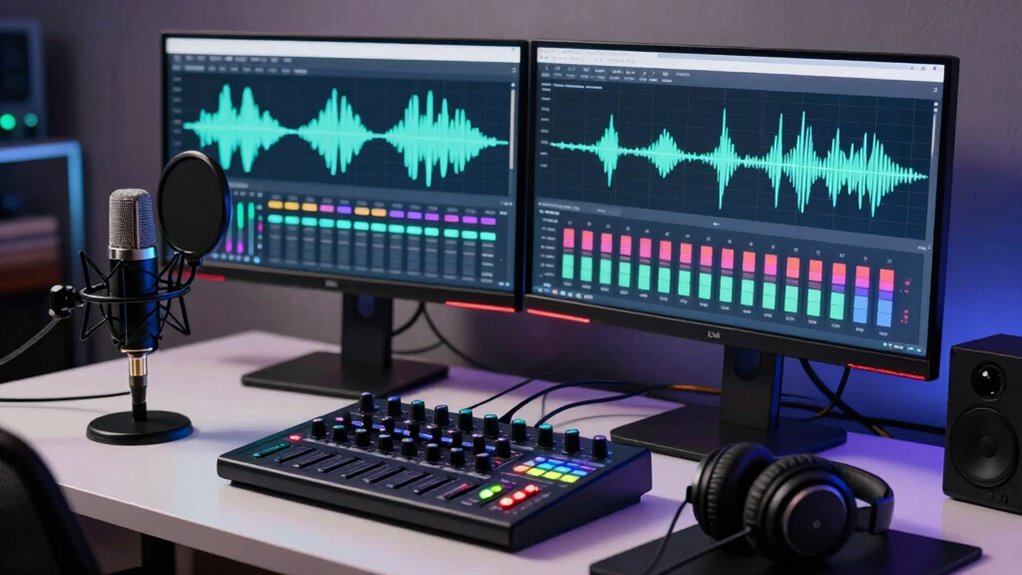
Another effective approach is to create a dedicated audio mix for your stream. Instead of relying on default app volumes, route all audio sources through a mixer or a virtual audio cable. This setup allows you to control each input independently with physical or software faders. As you monitor the mix in real-time, you can make precise adjustments, preventing any one app from dominating the soundscape and causing chaos. Having a dedicated mix also simplifies troubleshooting, as you can quickly identify and correct volume imbalances.
Finally, always test your setup before going live. Record a short session, then review the audio levels and synchronization. Make adjustments as needed, paying close attention to sound consistency and clarity. Regular testing helps you develop a keen ear for balance and ensures that your audience won’t be subjected to sudden volume surprises or disruptive audio issues. By combining sound synchronization with solid audio mixing techniques, you can markedly reduce app-to-app volume chaos and deliver a polished, professional streaming experience that keeps your viewers engaged.
As an affiliate, we earn on qualifying purchases.
Frequently Asked Questions
Can Hardware Mixers Prevent App-To-App Volume Conflicts?
Yes, hardware mixers can prevent app-to-app volume conflicts. When you use a hardware mixer, you control the audio levels for each input directly, allowing you to balance different app sounds precisely. Instead of relying on software adjustments, the mixer gives you physical control over volume, reducing conflicts and ensuring consistent audio levels across your streaming setup. This makes managing multiple app sounds much easier and more reliable.
Is There a Way to Automate Volume Adjustments During Streams?
Imagine a symphony where every instrument stays perfectly in tune—you can achieve this with automatic volume leveling and app audio synchronization. Yes, you can automate volume adjustments during streams using tools like software mixers, audio plugins, or streaming software features. These systems monitor your audio levels in real-time and automatically balance app volumes, ensuring a seamless listening experience without manual tweaks, keeping your stream smooth and professional.
How Do I Troubleshoot Audio Lag Between Apps?
To troubleshoot audio lag between apps, first check your audio sync settings in your streaming software and device. You might experience sound delay because of hardware limitations or incompatible audio formats. Test different output devices or update your audio drivers. If the problem persists, consider adjusting buffer sizes or using dedicated audio interfaces. Ensuring your system is optimized can help reduce sound delay and improve overall audio sync during streams.
Are There Specific Streaming Platforms Better for Managing Audio?
You might think all streaming platforms handle audio equally, but some excel at managing sound balancing and audio mixing. Platforms like Twitch and YouTube offer advanced audio controls, making it easier to balance multiple sources. While it’s tempting to stick with familiar options, exploring platforms with better audio management can markedly reduce chaos. This way, you enjoy smoother sound integration, ensuring your stream sounds professional and engaging without constant adjustments.
What Are the Best Audio Monitoring Tools for Streamers?
You should consider using audio monitoring tools like Voicemeeter, OBS Studio’s audio mixer, or Loopback for effective audio calibration and headphone mixing. These tools let you precisely control and balance your audio sources, reducing chaos during streams. With real-time monitoring, you can catch issues early, guarantee consistent sound levels, and create a smoother streaming experience. Properly calibrated audio and tailored headphone mixes make your content more professional and enjoyable for your audience.
As an affiliate, we earn on qualifying purchases.
Conclusion
By mastering these tips, you’re steering your streaming ship through turbulent waters, much like Odysseus charting treacherous seas. Keep your apps balanced, your audio levels steady, and stay vigilant against chaos. Remember, harmony in your setup isn’t just a goal; it’s your guiding star. With patience and precision, you’ll turn turbulence into tranquility, ensuring your audience enjoys a seamless, professional experience—proof that even in chaos, mastery can reign.
As an affiliate, we earn on qualifying purchases.
professional streaming microphone
As an affiliate, we earn on qualifying purchases.
As an affiliate, we earn on qualifying purchases.