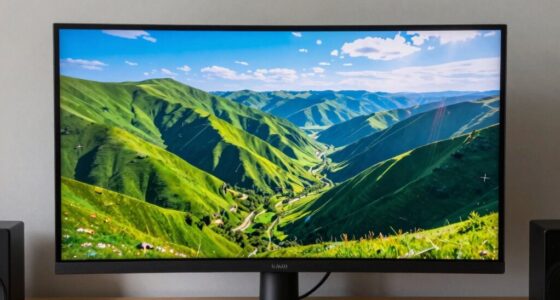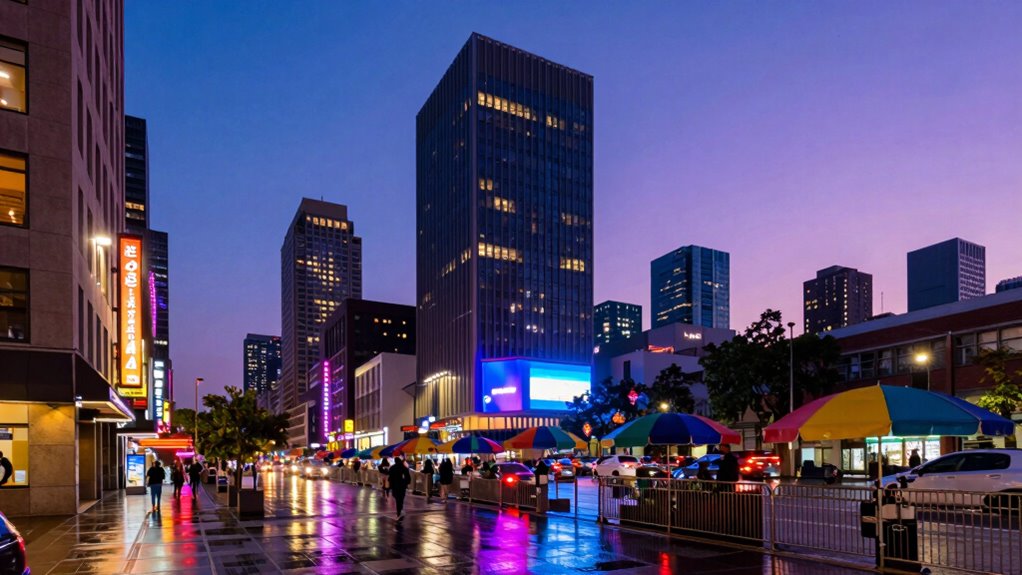

Your pictures may look washed out because of a mismatch between full RGB (0-255) and limited RGB (16-235) color settings on your display. If your device uses limited RGB, vibrant images can appear dull or muted compared to true colors. This issue often happens if your calibration isn’t correct or if your display defaults to limited RGB. Keep exploring to discover how adjusting these settings can restore your images’ vividness and color accuracy.
Key Takeaways
- Limited RGB (16-235) restricts color range, making images appear dull or washed out compared to full RGB (0-255).
- Display settings defaulting to limited RGB can cause color desaturation in photos and videos.
- Correct calibration and switching to full RGB enhance color vibrancy and reduce washed-out appearance.
- Content designed for full RGB looks less vivid if the display is set to limited RGB mode.
- Ensuring your hardware and software support full RGB helps achieve accurate, richer colors in images.

When choosing between limited and full RGB, understanding the key differences can considerably impact your display quality and color accuracy. These two settings determine the range of colors your screen can produce, known as the color gamut. Full RGB, also called 0-255, covers the entire spectrum of colors that most modern displays can handle, resulting in richer, more vibrant images. Limited RGB, or 16-235, restricts the color gamut to a smaller range, which can cause images to look dull, washed out, or less vibrant. This is especially noticeable when viewing high-quality photos or videos, where color richness is *vital*.
The root of the problem often lies in display calibration. When your device isn’t properly calibrated, it might default to limited RGB, even if your graphics card and software support full RGB. This mismatch can lead to a washed-out appearance, making your pictures seem less vivid than they should be. To fix this, you need to *guarantee* your display is calibrated correctly and set to full RGB mode, especially if you’re working with color-sensitive tasks like photo editing or graphic design. Proper calibration aligns your hardware’s color reproduction with the true spectrum, allowing you to see images as they’re intended to be seen. Additionally, understanding the color gamut supported by your device can help prevent these issues and optimize your viewing experience.
Choosing the right RGB setting isn’t just about personal preference; it’s about matching your display output with your content. If you’re watching movies or playing games that are designed for full RGB, but your display is set to limited RGB, the colors won’t be as vibrant or true to life. Conversely, if your display is set to full RGB but your media is limited RGB, you might encounter color clipping or oversaturation issues. For most casual users, leaving the setting to full RGB provides the best overall color experience. However, some older devices or TVs may default to limited RGB to prevent oversaturation and improve compatibility with certain media.
Top picks for "hidden reason picture"
As an affiliate, we earn on qualifying purchases.
Frequently Asked Questions
How Does Monitor Calibration Affect Color Accuracy?
Monitor calibration directly impacts color accuracy by ensuring your display’s color space matches the intended standards. When you calibrate properly, you optimize your monitor’s display gamut, which defines the range of colors it can reproduce. This prevents colors from appearing washed out or oversaturated, giving you true-to-life images. Proper calibration aligns your monitor’s output with industry standards, so your photos and videos look consistent and accurate across different devices.
Can Software Settings Improve a Washed-Out Picture?
Sure, tweaking your software settings can rescue a washed-out picture—if you enjoy playing color magician. Adjust your display settings and expand the color gamut to bring back vibrancy. But don’t expect miracles if your monitor’s hardware is limited; software alone can only do so much. So, go ahead, experiment with those sliders, but remember, sometimes the real fix requires better hardware, not just smarter settings.
What Are the Signs of Limited RGB in an Image?
You notice limited RGB in your image if you see color banding or posterization, where smooth gradients break into distinct color steps. Shadows may lack detail and appear overly flat or muddy, indicating insufficient color depth. These signs mean your display or image file can’t reproduce the full spectrum of colors, causing a washed-out look. Upgrading your settings or using full RGB can help restore vibrant, detailed visuals.
Is Full RGB Necessary for Professional Photo Editing?
Do you really need full RGB for professional photo editing? Absolutely. Full RGB covers a wider color gamut, allowing you to work within the entire display spectrum and capture richer, more accurate colors. This flexibility helps guarantee your edits translate well across different devices and media. Without it, your images might look dull or washed out when viewed on high-end displays. So, yes, for precision and quality, full RGB is essential.
How Does Limited RGB Impact Gaming Visuals?
Limited RGB can negatively impact your gaming visuals by causing color banding and contrast loss, making scenes look less smooth and more posterized. You might notice abrupt color shifts instead of seamless gradients, which diminishes immersion. This happens because limited RGB can’t display the full spectrum of colors, reducing detail and richness. To improve your experience, consider upgrading to full RGB, especially if you want vibrant, accurate visuals during intense gaming sessions.
Conclusion
Think of your photos like a box of crayons. Limited RGB is like having only a few colors—your picture looks faded, dull, and washed out. But with full RGB, it’s like releasing the entire rainbow, bursting with vibrant life. When you choose full RGB, you’re giving your images the full spectrum they deserve, turning a dull sketch into a vivid masterpiece. So, open the full palette and watch your photos truly come alive.