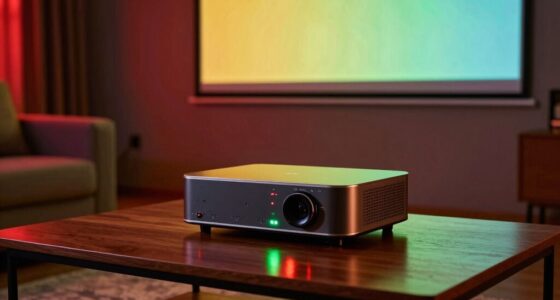
Your new TV or projector might look too blue because it’s set to default vivid or dynamic modes, which often boost blue tones for a brighter picture. To fix this, switch to a more neutral or cinematic setting like “Calibrated” or “Movie,” and adjust the color temperature from “Cool” to “Warm.” Fine-tuning your color controls and using calibration tools can help restore natural hues. Keep exploring for detailed steps to get your picture just right.
Key Takeaways
- Switch your TV or projector from vivid or dynamic mode to a neutral setting like “Calibrated” or “Movie.”
- Change the color temperature from “Cool” to “Warm” or “Neutral” to reduce blue tones.
- Use advanced picture settings to slightly decrease blue gain and boost red and green for balanced colors.
- Utilize calibration tools or test patterns to fine-tune color accuracy and eliminate unnatural blue hues.
- Avoid leaving your display on overly vibrant or enhanced modes, which often cause a blue tint in images.
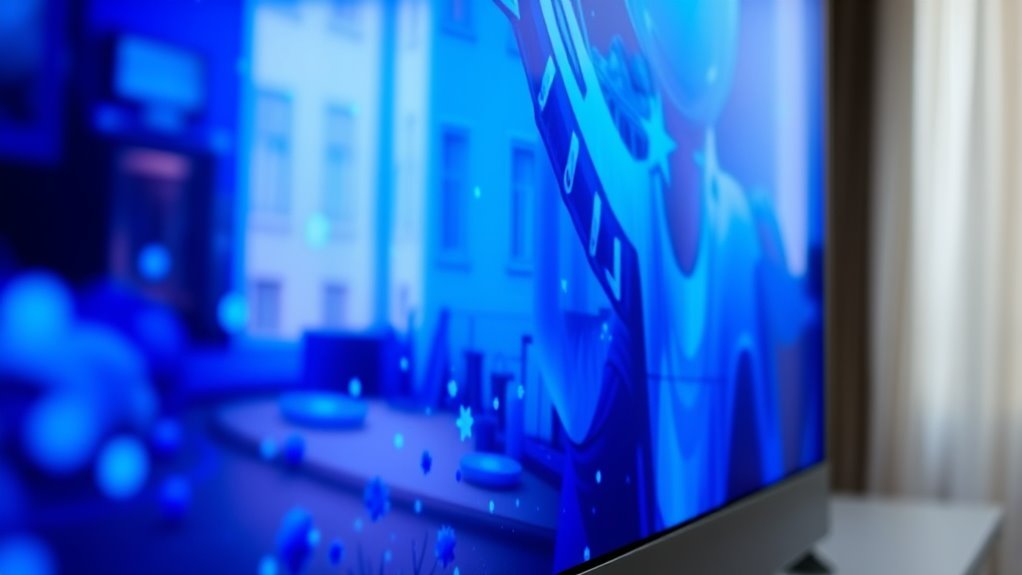
When you get a new TV and notice the picture looks overly blue, it’s often due to the factory settings or calibration issues. Many manufacturers set TVs with vivid or enhanced picture modes enabled by default, which can push the color balance toward blue, making everything appear cooler and less natural. To fix this, you need to understand how color calibration and display settings work. Proper calibration guarantees that colors are accurate and balanced, giving you a more authentic viewing experience. The first step is to access your TV’s menu and locate the display settings or picture options. Usually, there’s a mode labeled “Vivid,” “Dynamic,” or “Standard,” but these are often overly saturated or skewed toward certain colors. Switching to a more neutral mode, like “Calibrated” or “Movie,” helps set a baseline for better color accuracy.
Once you’re in the display settings, focus on adjusting the color temperature. Many TVs default to a “cool” setting, which emphasizes blue tones. Changing this to “Warm” or “Neutral” shifts the image toward more natural hues. This adjustment plays an essential role in balancing the overall color calibration. Additionally, check the individual color controls—red, green, and blue—often found under advanced settings. Fine-tuning these can help correct any imbalance, especially if the blue dominates. For example, reducing the blue gain slightly while increasing red and green can restore a more realistic color palette. Be careful not to over-adjust; small tweaks make a significant difference.
If your TV has a dedicated color calibration tool or pattern generator, use it to verify your adjustments. These tools display test patterns that help you see how well your display reproduces colors. It’s worth spending some time calibrating the display settings to match the natural colors you prefer or the industry standards. Remember, the goal isn’t to make the picture look overly warm or artificially vibrant but to achieve a balanced, true-to-life image. As a further step, understanding how display calibration can impact your overall viewing quality can help you make more informed adjustments. Many TVs have calibration guides or suggest default settings that serve as a good starting point.

Portable Power Station 300W, GRECELL 230.88Wh Solar Generator with 60W USB-C PD Output, 110V Pure Sine Wave AC Outlet Backup Lithium Battery for Outdoors Camping Travel Home Blackout
【230.88Wh Capacity, 330W Output】330W (600W surge) pure sine wave supports most laptops, tablets, phones, lights, fans, CPAP medical...
As an affiliate, we earn on qualifying purchases.
Frequently Asked Questions
How Can I Adjust the Color Temperature on My TV?
You can adjust the color temperature on your TV by accessing the picture settings menu. Look for options like “Color Temperature” or “Warmth,” and select a setting that feels natural—usually “Warm” or “Neutral.” Make sure to choose the right picture mode, like “Cinema” or “Custom,” to fine-tune the color temperature adjustment. This helps eliminate that overly blue tint and improves your viewing experience.
Does Changing Picture Modes Affect Color Accuracy?
Changing picture modes can impact color accuracy, but you don’t have to sacrifice quality. Vivid mode, for example, boosts brightness and color saturation, making images pop but often distorting true colors. To get the most accurate picture, switch to a mode like Movie or Custom, then fine-tune the settings. This way, you preserve color fidelity and enjoy a balanced, natural viewing experience.
What Is the Best Setting for Bright Room Viewing?
For bright room viewing, set your display to a high brightness mode like Standard or Dynamic, but avoid Vivid mode to prevent color distortion. Adjust the color temperature to a cooler setting for clarity without over-saturation. Be aware of Vivid mode pitfalls, which can make colors look unnatural. Fine-tune your color temperature adjustment for the best balance, ensuring vibrant yet accurate visuals in well-lit environments.
Can Calibration Tools Improve My Tv’s Color?
You can definitely improve your TV’s color with calibration tools. While some believe they’re only for professionals, affordable colorimeters paired with calibration software make it easy for you to achieve accurate colors at home. These tools measure colorimeter accuracy and help you fine-tune your display’s settings, ensuring vivid, natural tones. Just follow the guided steps, and you’ll see a noticeable difference in picture quality, making your viewing experience more immersive.
How Often Should I Recalibrate My Display?
You should recalibrate your display every six months to guarantee optimal color calibration and maintain accurate colors. Frequent use, software updates, or changing lighting conditions can affect your display’s performance, so regular display maintenance is essential. Keep an eye on color shifts or image quality issues, and recalibrate as needed, especially if you notice colors look off or if you’ve made any adjustments to your device settings.

Herdio 6.5 Inch 800W Outdoor Bluetooth Speakers Wired Waterproof with Multifunctional Amplifier, Wall Mount Speaker System for Patio Home Poolside Deck Backyard(2 Pairs,Black)
【Full-Range Speakers】The high powered full range indoor outdoor speakers wired waterproof has a maximum power output of 800...
As an affiliate, we earn on qualifying purchases.
Conclusion
Now that you’ve untangled the vivid mode mystery, your TV or projector is ready to paint your world with true-to-life colors. Think of it as revealing a hidden palette, revealing every hue in its rightful glory. Don’t let that icy blue cast freeze your viewing experience—take control and bring warmth and vibrancy back to your screen. With a few simple tweaks, your entertainment oasis will shine brighter, turning every movie night into a vivid adventure.

STUDIOFINIX 6.5 Inch Outdoor Speakers Wall-Mounted 800W - Waterproof and High-Performance Audio Solution for Indoor/Outdoor,Home,Patio,Garden,Backyard(4 Passive Speakers Bundle/Black)
〖Powerful Performance〗: Boasting a peak power handling of 800 watts, it delivers a full range of dynamic sound...
As an affiliate, we earn on qualifying purchases.

Polk Audio Atrium 4 Weatherproof Outdoor Speakers with Powerful Bass (Pair, Black), All-Weather Durability, Broad Sound Coverage, Speed-Lock Mounting System
EASY INSTALLATION - One-click speed-lock mounting bracket offers anti-slip, one-handed installation. Mount these outdoor speakers wired vertically or...
As an affiliate, we earn on qualifying purchases.