If you set contrast too high, your faces can look harsh, unnatural, or overly shadowed, losing their natural details. On the other hand, too low contrast makes faces appear dull and flat, washing out skin tones and features. Both mistakes distort facial appearance and can make images look weird. To avoid this, you need to find a balance that reflects true skin tones and lighting. Want to discover how proper calibration and lighting influence this balance? Keep going.
Key Takeaways
- Setting contrast too high can create unnatural shadows, making faces appear harsh and distorted.
- Low contrast settings wash out facial details, resulting in dull, flat-looking faces.
- Incorrect contrast distorts true skin tones, causing faces to look unrealistic or “weird.”
- Overadjusting contrast without considering lighting conditions can exaggerate facial features unnaturally.
- Failing to calibrate monitors properly leads to inaccurate contrast perception, affecting facial appearance.

Adjusting the contrast setting on your monitor might seem like a small task, but making the wrong choice can substantially affect how you see images and text. One common mistake people make is setting the contrast too high, especially when viewing or editing photos of faces. This mistake often leads to faces looking weird, unnatural, or overly harsh. The key to avoiding this problem lies in understanding how contrast interacts with camera calibration and lighting conditions.
When you tweak your contrast settings without considering camera calibration, you risk distorting the true skin tones and facial details. Cameras capture images based on specific calibration settings that determine how colors and brightness are processed. If your monitor’s contrast is set improperly, these calibrated details won’t display accurately, making faces appear exaggerated or flat. For example, overly high contrast can cause shadows to deepen unnaturally, losing subtle facial nuances. Conversely, setting contrast too low can make faces look dull and washed out, losing depth and dimension. The goal is to find a balance that reflects the camera’s calibration, ensuring the images you see are true to life.
Lighting conditions play a critical role in how contrast should be adjusted. Under bright lighting, your eyes and your monitor perceive contrast differently. When lighting conditions are poor or inconsistent, you might be tempted to crank up the contrast to make details pop, but this often backfires, especially with faces. Harsh lighting can create strong shadows or highlights that, when combined with an overly high contrast setting, make facial features appear distorted or exaggerated. On the other hand, in dim lighting, low contrast can make faces look flat and uninteresting. Adjusting contrast while considering the ambient light ensures that facial features remain natural and proportional, preventing the “weird” look that high contrast can produce. Recognizing the importance of monitor calibration and ambient lighting is crucial for achieving accurate and natural results. Additionally, understanding how lighting conditions influence perception can help you make more informed adjustments. Properly managing these factors helps maintain the natural appearance of faces and avoids the common contrast setting mistake. Moreover, regularly calibrating your monitor can help maintain consistent visual accuracy, which is essential when editing or viewing photos with accurate skin tones. Being aware of the perceived brightness also helps in making more precise contrast adjustments that keep images looking natural.

Datacolor SpyderExpress Monitor Calibrator & Screen Color Calibrator
- Quick & Easy Color Calibration: Precise color for photos and content creation
- Supports Latest Displays: Compatible with MacBook M4 mini-LED and more
- Fast Setup: Calibrates in just 90 seconds for quick results
As an affiliate, we earn on qualifying purchases.
As an affiliate, we earn on qualifying purchases.
Frequently Asked Questions
How Does Contrast Affect Facial Features in Photos?
Contrast impacts facial features by affecting lighting balance and skin tone in photos. When contrast is too high, it can create harsh shadows and highlights, making skin look unnatural and facial features exaggerated or distorted. Conversely, low contrast results in flat, dull images with less definition. Adjusting contrast carefully helps maintain natural skin tones and balanced lighting, ensuring facial features appear realistic and flattering without unwanted distortions.
What Other Editing Mistakes Make Faces Look Unnatural?
You might unintentionally make faces look unnatural by creating a lighting imbalance or using a color mismatch. When lighting is uneven, shadows can distort features, turning a friendly face into a shadow puppet. A color mismatch, like overly saturated or mismatched skin tones, throws the face off-balance. These mistakes can make your photos feel off-kilter, like a puzzle with missing pieces, distracting from the natural beauty you aim to capture.
Can Contrast Adjustments Improve Portrait Photos?
Yes, contrast adjustments can improve portrait photos by enhancing color grading and balancing lighting. When you tweak contrast properly, it makes facial features pop, adds depth, and corrects dull or flat images. However, avoid overdoing it, as too much contrast can create harsh shadows and unnatural skin tones. Focus on subtle adjustments to achieve a natural, well-balanced look that highlights your subject’s best features without compromising realism.
Which Software Tools Are Best for Contrast Editing?
You should try software like Adobe Lightroom or Capture One for contrast editing, as they offer precise control through color grading tools. These programs also include noise reduction features, helping you keep skin tones smooth while enhancing contrast. Use the sliders carefully to avoid overdoing it, ensuring your portraits look natural. These tools make it easy to fine-tune contrast and color, resulting in professional-quality edits without weird faces or noise issues.
How to Correct a Face That Looks Too Flat After Editing?
Imagine your face as a canvas, and the flat look as a dull, lifeless painting. To fix this, adjust your skin tone by subtly enhancing highlights and shadows, bringing back depth. Balance the lighting by increasing contrast slightly or using dodge and burn tools. This restores natural dimension, making your face pop with warmth and vibrancy, giving it a lively, three-dimensional appearance that feels authentic and engaging.
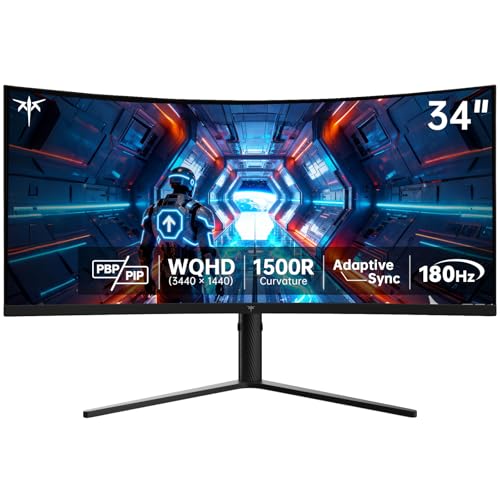
KTC 34 Inch Ultrawide Curved Gaming Monitor, 3440×1440 UWQHD 180Hz, H34S5
- Screen Size: 34-inch ultrawide curved display
- Resolution: 3440×1440 UWQHD resolution
- Aspect Ratio: 21:9 aspect ratio
As an affiliate, we earn on qualifying purchases.
As an affiliate, we earn on qualifying purchases.
Conclusion
By adjusting the contrast just right, you bring faces to life, like a painter adding vibrant strokes to a canvas. But misjudge it, and faces become ghostly shadows or exaggerated caricatures, like eerie reflections in a funhouse mirror. It’s a subtle balance—too little, and details fade into obscurity; too much, and features distort beyond recognition. Mastering this setting means your images become a window, not a warped mirror, revealing true beauty instead of a bizarre reflection.

ASUS ProArt PA278QV 27 Inch 1440p QHD Professional Monitor
- Color Accuracy: Calman Verified with Delta E < 2
- Color Gamut: 100% sRGB and Rec. 709 coverage
- Display Size & Resolution: 27-inch WQHD IPS display
As an affiliate, we earn on qualifying purchases.
As an affiliate, we earn on qualifying purchases.
Datacolor SpyderExpress Monitor Calibrator & Screen Color Calibrator
- Quick & Easy Color Calibration: Precise color for photos and content creation
- Supports Latest Displays: Compatible with MacBook M4 mini-LED and more
- Fast Setup: Calibrates in just 90 seconds for quick results
As an affiliate, we earn on qualifying purchases.
As an affiliate, we earn on qualifying purchases.