To reduce projector fan noise, place it in a well-ventilated spot with plenty of space, avoiding cramped corners or enclosed cabinets. Elevate it slightly on a stand for better airflow and consider external cooling accessories like quiet pads or stands. Adjust fan speeds through the menu if possible, balancing cooling with noiseless operation. Regularly clean vents from dust and debris to prevent clogs. For more effective airflow tricks, keep exploring this setup guide.
Key Takeaways
- Position the projector in a well-ventilated area away from tight corners and enclosed cabinets.
- Use external cooling accessories like quiet cooling stands or pads to improve airflow efficiency.
- Adjust fan speed settings via the projector menu to lower noise without overheating.
- Regularly clean vents and surrounding area to prevent dust buildup that hampers airflow.
- Upgrade internal fans to low-noise, high-quality models for quieter operation while maintaining cooling performance.
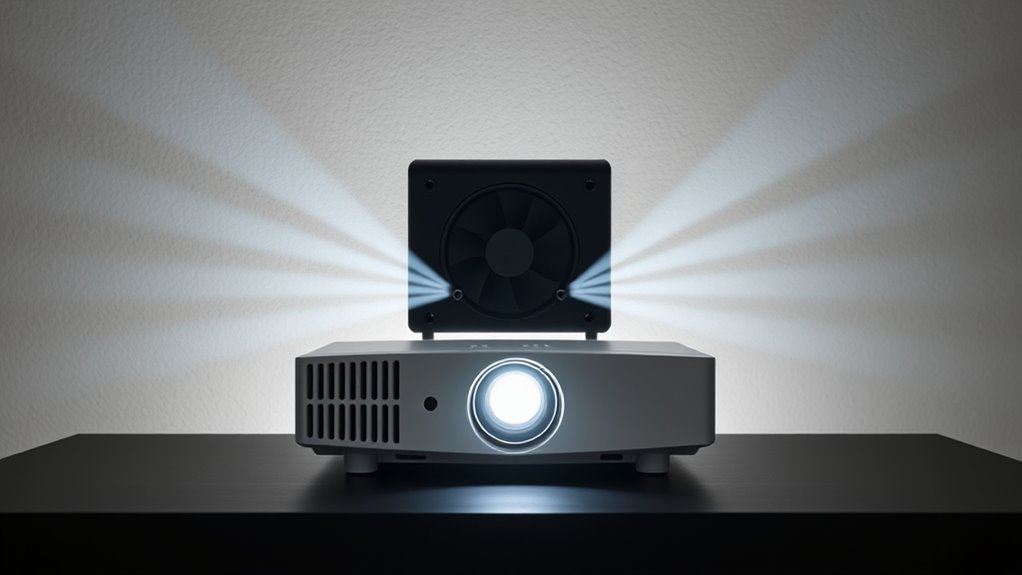
Setting up a quiet fan projector can markedly enhance your viewing experience by reducing noise distractions. When your projector’s cooling fan runs smoothly and quietly, you can focus fully on the content without being interrupted by loud, distracting sounds. To achieve this, you need to pay close attention to ventilation efficiency and fan noise reduction. Proper ventilation ensures the projector stays cool without requiring the fan to spin at maximum speeds, which is often the main source of noise. Improving airflow pathways allows your projector to operate at lower fan speeds, naturally diminishing noise levels.
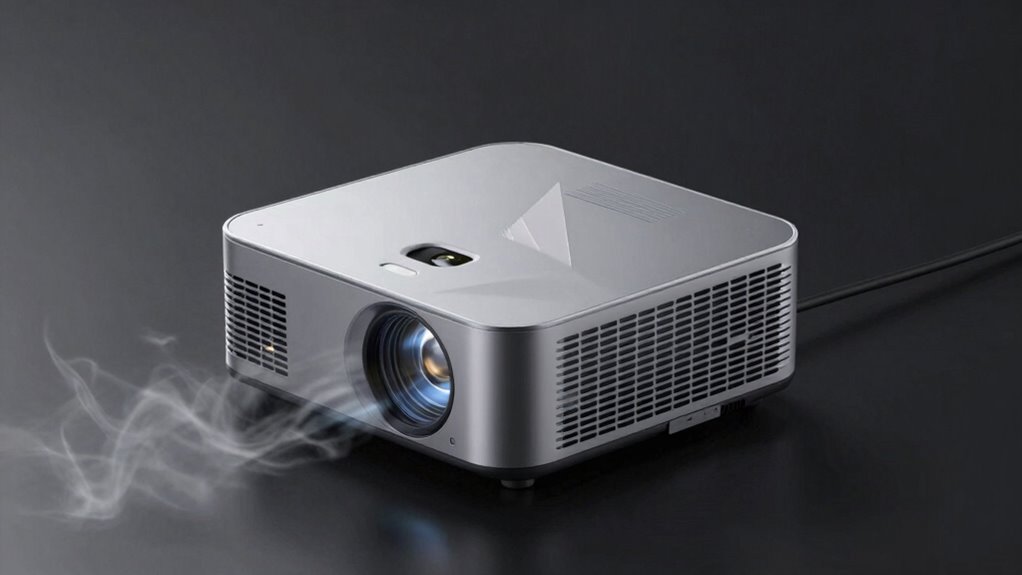
Start by positioning your projector in a well-ventilated area, ideally with plenty of space around it. Avoid cramped corners or enclosed cabinets that trap heat and force the fan to work harder. Elevate the projector slightly off the ground to promote better airflow underneath and around the device. Using a dedicated stand or shelf can help maintain optimal ventilation efficiency. When airflow isn’t restricted, the fan can run more efficiently at lower speeds, substantially reducing the noise you hear during your movie or presentation.
Position your projector in a well-ventilated area with space around it for better airflow.
In addition to placement, consider using external cooling accessories such as quiet cooling pads or stands designed specifically for projectors. These accessories can help improve ventilation efficiency by providing additional airflow channels, which in turn helps the fan operate at reduced speeds. Some projectors come with adjustable fan speed controls—if yours does, use the menu settings to lower the fan speed carefully, balancing cooling and noise reduction. Be cautious not to set the fan too low, as overheating can damage your device or cause it to shut down unexpectedly.
Another effective trick involves managing the environment around your projector. Keep the area free from dust and debris, as accumulated dirt can clog vents and hinder airflow. Regularly cleaning air intake and exhaust vents with compressed air or a soft brush can preserve ventilation efficiency and keep noise levels down. Additionally, minimizing ambient noise sources around the projector, such as fans or air conditioners, can help you notice and appreciate the quieter operation.
Finally, consider replacing the internal fan with a quieter model if your projector allows for customization. High-quality, low-noise fans are designed specifically to produce less sound while maintaining cooling performance. While this might require some technical skill, it can be a worthwhile investment in creating a more serene viewing environment. Enhancing ventilation efficiency and fan noise reduction in your setup ensures a more peaceful and immersive experience. By focusing on ventilation efficiency and fan noise reduction in your setup, you’ll enjoy clearer audio and visuals, making your movie nights or presentations more immersive and comfortable.
quiet projector cooling stand
As an affiliate, we earn on qualifying purchases.
As an affiliate, we earn on qualifying purchases.
Frequently Asked Questions
Can Airflow Modifications Affect Projector Cooling Efficiency?
Yes, airflow modifications can influence your projector’s cooling efficiency. By adjusting airflow patterns, you might improve or hinder cooling performance depending on how well you direct air through the system. Proper airflow ensures heat is effectively carried away, preventing overheating. If you block or restrict airflow, cooling suffers, but strategic modifications can optimize airflow, keeping your projector cool and running smoothly without increasing noise.
Are There Specific Fan Models Known for Quieter Operation?
Ever wondered if you can find a fan that runs quietly? Yes, some models excel because of their specialized fan blade design and noise dampening features. Brands like Noctua and Be Quiet! are renowned for their quiet operation, making them ideal for projector setups. These fans minimize vibration and reduce noise, ensuring your viewing experience remains immersive without disruptive sounds. Choosing the right fan can truly make a difference in your setup.
How Does Ambient Temperature Influence Airflow Noise Reduction?
Ambient temperature affects airflow noise because higher temperatures can cause fans to work harder, increasing noise levels. To reduce this, you can use thermal insulation around the fan or airflow barriers that help regulate temperature and airflow. Cooler air helps fans operate more efficiently and quietly. Maintaining a stable ambient temperature minimizes fan strain, ensuring quieter operation and prolonging your projector’s lifespan.
Is It Safe to Adjust Fan Speeds Manually?
Think of adjusting your fan speed like tuning a musical instrument—careful tweaks can improve the sound, but too much might cause discord. Yes, it’s generally safe to manually adjust fan speed and airflow control, but do so cautiously. Always follow your projector’s guidelines, and avoid sudden changes to prevent damage. When done properly, you’ll enjoy quieter operation without risking your device’s health.
What Maintenance Tips Keep Airflow Quiet Over Time?
To keep airflow quiet over time, regularly clean and replace your fan filter to prevent dust buildup that can cause noise. Additionally, optimize your duct design by ensuring smooth, straight paths and avoiding sharp bends, which reduce turbulence and noise. Check for blockages or debris in the airflow path frequently, and consider sealing leaks to maintain consistent airflow and minimize noise. Proper maintenance guarantees quieter, more efficient operation.
external projector cooling pad
As an affiliate, we earn on qualifying purchases.
As an affiliate, we earn on qualifying purchases.
Conclusion
By mastering airflow tricks, you’re effectively tuning your projector like a finely crafted instrument, silencing the hum and allowing your viewing experience to shine. Think of your setup as a well-orchestrated symphony, where each airflow tweak plays its part in creating harmony between performance and quietness. With these simple adjustments, you’ll enjoy immersive entertainment without the background noise, turning your space into a sanctuary where clarity and calm reign supreme.
low noise projector fan replacement
As an affiliate, we earn on qualifying purchases.
As an affiliate, we earn on qualifying purchases.
projector vent cleaning kit
As an affiliate, we earn on qualifying purchases.
As an affiliate, we earn on qualifying purchases.