Your TV audio falls back to stereo when your setup isn’t using the right HDMI version or cables, or if your device doesn’t support eARC or ARC properly. Outdated firmware or incorrect settings can also limit your sound to stereo instead of surround sound formats. Ensuring all components support HDMI 2.1 or 2.0, using the correct ports, and updating software can fix these issues. Keep going to discover how to optimize your system for the best audio experience.
Key Takeaways
- eARC supports higher bandwidth and uncompressed formats, preventing fallback to stereo, unlike ARC’s limited compressed audio.
- Ensure your TV and sound system support HDMI 2.1 for eARC, as older versions default to stereo or lower-quality formats.
- Incorrect or outdated firmware can cause devices to default to stereo; updating firmware restores full audio format support.
- Using incompatible or low-quality HDMI cables may hinder proper communication, leading to stereo fallback instead of surround sound.
- Properly configure TV and audio device settings to enable eARC, select the correct audio output, and avoid automatic fallback to stereo.
Understanding the Basics of HDMI Audio Standards
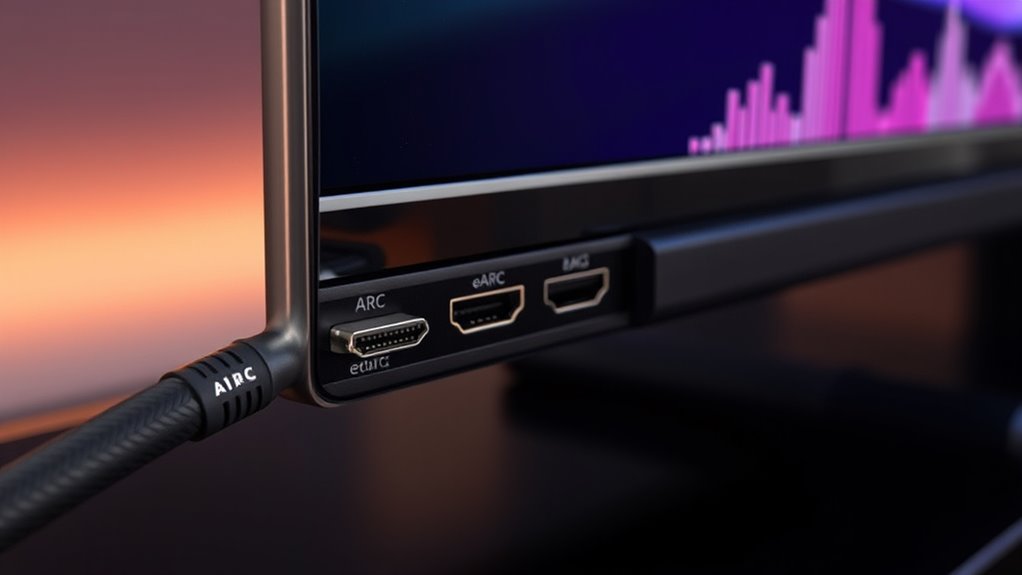
To understand why your TV’s audio might keep reverting to stereo, grasping the basics of HDMI audio standards is vital. HDMI (High-Definition Multimedia Interface) transmits both video and audio signals, but not all HDMI connections support the same audio features. Standard HDMI supports basic audio formats like PCM, which delivers stereo sound. More advanced standards, such as HDMI 1.4 and later, introduce formats like Dolby Digital and DTS, offering surround sound. However, compatibility depends on your TV, cable, and connected devices. Understanding HDMI standards is essential to ensure proper configuration and support for multichannel audio. If your equipment only supports basic PCM audio, you’ll find your audio defaults to stereo. To get surround sound, verify your devices support higher-quality HDMI audio standards and are configured correctly to transmit multichannel audio signals. Additionally, HDMI audio configurations can vary between devices, so consulting your device manuals can help optimize your setup for the best sound experience.
Key Differences Between ARC and Earc

eARC supports higher bitrates and uncompressed formats like Dolby Atmos, while ARC handles compressed audio. Compatibility also varies; eARC requires HDMI 2.1, whereas ARC works with HDMI 1.4 or higher. Connection speed and latency are improved with eARC, providing smoother audio. Additionally, eARC’s increased bandwidth allows for lossless audio formats, significantly enhancing home theater sound experiences. This means users can enjoy a more advanced audio experience with richer sound quality. The audio format capabilities of eARC enable a more immersive and high-fidelity listening environment, especially important for users seeking high-resolution audio in their home setups. Here’s a quick comparison: audio formats
Common Reasons Your TV Defaults to Stereo

If your TV keeps defaulting to stereo sound, it’s often due to compatibility or connection issues that prevent the audio from switching to higher-quality formats. One common reason is using incompatible cables or ports, like an HDMI cable not supporting ARC or eARC. Another issue is outdated firmware or software that hampers proper communication between devices. Additionally, settings on your TV or sound system might be misconfigured, causing it to fall back to stereo by default. Sometimes, the source device itself isn’t sending a multi-channel signal, especially if it’s set to stereo output. Finally, loose or damaged cables can interrupt the signal, forcing your TV to revert to stereo. Ensuring everything is compatible, updated, and properly connected is key to resolving this problem. Understanding audio formats can help clarify why certain connections or settings impact your TV’s sound quality.
Compatibility Considerations for ARC and Earc
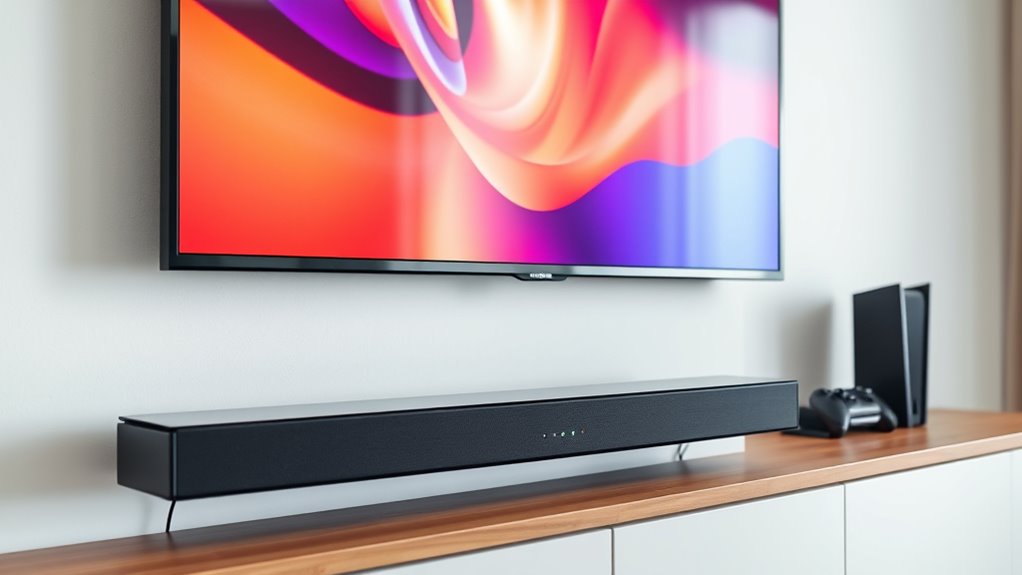
To get the most out of ARC and eARC, you need to check if your devices are compatible and support the right HDMI version. Not all TVs and sound systems can handle the latest audio formats, which can limit your options. Ensuring your equipment meets these requirements helps prevent audio issues and improves overall sound quality. Additionally, understanding HDMI standards and capabilities can help you identify the correct cables and connections needed for optimal performance.
Device Compatibility Requirements
Ensuring your devices are compatible with ARC or eARC is essential for seamless audio performance. Not all HDMI ports or devices support these features, so verifying compatibility is key. First, check that your TV’s HDMI port is labeled as ARC or eARC; this is a clear indicator. Second, confirm that your audio device, such as a soundbar or receiver, also supports ARC or eARC functionality. Third, ensure your HDMI cables are high-speed and capable of transmitting the necessary bandwidth—especially for eARC, which requires higher data rates. Proper HDMI cable selection is crucial for maintaining optimal audio quality. Additionally, verifying device compatibility can help prevent common connection issues and ensure you get the best audio quality possible. Failing to meet these requirements can result in audio dropping to stereo or not working at all. Compatibility is the foundation for enjoying full surround sound and lossless audio over HDMI. To avoid compatibility issues, always consult device specifications before making a purchase. Moreover, understanding the HDMI standards can further assist in selecting the right equipment for your setup.
HDMI Version Support
HDMI version support plays a vital role in guaranteeing your devices can handle ARC and eARC features properly. Not all HDMI ports or cables are compatible with the latest audio transfer capabilities, so using outdated versions might limit your options or cause connectivity issues. For ARC, HDMI 1.4 or higher is typically required, but eARC demands HDMI 2.1 support to function correctly. If your TV or sound system doesn’t support the necessary HDMI version, you won’t benefit from the advanced audio formats or consistent audio quality. It’s crucial to verify your device specifications and confirm they support the appropriate HDMI version. Upgrading your HDMI cables or devices might be necessary to access the full potential of ARC and eARC technologies.
Audio Format Limitations
While ARC and eARC can transmit high-quality audio, they are limited by the formats they support. Not all audio signals are compatible, which can cause your sound to fallback to stereo. Understanding these limitations helps you troubleshoot and optimize your setup. Here are key points to consider:
- Supported Formats: ARC often handles Dolby Digital and DTS, but struggles with higher-bitrate formats like Dolby TrueHD or DTS-HD Master Audio, which eARC can support.
- Device Compatibility: Your TV, soundbar, or receiver must explicitly support specific audio formats to pass them through properly.
- Firmware Updates: Outdated firmware can restrict format support, so keeping devices updated ensures maximum compatibility.
Being aware of these limitations helps you avoid disappointing audio quality and ensures you’re getting the best from your system.
Setting Up Your Home Theater for Optimal Audio
To get the best audio from your home theater, start by ensuring your cables are connected properly and securely. Next, check that your TV and sound system are set to the correct audio modes and formats. Additionally, understanding the thermal behavior of your audio equipment can help prevent issues like audio dropouts or quality degradation over time. Being aware of electrical safety practices can also help protect your devices from power surges or other electrical problems, ensuring consistent performance. Familiarizing yourself with audio signal integrity can further help maintain sound quality and prevent interruptions. Moreover, choosing appropriate device settings based on your specific audio equipment can optimize performance. Ensuring that your body jewelry measurements and materials are compatible with your device setup can also contribute to a stable connection. Finally, verify that all your devices are compatible and configured correctly to support ARC or eARC for seamless sound.
Proper Cable Connections
Getting your home theater set up for the best audio experience starts with proper cable connections. First, make certain you’re using high-quality HDMI cables that support ARC or eARC. Second, connect your TV’s HDMI ARC or eARC port to your soundbar or AV receiver’s corresponding port. Third, avoid daisy-chaining multiple devices with different HDMI versions, which can cause compatibility issues. Double-check that all cables are securely plugged in and that you’re using the correct ports labeled for ARC or eARC. Proper connections prevent signal loss and ensure your audio can transmit effectively. If your setup isn’t working as expected, try replacing cables or reconnecting them to eliminate loose connections. Clear, stable cables are essential for seamless audio performance.
Correct Audio Settings
Ensuring your audio settings are correct is crucial for a seamless home theater experience. Start by accessing your TV’s audio menu and selecting the appropriate output, such as HDMI ARC or eARC. Make sure your audio format is set to bitstream or passthrough, which allows your receiver or soundbar to process the full surround sound. Disable any audio enhancements or equalizers that may interfere with sound quality. Check that your audio mode is set to surround sound or auto-detect, ensuring the system switches to the best possible setting. Confirm that your TV’s volume level is adequate and that your sound device’s input is correctly configured. Properly adjusting these settings prevents your audio from defaulting to stereo and ensures you enjoy immersive sound.
Compatible Device Setup
Setting up your home theater with compatible devices is key to achieving peak audio performance. First, verify your TV, soundbar, or receiver supports either ARC or eARC. Second, connect your devices using high-speed HDMI cables that are rated for HDMI 2.1 to handle the bandwidth. Third, confirm your device settings to enable HDMI-ARC or HDMI-eARC in the audio menu. Doing these things guarantees proper communication between your TV and audio system. Additionally, ensure that your devices are updated with the latest firmware to avoid compatibility issues. Proper setup minimizes audio dropouts or fallback to stereo. Understanding device compatibility is essential for a seamless home theater experience. Regularly checking for firmware updates can help maintain optimal performance and resolve potential issues before they affect your audio. Also, HDMI cable quality plays a crucial role in ensuring a stable connection and preventing audio issues. To further enhance your setup, consider device compatibility with other home theater components to prevent unexpected audio behavior. With the right connections and settings, you’ll enjoy seamless, high-quality sound that maximizes your home theater experience.
Troubleshooting Tips for Audio Dropouts and Defaults
Audio dropouts and defaulting to stereo can be frustrating, but many issues stem from simple setup or connection problems. First, check that your HDMI cables are securely connected and support ARC or eARC. Ensure your TV and sound system are configured correctly in settings, with audio output set to the correct device. Power cycle all devices to reset connections. If dropouts persist, test different HDMI ports or cables. Also, update your firmware for both TV and sound system to fix known bugs. Here’s a quick troubleshooting guide:
| Issue | Solution | Additional Tips |
|---|---|---|
| Audio dropouts | Re-seat HDMI cables; update firmware | Use high-speed HDMI cables |
| Defaulting to stereo | Confirm settings; reset audio output | Restart devices after changes |
| Connection issues | Try different HDMI ports | Use certified cables |
| Firmware bugs | Check for updates | Keep firmware current |
| Hardware incompatibility | Replace faulty cables or hardware | Consult device manuals |
Additionally, ensuring your audio formats are compatible with both devices can prevent many of these problems. Regularly reviewing your connection settings can also help maintain a stable audio experience.
The Role of Cables and Hardware in Audio Quality
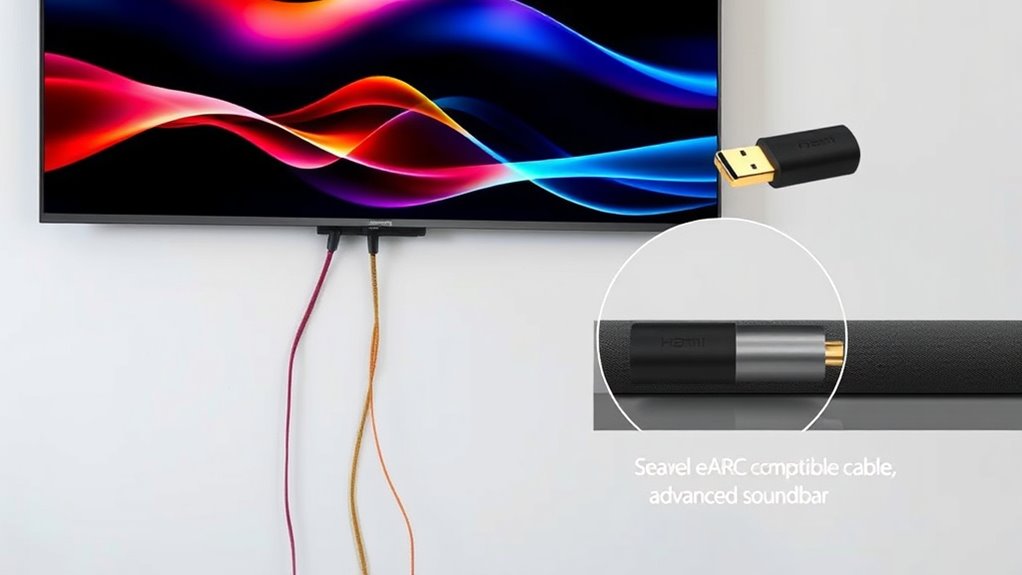
The quality of your audio experience heavily depends on the cables and hardware you use, as subpar connections can introduce noise, dropouts, or loss of detail. To guarantee best sound, focus on three key factors:
- Use high-quality HDMI cables rated for HDMI 2.1 or at least HDMI 2.0. These support higher bandwidths necessary for advanced audio formats.
- Check your hardware compatibility, making sure your TV, soundbar, and receiver all support eARC or ARC features.
- Secure connections firmly without bending or twisting cables, preventing signal degradation.
Investing in good cables and compatible hardware minimizes audio issues and guarantees you enjoy richer, clearer sound from your setup.
Firmware and Software Updates That Can Improve Performance

Up-to-date firmware and software are essential for guaranteeing your audio hardware performs at its best. Manufacturers regularly release updates that fix bugs, improve compatibility, and enhance functionality, including ARC and eARC performance. Without these updates, you might experience issues like fallback to stereo or inconsistent audio signals. To update, check your TV or soundbar’s settings menu or visit the manufacturer’s website for instructions. Keeping your devices current helps guarantee they communicate effectively and support the latest audio standards. Sometimes, updates also introduce new features or refine existing ones, giving you a better overall experience. Regularly updating your firmware is a simple yet effective way to maintain peak audio performance and avoid problems related to outdated software. Firmware updates ensure your devices stay compatible with evolving audio technologies and standards.
When to Upgrade Your Equipment for Better Audio Experience
As your TV and sound system age, you may start noticing persistent issues like audio dropouts, inconsistent sound quality, or frequent fallback to stereo—signs that it’s time to contemplate upgrading your equipment. You should consider upgrading when:
- You experience regular audio dropouts or sound mismatches.
- Your current setup can’t support the latest audio formats like Dolby Atmos or DTS:X.
- You want a more seamless, immersive listening experience with features like eARC or enhanced surround sound.
Upgrading ensures you get better compatibility, richer sound quality, and future-proof technology. If these issues persist despite troubleshooting, investing in new equipment can dramatically improve your home audio experience and eliminate frustrating audio problems.
Frequently Asked Questions
Can My Existing Devices Support Both ARC and Earc Simultaneously?
Yes, your existing devices can support both ARC and eARC simultaneously if they have HDMI ports labeled for both features. Many modern TVs and soundbars are designed to handle both, automatically switching between them based on the connected device’s capabilities. Check your device’s specifications to confirm. If both features are supported, you’ll experience better audio quality with eARC when available, while still maintaining compatibility with older ARC devices.
How Does HDMI Bandwidth Impact Audio Quality and Switching?
Sure, HDMI bandwidth is like a highway for your audio and video signals. When it’s crowded with low capacity, your audio quality drops to stereo, and switching becomes sluggish—like traffic jams. Higher bandwidth (like HDMI 2.1) allows uncompressed, immersive sound and smooth switching. So, if you crave cinema-grade audio, don’t skimp on bandwidth; upgrade your cables or devices to keep that signal flowing flawlessly.
Are There Specific Brands Better Suited for Earc Compatibility?
Yes, some brands are better suited for eARC compatibility. Brands like Samsung, LG, Sony, and Panasonic tend to support eARC more reliably, especially in their higher-end models. When shopping, check for HDMI 2.1 support and eARC labels. You’ll want a TV that explicitly states eARC support to guarantee seamless audio transmission. This way, you avoid audio dropouts or reverting to stereo, giving you the best sound experience.
What Are the Signs My Audio System Is Not Fully Compatible?
You’ll notice your audio system isn’t fully compatible if the sound defaults to stereo instead of surround sound, or if you experience audio dropouts and lag. Additionally, if your TV displays limited audio options or you can’t access advanced sound settings, it’s a sign. Sometimes, incompatible hardware causes no sound or only basic audio. Double-check your devices’ specifications to guarantee they support the latest audio formats for seamless performance.
How Do I Verify My Tv’s Firmware Supports the Latest Audio Features?
They say “prevention is better than cure,” so start by checking your TV’s firmware. You can do this by browsing to your settings menu, then selecting “Software Update” or “Firmware Update.” If an update is available, follow the prompts to install it. Keeping your firmware current ensures your TV supports the latest audio features, preventing audio fallback issues and enhancing your viewing experience.
Conclusion
To tame trouble with your TV’s audio, take time to troubleshoot, upgrade, and understand your equipment. Ensuring compatibility, updating firmware, and choosing quality cables can considerably improve your sound experience. Don’t settle for static or stereo—seek smarter setups and seamless sound. With a little effort and awareness, you’ll enjoy fuller, richer audio that elevates your entertainment effortlessly. Make modifications, master your hardware, and marvel at the magnificent, multi-dimensional audio you deserve.