
To decide when to update your AV gear’s firmware, look for signs like glitches, crashes, or response delays that indicate issues needing immediate attention. Check recent releases for stability and user feedback before updating, especially if you’re in a critical environment. Schedule updates during planned downtime, and always back up settings first. Staying informed about new releases and best practices helps avoid bugs. Keep these tips in mind to *guarantee* smooth, trouble-free updates—more details can guide your choices effectively.
Key Takeaways
- Update firmware when experiencing device issues or bugs, but avoid early updates with known instability.
- Schedule firmware updates during planned downtime to prevent disruptions during critical sessions.
- Always back up device settings and verify compatibility before applying firmware updates.
- Stay informed through official sources and user communities to identify stable updates and avoid problematic ones.
- Test updates in a controlled environment to ensure stability and performance before deploying widely.

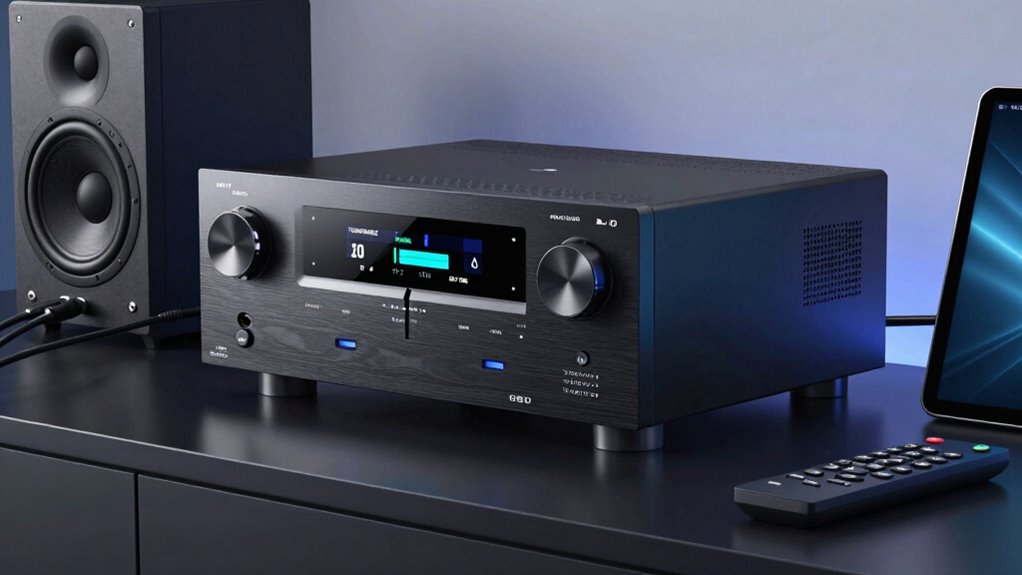
Yamaha RX-A4A AVENTAGE 7.2-Channel Surround Sound Network AV Receiver MusicCast Built-in Wi-Fi and Bluetooth Streaming Home Theater System Bundle with Accessories
Bundle Includes: Yamaha RX-A4A AVENTAGE 7.2-Channel MusicCast AV Receiver + HDMI Cable + Dual RCA Cable + Toslink…
As an affiliate, we earn on qualifying purchases.
As an affiliate, we earn on qualifying purchases.
Recognizing Signs That a Firmware Update Is Needed
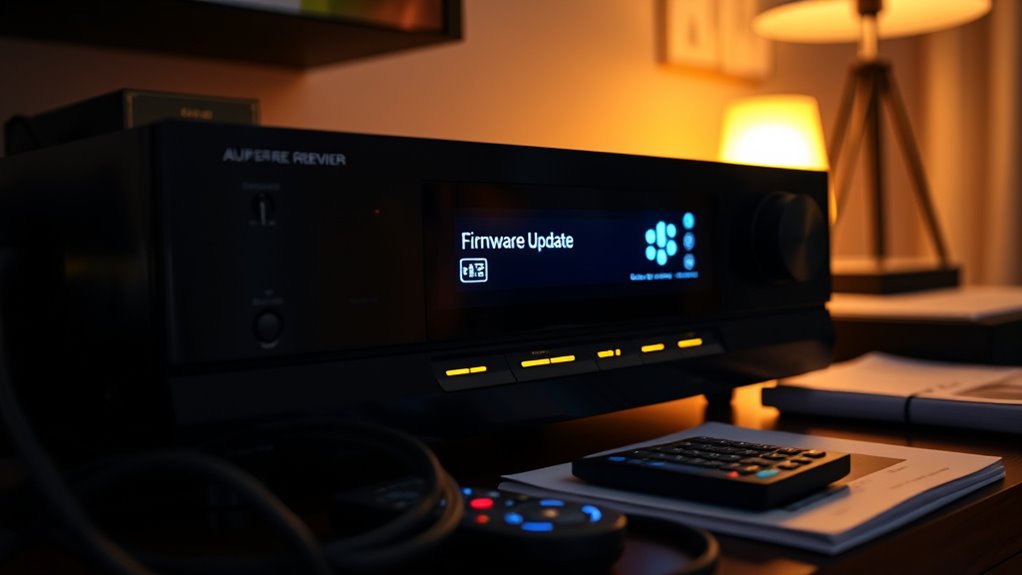
You might need a firmware update for your AV gear if you notice it’s acting unpredictably or experiencing frequent glitches. Common signs include sudden crashes, audio or video dropouts, or delays in response. If your device starts freezing or failing to recognize connected peripherals, that’s another red flag. You may also see new features or improvements not functioning correctly, or the device behaving inconsistently across different sessions. Firmware updates often address these issues, fixing bugs and enhancing stability. Pay attention if your device’s manufacturer releases alerts or notifications about updates. While not every glitch requires an update, persistent issues or new capabilities that you want to access are strong indicators that a firmware update could improve your AV experience. Additionally, device navigation and mapping improvements in firmware can lead to smoother operation and better integration with other smart home devices. Regularly checking for firmware compatibility ensures your AV gear remains up-to-date and performs optimally. Being aware of software stability trends can also help prevent future issues and improve overall device longevity. Moreover, monitoring vetted wave and wind conditions can be beneficial if your AV setup is affected by environmental factors that impact signal quality or device performance. Staying informed about environmental factors can help you anticipate and prevent potential disruptions to your AV system.
AV gear backup and restore device
As an affiliate, we earn on qualifying purchases.
As an affiliate, we earn on qualifying purchases.
Assessing the Stability and Reliability of Recent Firmware Releases

When considering a firmware update, it’s important to evaluate how recent releases perform in real-world use. Check user reviews, expert forums, and official release notes to identify common issues or bugs reported since the update’s launch. Consider whether the update has been widely adopted and if users are experiencing stability or reliability problems. Look for documented fixes to previous issues and verify if new problems have emerged. It’s also wise to see if reputable sources have tested the firmware thoroughly and reported on its performance. If multiple users report crashes, audio dropouts, or other persistent issues, it’s best to wait until a more stable version is released. Ensuring the firmware’s stability prevents disruptions during critical operations or live events.

XRDS -RF 2W BNC Male to BNC Female Coaxial RF Attenuator, 6dB Attenuator 50 Ohm 2W, BNC Male to Female Connector, RF Signal Attenuator for Radio and Communication Applications
Provides a precise 6dB attenuation, ideal for managing signal strength in complex RF applications.
As an affiliate, we earn on qualifying purchases.
As an affiliate, we earn on qualifying purchases.
Timing Your Updates for Critical Equipment and Live Environments

Before updating critical equipment, you need to confirm it’s fully ready to handle changes without disrupting your event. Scheduling updates during planned downtime minimizes the risk of affecting live performances or broadcasts. Proper timing guarantees your gear remains dependable and your audience stays focused. Additionally, understanding optimal projector settings can help ensure your system performs reliably after firmware updates. In the context of deep-sky imaging, being aware of camera firmware compatibility is essential to prevent potential issues with image capture and processing. Incorporating data-driven strategies into your update schedule can further optimize performance and reliability. Moreover, keeping essential gear like water purification systems and first aid kits up to date ensures preparedness in emergency situations. Regular maintenance of support breakfast options can also contribute to overall operational readiness in event settings.
Assessing Equipment Readiness
Timing firmware updates for critical equipment and live environments requires careful planning to guarantee reliability. Before updating, assess whether your gear is fully functional and stable. Check for any ongoing issues or recent problems that might worsen after an update. Confirm that firmware versions are compatible with your existing setup and that updates are thoroughly tested in non-critical environments first. Make sure backups are complete, and you have rollback procedures ready if needed. Consider the equipment’s role during live events—if it’s vital to operations, delay updates until you’re confident they won’t cause disruptions. By evaluating the readiness of your gear, you reduce the risk of unexpected failures and ensure smooth operation during critical moments. Additionally, understanding Free Floating can help in designing flexible setups that accommodate updates without downtime. Properly managing firmware compatibility ensures updates do not introduce new issues into your system.
Scheduling During Downtime
Scheduling firmware updates during planned downtime helps guarantee smooth operations and minimizes the risk of disruptions. By choosing these windows wisely, you control the environment and reduce the chance of unexpected issues. Consider these key points:
- Ensure critical systems are stable before starting updates, so you avoid last-minute surprises.
- Communicate clearly with your team to set expectations and prepare for potential hiccups.
- Prioritize updates for equipment that impacts live performance, delaying less essential gear.
- Monitor progress closely to quickly address any unexpected problems that might arise.
- Select high-quality firmware that aligns with your equipment’s specifications to maximize durability and performance. Suprem Fabric To further ensure the integrity of your updates, always verify the firmware authenticity before installation.
This approach keeps your equipment reliable and your audience’s experience seamless, even during necessary updates. Proper timing during downtime transforms a potential chaos point into a controlled, efficient process.

Emporia Vue 3 Home Energy Monitor – Smart Home Automation Module and Real Time Electricity Usage Monitor, Power Consumption Meter, Solar and Net Metering for UL Certified Safe Energy Monitoring
SAFETY YOU CAN TRUST WITH UL CERTIFICATION: With Emporia Energy, your home energy monitoring is safe, reliable, and…
As an affiliate, we earn on qualifying purchases.
As an affiliate, we earn on qualifying purchases.
Understanding Risks Associated With Early Adoption of Firmware Updates

While updating your AV gear’s firmware can introduce new features and improvements, early adoption carries notable risks. Firmware updates released immediately after announcement might contain unanticipated bugs or compatibility issues. These problems can cause system crashes, degraded performance, or even hardware malfunctions. Manufacturers may release updates quickly to fix initial bugs, but sometimes new issues emerge, especially if the update wasn’t fully tested across all devices. Early adopters often encounter incomplete documentation or unclear instructions, increasing the chance of misconfiguration. Additionally, rushing into updates without thorough testing can result in disruptions during critical viewing or listening sessions. Recognizing these risks helps you decide whether to wait, allowing manufacturers time to refine the firmware and ensure stability before you initiate the update.
Best Practices for Testing Firmware Before Full Deployment
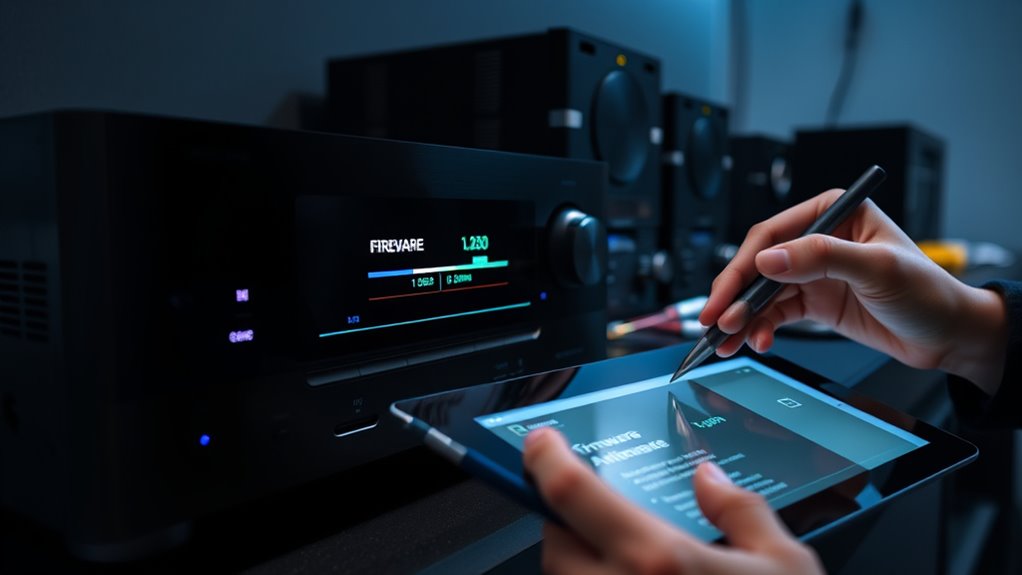
Before deploying firmware updates widely, you should set up a dedicated test environment to evaluate changes safely. Always back up your current settings to prevent data loss if issues arise. Additionally, perform compatibility checks to guarantee the update works smoothly across all your AV gear. Considering upgrade compatibility can help identify potential issues before full deployment.
Use Test Environment
Establishing a dedicated test environment is essential for verifying firmware updates before deploying them to your entire AV system. It helps you catch issues early and avoid costly mistakes. To make the most of this environment, consider:
- Replicating your actual setup as closely as possible to identify real-world problems. This includes matching hardware, software configurations, and network conditions to ensure accurate testing results.
- Testing updates on a separate network to prevent disruptions to live systems. This separation safeguards your operational environment from potential failures during testing.
- Documenting every change to track what works and what doesn’t. Keeping detailed records aids in troubleshooting and future updates.
- Allowing time for thorough testing so you don’t rush into deployment and miss critical issues. Patience in this phase can save time and resources later.
- Recognizing potential compatibility issues that may arise from firmware updates, especially if related to cheating or unauthorized modifications, which can compromise system integrity. Incorporating compatibility assessments into your testing process helps identify conflicts early. Additionally, regularly updating your testing protocols to include new firmware features ensures your system remains secure and efficient. Performing compatibility testing can further prevent conflicts with existing hardware or software components.
Creating this safe space gives you confidence, reduces stress, and protects your system’s stability. It’s your best defense against unexpected failures that could ruin your experience.
Backup Existing Settings
Backing up your existing settings before testing firmware updates is a vital step to guarantee you can quickly restore your system if something goes wrong. Before proceeding, export your configuration files or note key settings manually. This way, if the firmware update causes issues, you won’t lose custom calibrations, input configurations, or personalized preferences. Use manufacturer tools or built-in backup options to save your current setup securely. Store these backups in a safe location, separate from your AV gear, to prevent accidental overwriting. Having a backup allows you to revert to a known good configuration swiftly, minimizing downtime and troubleshooting efforts. Always verify that your backups are complete and accessible before starting the update process, ensuring peace of mind throughout the testing phase.
Conduct Compatibility Checks
Conducting compatibility checks is an essential step to guarantee that the new firmware functions seamlessly with your existing AV setup. You want to avoid surprises during critical events, so thorough testing is key. Here’s what you should do:
- Test on a non-production system first to identify potential issues without risking your main setup.
- Check manufacturer notes for known compatibility problems or required configurations.
- Verify connectivity and control features to ensure all devices communicate properly.
- Run a full system test to confirm stability and performance before full deployment.
Staying Informed: How to Keep up With Firmware Developments and Notices

Staying informed about firmware updates is essential to guarantee your AV gear performs at its best and remains secure. To do this, regularly check manufacturer websites, subscribe to newsletters, or follow social media channels dedicated to your devices. Many brands offer dedicated apps that notify you of new firmware releases or important notices. Joining user forums or online communities can also keep you updated on common issues and fixes. Make a habit of setting reminders to review updates periodically, especially after major product releases or security advisories. By proactively staying informed, you avoid missing critical updates that enhance performance or patch vulnerabilities. This proactive approach ensures your AV gear stays current, reliable, and safe to use.
Frequently Asked Questions
How Do I Verify if a Firmware Update Is Compatible With My Specific AV Gear?
To verify if a firmware update is compatible with your AV gear, first check the device manufacturer’s website or user manual for supported models and software versions. Look for the specific model number and firmware version listed. You can also contact customer support or join user forums for advice. Always download updates from official sources to avoid potential issues, and confirm your device’s current firmware matches the update’s requirements.
Can Firmware Updates Cause Hardware Damage or Void My Device Warranty?
Firmware updates can be a double-edged sword, like walking a tightrope. They rarely cause hardware damage if you follow manufacturer instructions carefully. However, if an update goes wrong during installation, it could potentially harm your device or lead to voided warranties. To stay safe, verify updates are from trusted sources, and backup your settings beforehand. When in doubt, consult the manufacturer’s guidelines or customer support before proceeding.
What Backup Procedures Should I Follow Before Applying a Firmware Update?
Before updating your firmware, back up all important settings and data. Save device configurations, calibration files, and any custom presets externally, like on a computer or cloud storage. If your device supports exporting profiles or settings, do that first. Make sure your power source is stable and avoid interruptions during the update. These steps help prevent data loss or issues if something goes wrong during the process.
Are There Differences in Update Procedures Between Brands or Models of AV Equipment?
Yes, update procedures can differ between brands and models. You might worry about inconsistencies, but most manufacturers provide clear, step-by-step instructions tailored for their devices. Always consult the user manual or official support site before updating. Pay attention to any specific requirements, like power supply needs or internet connection types, to make certain a smooth process. Following brand-specific procedures minimizes risks and guarantees your gear updates successfully.
How Can I Troubleshoot Issues That Arise After a Firmware Update?
If issues pop up after a firmware update, start by restarting your device and checking for any additional updates. Consult the manufacturer’s support site or forums for similar problems and solutions. If that doesn’t help, perform a factory reset or reinstall the firmware if possible. Contact customer support if issues persist, providing details about your device model, firmware version, and the problem to get tailored assistance.
Conclusion
Staying on top of firmware updates is like sailing through choppy waters—you need to navigate carefully. Trust your instincts, assess stability, and test thoroughly before updating critical gear. Sometimes, waiting is the smart move, much like waiting for calmer seas. By staying informed and cautious, you’ll keep your AV gear running smoothly and avoid unnecessary disruptions. Remember, a well-timed update can be your best ally, but rushing in can cause more waves than you bargained for.