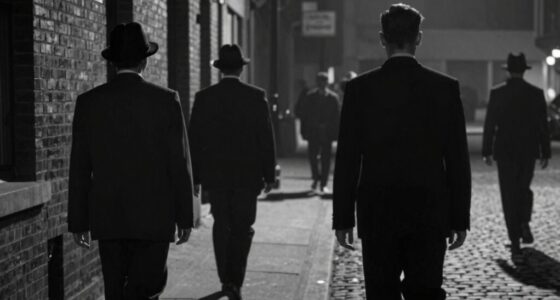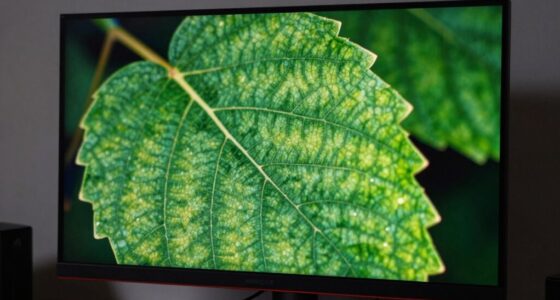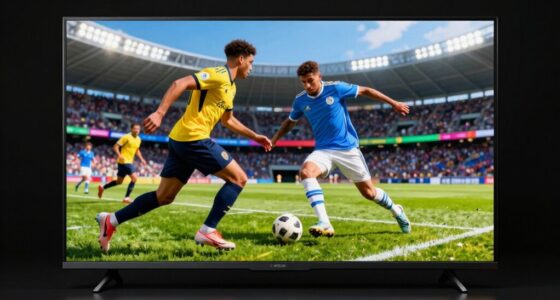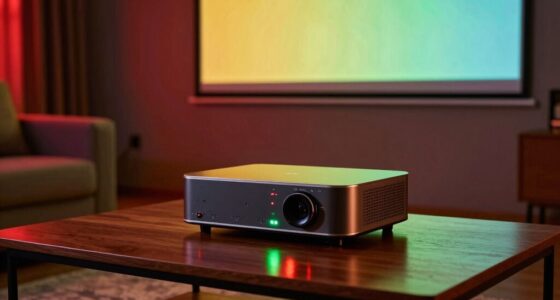
Your picture mode may be fighting your content because it’s set to optimize for general viewing rather than matching the original tone or style intended by the creators. Automatic adjustments can make colors look unnatural or images too bright or dull. Fine-tuning brightness and color accuracy helps reduce these conflicts, ensuring your content looks authentic. Keep exploring to learn how proper calibration and understanding content interaction can improve your viewing experience.
Key Takeaways
- Automatic picture modes often over-adjust brightness and color, conflicting with the original content tone.
- Default settings may not suit specific content types, causing mismatched visual styles.
- Excessive enhancements like oversaturation or increased brightness can distort the intended look.
- Poor calibration of display settings can lead to conflicts between the picture mode and content’s aesthetic.
- Understanding content type and customizing settings help harmonize picture mode with the original tone.

If you’ve ever noticed that your picture mode doesn’t quite match the content you’re watching, you’re not alone. Many viewers encounter this frustration, especially when switching between movies, sports, or streaming shows. The core issue often stems from how your TV’s picture mode interacts with the content’s intended display settings. Picture modes are designed to optimize certain viewing experiences, but they can sometimes conflict with the original tone or style of what’s on the screen. This is especially true when it comes to maintaining accurate color representation and appropriate brightness levels.
TV picture modes can conflict with content’s original tone, affecting color accuracy and brightness. Adjust settings for a natural look.
One common reason your picture mode feels out of sync is because the TV’s automatic adjustments, like color accuracy and brightness, might be set too aggressively or insufficiently. For example, if you’re watching a movie with subdued lighting, a mode that boosts brightness or oversaturates colors can make it look unnatural or overly vibrant. Conversely, a mode that emphasizes realism might mute colors, making scenes look dull or washed out. This mismatch occurs because the TV’s default settings aren’t always tailored to the specific content, leading to conflicts where the picture mode tries to enhance or tone down certain aspects, but ends up fighting against the creator’s original intent. Proper calibration can help ensure that your display settings align with the content’s original tone, reducing these conflicts. Additionally, understanding the interaction between content and display settings can help you better tailor your viewing experience.
Adjusting the brightness can markedly improve the viewing experience. Brightness adjustment helps you fine-tune how light or dark scenes appear, making sure details aren’t lost in shadows or blown out in highlights. When brightness is set correctly, you won’t have to rely solely on the picture mode to do all the heavy lifting, giving you more control over how content looks. Similarly, focusing on color accuracy ensures that the hues you see match those intended by filmmakers or content creators. Sometimes, default picture modes push colors toward extremes to grab attention, which can distort the overall aesthetic. Additionally, understanding how content and display settings interact can help you better tailor your viewing experience. The goal is to find a balance where the picture mode complements the content rather than fighting against it, creating a seamless and enjoyable viewing experience. Properly calibrating your display can also prevent visual conflicts and provide a more authentic viewing experience.

Proximus SD TV & Audio Calibration Toolkit: DVD
As an affiliate, we earn on qualifying purchases.
As an affiliate, we earn on qualifying purchases.
Frequently Asked Questions
Can Picture Mode Settings Be Customized for Specific Content Types?
Yes, you can customize picture mode settings for specific content types. By using content calibration, you adjust settings to optimize different visuals like movies, sports, or gaming. Picture profile customization allows you to save these tailored settings, ensuring the display adapts seamlessly. This way, your TV automatically adjusts for the best experience depending on what you’re watching, preventing picture mode conflicts and enhancing overall picture quality.
How Do I Reset Picture Mode to Default Settings?
To reset your picture mode to default, access your TV’s picture settings menu. Look for an option like “Reset Picture” or “Reset to Default.” Doing this restores default settings, improving picture calibration and color accuracy. You may need to adjust brightness, contrast, and color afterward for ideal viewing. Resetting clears any customizations, helping your TV display content as intended, with balanced picture mode and accurate colors.
Does Updating Firmware Affect Picture Mode Configurations?
Yes, updating firmware can change your picture mode configurations. Firmware updates often include improvements and bug fixes that might reset or alter your picture adjustments, causing unexpected shifts. You might think your settings are safe, but the update can overwrite them without warning. To avoid surprises, check your picture mode after updating and reapply your preferred adjustments if needed. Stay alert—firmware updates have more impact than you might expect.
Are There Compatibility Issues With Certain Devices and Picture Mode?
Yes, there can be compatibility issues with certain devices and picture mode. Device compatibility affects how well your picture mode functions, especially with older or non-standard equipment. You might encounter picture mode limitations, where some settings don’t apply properly or cause conflicts. To avoid this, make sure your devices are compatible with your TV’s features and check for firmware updates that may improve compatibility and resolve mode conflicts.
Can I Save Different Picture Mode Profiles for Various Content?
Did you know that 65% of viewers prefer customizing their picture settings? Yes, you can save different picture mode profiles for various content. By adjusting color calibration and viewing preferences, you can create tailored profiles for movies, sports, or gaming. Most modern TVs let you save these profiles, making it easy to switch according to your mood or content type, ensuring the best possible viewing experience every time.

datacolor SpyderPro Monitor Calibration Tool: Ensures Accurate Color When Viewing and Editing Photos & Videos
- Achieve True Color: Accurate color display for editing and viewing
- Optimize Display Performance: Calibrates various backlight types for consistency
- Enhance Workflow Efficiency: Includes projector calibration and screen analysis tools
As an affiliate, we earn on qualifying purchases.
As an affiliate, we earn on qualifying purchases.
Conclusion
Ultimately, if your picture mode keeps battling your content, it’s like trying to fit a square peg in a round hole—frustrating and futile. Recognizing the clash and adjusting settings accordingly can turn your viewing experience from chaos into clarity. Don’t let the relentless fight ruin your entertainment; instead, fine-tune your display to showcase your content’s true brilliance. With patience and the right tweaks, you’ll tame the beast and enjoy visuals that are nothing short of spectacular.

Calibrite Display 123 Monitor Calibration Colorimeter for Photo Editing and Color Accurate Viewing, Easy 1 2 3 Software Workflow, USB C Connection, and Before and After Check, Supports 2 Displays
- Compact Design: Approximately 34mm tall, 37mm diameter
- USB C Connectivity: Supports modern USB C ports for easy connection
- Supports Two Displays: Calibrates up to 2 monitors simultaneously
As an affiliate, we earn on qualifying purchases.
As an affiliate, we earn on qualifying purchases.
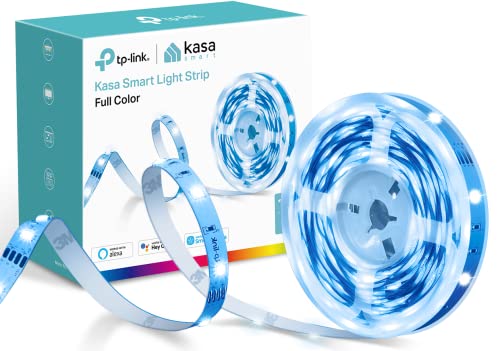
Kasa Smart LED Light Strip, 16.4ft WiFi LED Strip Works with Alexa, Google Home, SmartThings, High Brightness with 16 Million Colors, RGB, Grouping, Adjustable Length, Up to 25,000 Hours (KL400L5)
- Color Customization: 16 million colors with high brightness
- Animated Effects: Preset animated lighting effects
- Remote Control: Control via Kasa App or voice
As an affiliate, we earn on qualifying purchases.
As an affiliate, we earn on qualifying purchases.