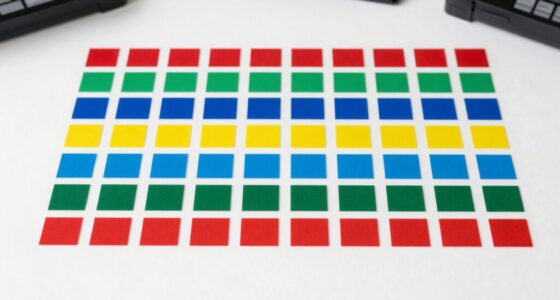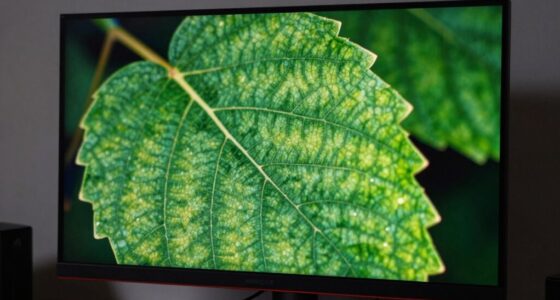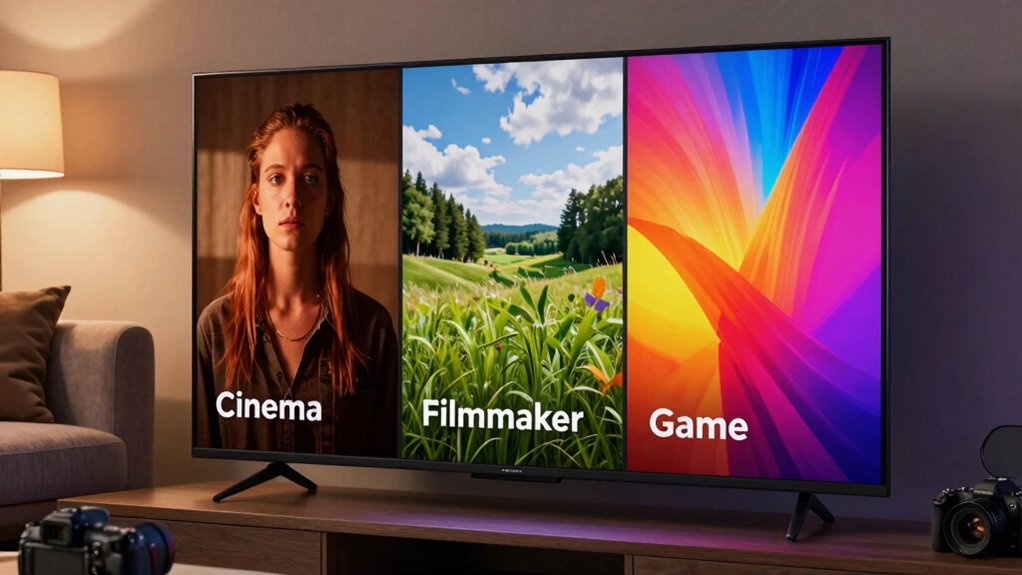
Choosing between Cinema, Filmmaker, and Game modes depends on your viewing or gaming needs. Cinema mode offers soft, warm tones ideal for movies, but may soften colors for a natural look. Filmmaker emphasizes authentic film reproduction with neutral tones, perfect for true-to-source content. Game mode prioritizes responsiveness and minimizes lag but can affect color accuracy. Understanding these modes helps you customize your experience—if you want to learn more about optimizing each setting, keep exploring.
Key Takeaways
- Cinema mode offers a softer, warmer picture ideal for a natural, theater-like viewing experience, but may sacrifice some vibrancy.
- Filmmaker mode preserves the director’s original vision, disables motion smoothing, and emphasizes authentic color and contrast.
- Game mode prioritizes fast response times and low input lag, often reducing some color accuracy for smoother gameplay.
- Proper calibration of each mode enhances color fidelity, contrast, and brightness, maximizing their intended effects.
- Choose the mode based on your viewing priority: realism and comfort (Cinema), cinematic authenticity (Filmmaker), or gaming performance (Game).
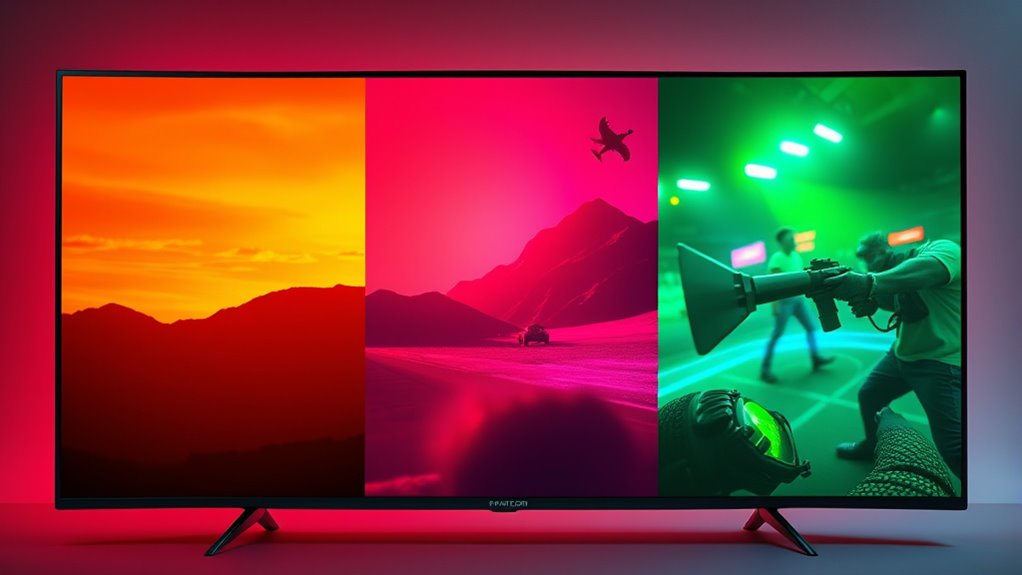
Understanding picture modes is essential to getting the best image quality from your camera or display device. These modes aren’t just about changing how things look; they help you maximize settings for different uses, whether you’re watching movies, playing games, or editing photos. When selecting a mode, it’s important to contemplate calibration procedures, which guarantee your display produces accurate colors and brightness levels. Proper calibration enhances color accuracy, making images look true to life and consistent across different devices. Without it, even the most sophisticated picture modes can produce misleading colors or washed-out images.
Effective calibration ensures accurate colors and brightness for optimal image quality across all picture modes.
Picture modes like Cinema, Filmmaker, and Game are designed to suit specific viewing experiences, but they also influence how your display is calibrated. Cinema mode, for example, often emphasizes softer, warmer tones to mimic a theater-like experience. It’s calibrated to deliver a balanced picture that’s easy on the eyes during long viewing sessions, but it may sacrifice some color accuracy and vibrancy for a more natural look. If you want to maximize color accuracy, you might need to perform calibration procedures that adjust gamma, contrast, and color balance, especially if the default settings don’t match professional standards. Additionally, understanding the impact of contrast ratio settings can significantly improve the perceived sharpness and clarity of images, especially in darker scenes.
Filmmaker mode is tailored for viewers who want a more authentic cinematic experience. It typically disables motion smoothing, preserves the director’s original intent, and aims for a neutral color palette. This mode is great if you want your display to reproduce movies as close to the director’s vision as possible, but again, calibration can fine-tune the picture for optimal color accuracy. By adjusting settings like white balance and color temperature, you guarantee that the image aligns with industry standards, providing a truly immersive experience that stays true to the source material.
Game mode, on the other hand, is optimized for fast response times and smooth gameplay. It reduces input lag by turning off certain image processing features, which can sometimes affect color fidelity. If you’re serious about competitive gaming, you might prefer using a custom calibration profile to balance speed with color accuracy. Many gamers perform calibration procedures to fine-tune contrast and color settings, ensuring that what you see on screen accurately reflects the game’s visuals without unnecessary lag or distortion.
Ultimately, choosing the right picture mode depends on what you prioritize—whether it’s cinematic realism, accurate color reproduction, or fast-paced gaming performance. Remember, calibration procedures are your best tool to open the full potential of each mode. They help you adjust settings for optimal color accuracy, ensuring your display produces images that are vibrant, true to life, and tailored to your preferences. By understanding how each mode affects calibration and color accuracy, you can enjoy a more immersive, visually satisfying experience no matter what you’re watching or playing.
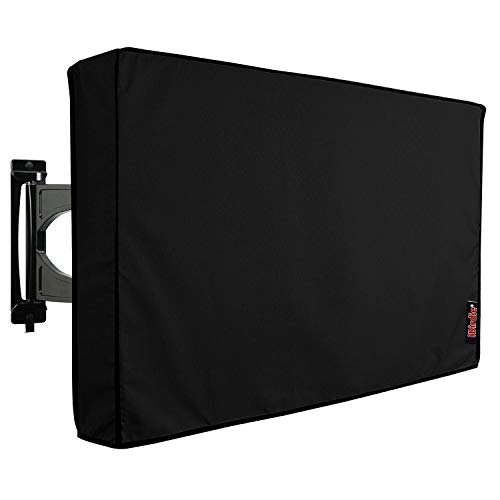
iBirdie Outdoor TV Cover 52 to 55 inch Weatherproof, Cover Size 52''L x 31''H, Waterproof for Outside Flat Screen 52 to 55 inch TV, Black, 600D Thick Fabric Screen Protector with Bottom
Protect Your Outdoor TV: Protect your outdoor TV with our outdoor TV cover, featuring a long-lasting design and...
As an affiliate, we earn on qualifying purchases.
Frequently Asked Questions
Can I Customize Picture Modes for Personal Preferences?
Yes, you can customize picture modes for your personal preferences. Most TVs offer personalization options that allow you to tweak settings like brightness, contrast, and color. You can also perform mode customization to create a unique look tailored to your taste. Simply access the settings menu, select your preferred picture mode, then adjust the options until you’re satisfied. This way, you get a viewing experience that matches your specific preferences.
Are Certain Modes Better for Specific Types of Content?
Think of picture modes as different palettes for your viewing experience. Certain modes excel for specific content—Cinema mode offers rich color calibration for movies, while Game mode minimizes input lag for gaming. Switching modes is like changing brushes; it enhances your experience depending on what you’re watching. Choose your mode based on content type to get the best visuals, ensuring each scene pops with the right balance of color and clarity.
Do Picture Modes Affect Energy Consumption?
Yes, picture modes can affect energy consumption. For example, modes like Cinema or Filmmaker often optimize for picture quality, which can increase brightness and power use, reducing energy savings. On the other hand, Game mode might be more energy-efficient due to lower latency settings. Always check mode compatibility with your device’s energy-saving features to maximize efficiency and reduce power consumption without sacrificing picture quality.
How Do Picture Modes Influence Color Accuracy?
You might not realize it, but your picture mode can dramatically impact color accuracy. When you choose a mode like Cinema or Filmmaker, it often aligns with true color calibration, ensuring more precise hues. Display technology varies, influencing how these modes perform. Switch to a mode optimized for color fidelity, and you’ll notice sharper, more authentic visuals—making every scene feel more real and immersive.
Can I Switch Modes Easily During Viewing?
Yes, you can switch modes easily during viewing with quick mode switching features. Most modern TVs have a dedicated button or menu for quick adjustments, allowing you to toggle between modes seamlessly. Additionally, mode memory settings enable your TV to remember your preferred picture mode for specific content, so you don’t have to readjust every time you switch. This makes changing modes simple and efficient without interrupting your viewing experience.

iBirdie Outdoor TV Cover 48 to 50 inch Weatherproof, Cover Size 47.5''L x 30''H, Waterproof for Outside Flat Screen 48 to 50 inch TV, Black, 600D Thick Fabric Screen Protector with Bottom
Protect Your Outdoor TV: Protect your outdoor TV with our outdoor TV cover, featuring a long-lasting design and...
As an affiliate, we earn on qualifying purchases.
Conclusion
Choosing the right picture mode enhances your viewing experience. For instance, if you’re gaming, Game mode reduces lag for smoother play. Watching a movie? Cinema mode offers richer colors and depth. Imagine you switch to Filmmaker mode for a documentary—authentic visuals shine through. By understanding these modes, you tailor your TV settings to fit your content, making every scene more immersive and enjoyable. So, pick wisely and enjoy your perfect picture every time.

ULTCOVER Waterproof Outdoor TV Cover for 55-59 inch Outside Flat Screen Televisions with Mounts and Stands
Fits flat screen tv with cables size up to 54”(W)x33”(H)x5”(D).
As an affiliate, we earn on qualifying purchases.
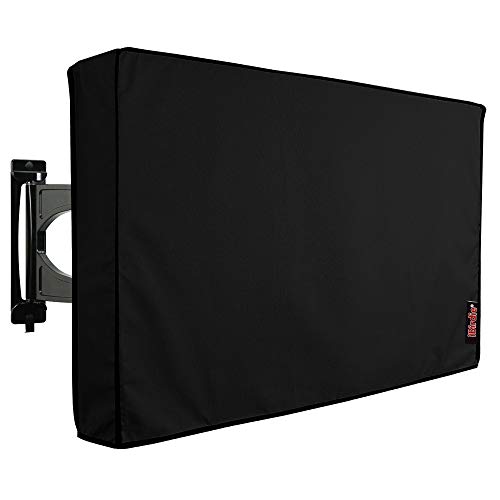
iBirdie Outdoor TV Cover 70 to 75 inch Weatherproof, Cover Size 68''L x 42''H, Waterproof for Outside Flat Screen 70 to 75 inch TV, Black, 600D Thick Fabric Screen Protector with Bottom
Protect Your Outdoor TV: Protect your outdoor TV with our outdoor TV cover, featuring a long-lasting design and...
As an affiliate, we earn on qualifying purchases.