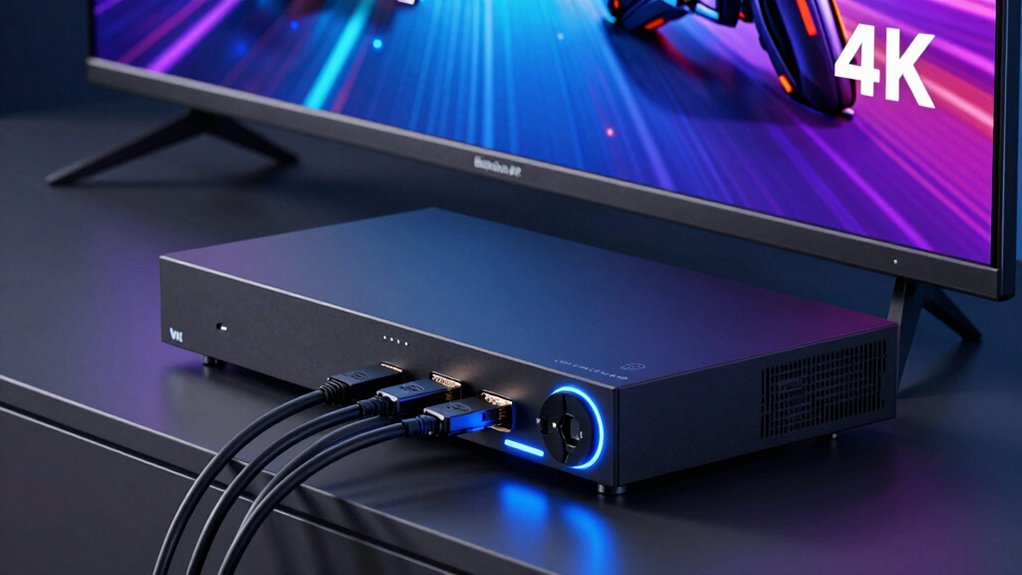

To prevent 4K dropouts when gaming through a receiver, use high-quality HDMI cables rated for HDMI 2.0 or higher. Make certain your receiver’s HDMI settings match your device’s resolution and format, like 4K at 60Hz, HDR, and Deep Color. Keep firmware updated for stability. Properly configure HDCP, ARC/eARC, and EDID settings to match your display. Checking these options regularly and securing good connections helps maintain stable signals—continue with these strategies to ensure a flawless gaming experience.
Key Takeaways
- Use high-quality HDMI 2.0 or higher cables and ensure secure, firm connections to prevent signal interruptions.
- Match the receiver’s HDMI format settings, including resolution, Deep Color, and HDR, with your gaming device for stability.
- Regularly update firmware and manually configure EDID settings to support 4K at 60Hz and prevent compatibility issues.
- Enable eARC and verify HDCP support to ensure seamless protected content playback and audio synchronization.
- Calibrate video output and refresh rates, avoiding unsupported resolutions, to maintain a stable, drop-out-free gaming experience.

Herdio 6.5 Inch 800W Outdoor Bluetooth Speakers Wired Waterproof with Multifunctional Amplifier, Wall Mount Speaker System for Patio Home Poolside Deck Backyard(2 Pairs,Black)
【Full-Range Speakers】The high powered full range indoor outdoor speakers wired waterproof has a maximum power output of 800...
As an affiliate, we earn on qualifying purchases.
Ensuring Proper HDMI Cable Quality and Connections

To enjoy smooth gaming through your receiver, it’s essential to use high-quality HDMI cables and make certain all connections are secure. Low-quality or damaged cables can cause signal interruptions, resulting in 4K dropouts or lag. Always choose HDMI cables rated for HDMI 2.0 or higher, as these support the bandwidth needed for 4K gaming at 60Hz. Inspect your cables regularly for wear, fraying, or bent connectors, and replace any damaged ones immediately. When connecting, ensure the HDMI cable is firmly plugged into both your gaming device and receiver, avoiding loose connections that can cause signal loss. Properly routing and securing cables also prevent accidental disconnections or interference. Investing in quality cables and maintaining secure connections forms the foundation for a stable, high-quality gaming experience. Additionally, paying attention to projector technology and ensuring your setup aligns with optimal specifications can further enhance your gaming performance. Regularly updating your audio/video settings can also help prevent issues related to compatibility and bandwidth, especially when considering bandwidth management for consistent 4K streaming. Ensuring your HDMI cable quality matches your device requirements is crucial for maintaining a seamless gaming experience.

STUDIOFINIX 6.5 Inch Outdoor Speakers Wall-Mounted 800W - Waterproof and High-Performance Audio Solution for Indoor/Outdoor,Home,Patio,Garden,Backyard(4 Passive Speakers Bundle/Black)
〖Powerful Performance〗: Boasting a peak power handling of 800 watts, it delivers a full range of dynamic sound...
As an affiliate, we earn on qualifying purchases.
Configuring HDMI Video Settings on Your Receiver
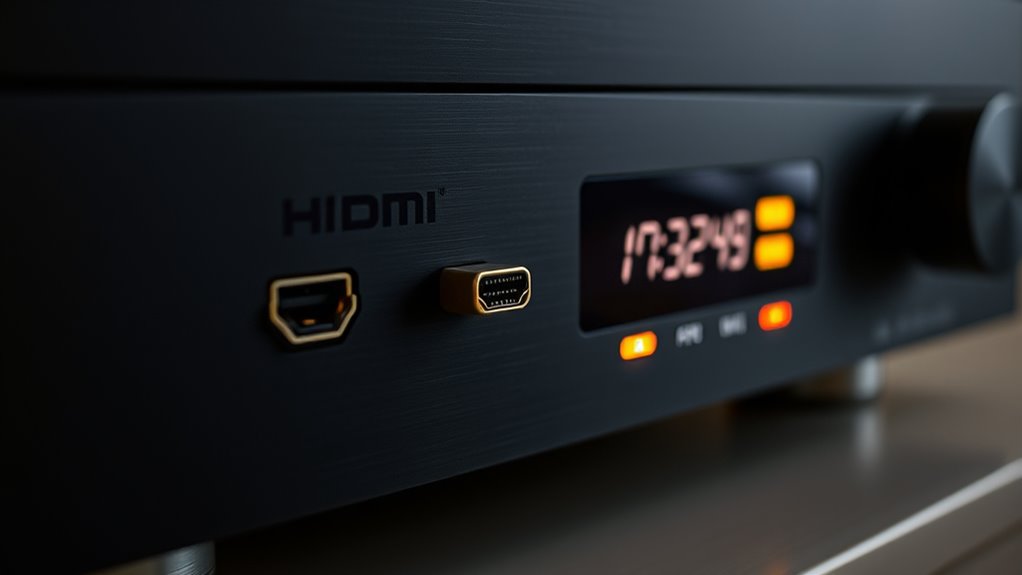
To get the best gaming experience, you need to set your receiver’s HDMI video settings correctly. Make sure your receiver supports the HDMI format your devices use, and adjust the resolution, Deep Color, and HDR options accordingly. Proper configuration guarantees you enjoy sharp visuals and vibrant colors without any compatibility issues. Additionally, understanding video signal formats can help you troubleshoot and optimize your setup for seamless gameplay. Familiarizing yourself with HDMI specifications can further ensure your system maintains a stable connection and avoids dropouts during intense gaming sessions. Monitoring connection quality is also important, as high-performance gaming setups may generate excess heat that affects HDMI connections and overall stability. Being aware of thermal behavior can help you prevent overheating related issues, and regularly checking signal integrity can help identify potential problems before they cause gameplay interruptions.
HDMI Format Compatibility
Ensuring your receiver’s HDMI format matches your connected devices is essential for ideal video performance. If your device outputs HDMI in a format incompatible with your receiver, you might experience dropouts, black screens, or degraded image quality. Check your device’s HDMI format settings—most modern devices support HDMI 2.0 or HDMI 2.1. Confirm your receiver is set to match this format, either automatically or manually through its setup menu. Some receivers allow you to select the HDMI format; ensure it aligns with your source device. Using mismatched formats can cause handshake issues, leading to signal interruptions. Keeping these settings synchronized helps maintain a stable connection and preserves the full quality of your 4K gaming and viewing experience. Regularly verify your HDMI format compatibility as part of your setup routine. Additionally, understanding HDMI format compatibility can help troubleshoot persistent connection issues. Being aware of HDMI handshake processes can further aid in diagnosing and resolving intermittent problems. Maintaining proper HDMI configuration is key to preventing 4K dropouts and ensuring smooth playback. Properly configuring your HDMI settings can also prevent unnecessary signal disruptions during critical viewing moments. Regularly inspecting your HDMI cables for damage can also help avoid connection problems that lead to dropouts.
Video Resolution Settings
Adjusting your receiver’s video resolution settings is essential for the best picture quality. Start by accessing your receiver’s setup menu and locate the HDMI or video settings section. Confirm your receiver is set to match your display’s native resolution, whether it’s 1080p or 4K. Avoid forcing a higher resolution if your TV or monitor doesn’t support it, as this can cause dropouts or flickering. Some receivers automatically detect the connected device’s resolution, but double-checking helps prevent issues. Set the resolution to the highest supported by your display to enjoy maximum clarity. Remember, mismatched settings can lead to black screens or interruptions during gaming. Regularly verify your settings when switching devices or updates to maintain a seamless experience. Ensuring compatibility between devices is crucial for a stable connection and optimal picture quality. Additionally, understanding your receiver’s resolution detection capabilities can help troubleshoot and improve performance. Being aware of video signal integrity and how it impacts your setup can further help prevent dropouts and ensure a consistent gaming experience. Properly calibrating your HDMI output can also minimize issues related to HDMI handshake problems, leading to a smoother gaming session. To further enhance stability, consider checking your cables and connections for any damage or interference that might affect signal quality.
Deep Color and HDR Options
Deep Color and HDR options enhance your gaming experience by delivering richer colors and more dynamic images. To get the most out of these features, guarantee your receiver’s settings match your display and source device capabilities. Enable Deep Color for smoother gradients and improved color depth. HDR should be turned on to enhance contrast and brightness, making visuals pop. Be aware that incompatible settings can cause dropouts or flickering. Use the table below to understand how different configurations interact:
| Setting | Recommended Action | Potential Issue |
|---|---|---|
| Deep Color | Enable if your display supports it | Dropouts if unsupported |
| HDR | Enable for compatible content | Flickering if mismatched |
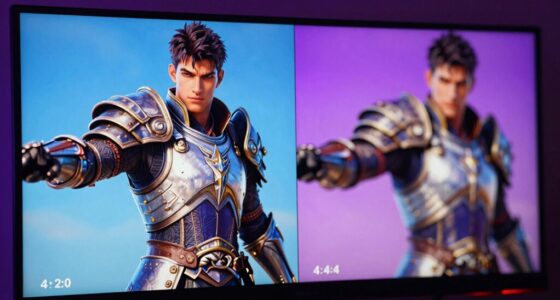
| HDMI Color Format | Set to “Auto” or the specific format used | Color inaccuracies or dropout |
Additionally, proper calibration of your HDMI settings can further prevent interruptions. Matching these settings guarantees a smoother gaming experience without interruptions.

Polk Audio Atrium 4 Weatherproof Outdoor Speakers with Powerful Bass (Pair, Black), All-Weather Durability, Broad Sound Coverage, Speed-Lock Mounting System
EASY INSTALLATION - One-click speed-lock mounting bracket offers anti-slip, one-handed installation. Mount these outdoor speakers wired vertically or...
As an affiliate, we earn on qualifying purchases.
Updating Firmware for Stability and Compatibility

Keeping your receiver’s firmware up to date is essential for maintaining stability and ensuring compatibility with the latest devices and features. Firmware updates fix bugs, improve performance, and add support for new standards, which can prevent issues like 4K dropouts during gaming. To update, visit the manufacturer’s website or use the receiver’s network menu if it supports online updates. Follow the instructions carefully, ensuring your receiver remains powered during the process. Skipping updates can leave you exposed to bugs or incompatibilities that cause audio or video disruptions. Regularly checking for firmware updates helps you stay current with the latest enhancements, providing a smoother gaming experience and reducing the chances of dropouts or performance hiccups. Staying informed about design principles and compatibility standards can help you optimize your setup for better reliability. Additionally, understanding power management can help prevent interruptions caused by power fluctuations or outages. Being aware of update procedures can make firmware updates smoother and safer. Staying proactive and aware of firmware compatibility can help ensure seamless gameplay and reduce technical issues.

6.5 Inch Max 800W Outdoor Bluetooth Speakers Waterproof Wired with Multifunctional Amplifier Wall Mount Outdoor Speaker System for Patio Garden Poolside Home(4 Speakers,Black)
Powerful Acoustics: Unmatched Sound Output,Each speaker pumps out an impressive 200 watts, with a pair delivering a combined...
As an affiliate, we earn on qualifying purchases.
Adjusting Video Resolution and Refresh Rate Settings

To get the best gaming experience, you need to set your resolution and refresh rate correctly. Higher resolution provides sharper images, but it also demands more from your system. Adjusting the refresh rate can make gameplay smoother, so find the optimal balance that works best for your setup.
Optimal Resolution Settings
Adjusting your video resolution and refresh rate settings can considerably enhance your gaming experience by providing sharper visuals and smoother gameplay. To optimize resolution, match your game’s settings to your display’s native resolution, typically 4K for the best clarity. Avoid setting a resolution higher than your display supports, as this can cause dropouts or stuttering. When selecting the resolution, confirm your receiver and connected devices support it fully. Keep in mind that higher resolutions demand more bandwidth, so balancing resolution with available bandwidth helps prevent issues. Also, choose a refresh rate compatible with your display, usually 60Hz or higher, to maintain smooth motion. Properly configuring these settings ensures you get the best visual quality without risking interruptions or quality drops during gameplay.
Refresh Rate Adjustment
Once you’ve set your resolution, fine-tuning your refresh rate can considerably improve your gaming experience by making motion appear smoother. Adjusting your refresh rate ensures your display updates more frequently, reducing motion blur and screen tearing. To optimize this setting:
- Match your TV’s native refresh rate for the best compatibility and performance.
- Enable V-Sync to prevent tearing if your frame rate exceeds your refresh rate.
- Set the refresh rate to the highest supported value your receiver and display can handle without dropouts.
Enabling HDCP and Content Protection Features
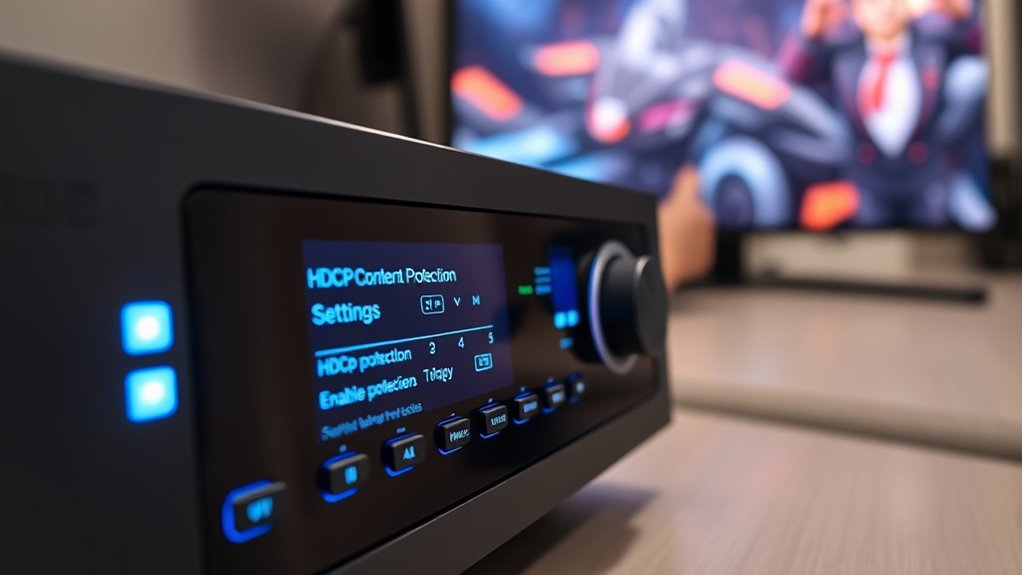
Enabling HDCP and content protection features is essential to guarantee your gaming setup complies with digital rights management standards and prevents unauthorized access to protected content. Most modern devices automatically activate HDCP when connected, but it’s important to verify these settings in your receiver’s menu. Disabling HDCP can cause 4K dropouts or black screens during gameplay, especially with protected streams or streaming apps. Ensure that your HDMI ports support HDCP 2.2 or higher, as older versions may cause compatibility issues. If you encounter issues, check your device’s manual to activate HDCP and content protection features. Doing so ensures seamless playback of protected content and maintains compliance with digital rights management requirements, providing a stable and high-quality gaming experience.
Optimizing Audio Return Channel (ARC) and Earc Settings

After confirming that your HDMI connections support HDCP and content protection, the next step is to optimize your audio setup through the Audio Return Channel (ARC) and eARC features. These settings guarantee high-quality audio transfer without dropouts, especially during gaming. To maximize performance, consider these key adjustments:
- Enable eARC on both your receiver and TV for the best bandwidth and audio formats.
- Set your TV’s audio output to “Bitstream” or “Pass-through” to prevent unnecessary processing.
- Use high-speed HDMI cables labeled for eARC to support uncompressed audio signals.
Implementing these tweaks helps reduce lag and dropouts, delivering crisp, synchronized sound that enhances your gaming experience. Properly configuring ARC and eARC is essential for seamless audio performance.
Managing EDID Settings for Compatibility

Managing EDID (Extended Display Identification Data) settings is essential for ensuring your receiver and display communicate effectively and deliver the best possible audio and video quality. EDID tells your receiver what resolutions, refresh rates, and audio formats your display supports. By customizing these settings, you can prevent compatibility issues that cause 4K dropouts or signal interruptions. Start by accessing your receiver’s menu and selecting the EDID configuration options. You might choose to force a specific resolution, like 4K at 60Hz, or enable dual EDID modes for different devices. Be cautious with manual adjustments; incorrect settings could limit your display’s capabilities or cause further dropouts. Regularly review and update EDID configurations to match your gear’s specifications, ensuring seamless gaming and consistent signal delivery.
Calibrating Video Output for Consistent Signal Delivery
How can you guarantee your gaming setup consistently delivers clear, stable images? The key is calibrating your video output correctly. First, ensure your receiver’s settings match your display’s native resolution and refresh rate. Second, adjust the output color settings to match your TV’s capabilities, avoiding over-saturation or dullness. Third, use your display’s built-in calibration tools or test patterns to fine-tune contrast, brightness, and sharpness. Proper calibration minimizes signal issues that cause flickering or dropouts. Keep your firmware updated to ensure compatibility. Regularly review your settings as your equipment or content sources change. By paying close attention to these details, you maximize signal stability and enjoy seamless 4K gaming without interruptions.
Troubleshooting Common 4K Dropout Scenarios

4K dropout issues can be frustrating, but many of them stem from common setup or connection problems that are easy to fix. First, check your HDMI cables—use high-speed, certified HDMI 2.0 or newer cables to guarantee reliable data transfer. Confirm all connections are secure and properly seated. If dropouts occur during gaming, verify that your receiver’s firmware is up to date, as updates often fix compatibility issues. Adjust your display settings to match the receiver’s recommended output resolution and refresh rate. Sometimes, reducing the bandwidth load by lowering the resolution slightly can stabilize the signal. Finally, test different HDMI ports on your receiver and TV, as some ports support higher bandwidths better than others. These simple steps often resolve most 4K dropout scenarios.
Frequently Asked Questions
How Can I Identify if My HDMI Cable Is Causing 4K Dropouts?
To identify if your HDMI cable causes 4K dropouts, start by testing with a different high-quality HDMI cable known for 4K support. Connect it between your device and receiver, then check if the dropouts persist. If they stop, your original cable is likely the issue. Make certain your cable is rated HDMI 2.0 or higher and supports 18Gbps bandwidth, which is essential for stable 4K transmission.
What Are the Best Settings for Gaming Latency on a Receiver?
To minimize gaming latency on your receiver, set it to “Game Mode” if available, which disables unnecessary processing. Make sure your HDMI input is configured for the lowest latency setting, and turn off any audio delay features. Keep your receiver’s firmware updated for peak performance. Also, connect your gaming console directly to the receiver’s HDMI input and use high-speed HDMI cables to reduce lag.
Can Certain Receiver Audio Settings Impact 4K Video Stability?
Think of your receiver’s audio settings as the conductor of a symphony—if it’s out of sync, chaos ensues. Certain audio configurations, like processing modes or high-latency settings, can cause electrical interference or signal delays that ripple into your video stream. To keep 4K stable, make certain your receiver’s audio settings prioritize low latency and compatibility with your gaming setup, preventing the harmony from turning into dissonance.
How Do I Test if My Receiver’s Firmware Is up to Date?
You can test if your receiver’s firmware is up to date by checking the manufacturer’s website for the latest version, then accessing your receiver’s menu to find the firmware update section. Follow the prompts to compare your current firmware version with the latest release. If they’re different, download and install the update. Regularly updating firmware helps prevent issues like 4K dropouts and guarantees peak performance.
What Specific EDID Configurations Improve Gaming Performance?
Did you know that improper EDID configurations can cause up to 30% latency increases? To improve gaming performance, set your receiver to prioritize 4K HDR EDID profiles, guaranteeing it communicates the highest bandwidth and color depth supported by your display. Enable HDMI 2.1 features like eARC and VRR, and disable unnecessary audio or video passthroughs. These tweaks ensure smoother gameplay with minimal dropouts and better visual quality.
Conclusion
So, now you’ve mastered the art of HDMI wizardry—your 4K streams should flow smoother than a river of silk. Just remember, even the best settings can’t outsmart the universe’s cruel sense of humor when it comes to tech glitches. Keep your firmware fresh, your cables premium, and don’t forget to curse softly at those mysterious dropout moments. After all, in the grand game of signals, sometimes you just have to embrace the chaos.